We were working on future budgets and were reminded again about the great savings obtained with running thin clients. It was just about 5 years ago that our thin clients arrived and they are still working great. We only have been losing maybe about 5 or so a year due to hardware failure since the 3 year warranty expired. Right now it appears we can get another 5 years of duty. $400 / 10 years for around a $40 dollar a year physical hardware desktop cost; and they still are very rarely touched by IT staff. This architecture really does work and really does save lots of money.
We had a very odd situation where HTML 5 videos were only working for my user account and root. I knew at that point it must have been some kind of file permissions issue. After some poking around with strace, I found it in /tmp
drwx------ 2 drichard drichard 4096 May 29 15:56 mozilla-media-cache
Out of the box, Firefox does not support multi-users with this cache. The 'fix' is to do this in the script:
mkdir /tmp/$USER.mozilla 2> /dev/null
export TMPDIR=/tmp/$USER.mozilla
and this gives everyone their own private temporary folder and everything works now as expected.
I'm still working on the new thin client upgrade, and my area of focus right now is making the USB experience better for our users. We have a situation where some users have full access to the USB sticks, but for many others we just want to give them upload capability only for pictures they have taken with cameras; there is no reason for them to be moving files off the server. If I open the photo manager automatically, that forces people with full USB access to have another unwanted UI. So now when users insert a USB device they are given a dialog which describes the two paths they can take and lets them pick (below).
Remember too that the files and USB stick are running locally on the thin client. The GNOME desktop is not aware of the insert; so there are some nuances in that regard. As the user performs the various functions, the files are moved to the server via the clipboard (copy/paste) or via FTP file transfer and Nautilus.
So the next improvement area is when to do a sync to the stick. Those users using the photo manger and clipboard won't need it, but those using drop and drag will. So I wrote quick little tray/notification applet that when activated does a sync and flushes the files. When they pick "Full File Manager" they are given a dialog which indicates that the applet is going into the panel.
Nautilus does a great job of hiding the complexities of FTP; and generates nice thumbnails. When they are finished they right-mouse on the applet and select "Save All Files And Prepare For Eject" and a sync is done.
One of the beautiful things about X/GTK and Linux is the transparency of where the software is running. GNOME and avant-window-navigator are on the server in our computer room. The USB notification applet is running on the thin client itself and it properly detects that it should sit into the panel. If one of our users is performing this USB interaction and running Evolution, LibreOffice and Firefox they very well could be running software from 3 or 4 unique servers along with software running on their workstation and it's completely integrated together. Next up will be improvements to the simple photo manager and clipboard application for those users that do not have full USB access rights. This is building on the feedback of those that used the last iteration.
Other Projects: Trying to get some NX issues worked out, installing patches and testing. LibreOffice 3.5.4 is out, will install that tonight from home and it contains 2 patches that affect us -- very nice to see how fast this software is advancing.
Wednesday, May 30, 2012
Tuesday, May 22, 2012
Support Portal Updates, Pictures Options And Other Updates
It's already been a busy week, but productive. I have been hacking on the support portal to add more "actionable" events and cleaning up the UI. There are still come spacing issues related to names that will be addressed. But the support group can now see when users are clicking on icons to which they do not have a license. After the user clicks on it three times in a row we are confident it wasn't accidental and now get a tile stating this fact. The portal now also displays when users have changed some settings in Evolution that we do not want changed. (email checking less than 10 minute intervals). We also can now see when a user monitor goes dark or blinks and they power off the thin client and log back in again. People seem surprised/pleased that we can see these things and that they are contacted almost immediately.
I was doing some UI changes to the picture options UI that appears when you double-click on a photo and that now is live. Centralized scripts are just a thing of beauty. I always make the changes in another .py file, test with a few people hard coded and then comment us out and it immediately goes live. Here is the script that launches the new UI and how the old one was turned off. Right now I'm sending debugging information to /tmp and after a few days that will be turned off and the commented code removed. Easy to roll back, easy to put into production, nothing destructive.
Here is the finished UI, similar to what I posted last week with a few small changes:
The reason for the Crop buttons becomes clear when you see the shot below. Users on dual screens get this when they hit PrintScreen and the aspect ratio is terrible for printing on paper...and very often they want to print what is on 1/2 of the screen:
So they just hit the Crop button and the screen chops in half and is ready to save to their Desktop, print or place into the clipboard:
Another reason for the changes made to the UI is that I wanted to update the UI that appears when users insert USB sticks into their thin clients. I'll post a more detailed blog about this issue when I am finished. But in a nutshell all users have access to a simple photo manager that allows them to quickly remove a few photos from a digital camera or USB stick. Those users with higher access levels can use a full file manager as you would expect from such devices. I have started to modify this simple UI that trips when the thin clients detect USB insert. I have built a basic Glade screen fashioned after the one on the main GNOME desktop server; it will mature and look much nicer when finished. The design goal is to keep those huge megapixel images off the City network that are just bound for LibreOffice and Evolution. Their higher quality is not needed. As I said, more detailed information will come in a few days.
Other projects: Still working on the new thin client build and making progress; updating LibreOffice to 3.5.3 tonight; very pleased with our drop in Evolution crashes on SLED 11 with the most recent patches--now it's time to figure out some of these deadlocks.
I was doing some UI changes to the picture options UI that appears when you double-click on a photo and that now is live. Centralized scripts are just a thing of beauty. I always make the changes in another .py file, test with a few people hard coded and then comment us out and it immediately goes live. Here is the script that launches the new UI and how the old one was turned off. Right now I'm sending debugging information to /tmp and after a few days that will be turned off and the commented code removed. Easy to roll back, easy to put into production, nothing destructive.
Here is the finished UI, similar to what I posted last week with a few small changes:
The reason for the Crop buttons becomes clear when you see the shot below. Users on dual screens get this when they hit PrintScreen and the aspect ratio is terrible for printing on paper...and very often they want to print what is on 1/2 of the screen:
So they just hit the Crop button and the screen chops in half and is ready to save to their Desktop, print or place into the clipboard:
Another reason for the changes made to the UI is that I wanted to update the UI that appears when users insert USB sticks into their thin clients. I'll post a more detailed blog about this issue when I am finished. But in a nutshell all users have access to a simple photo manager that allows them to quickly remove a few photos from a digital camera or USB stick. Those users with higher access levels can use a full file manager as you would expect from such devices. I have started to modify this simple UI that trips when the thin clients detect USB insert. I have built a basic Glade screen fashioned after the one on the main GNOME desktop server; it will mature and look much nicer when finished. The design goal is to keep those huge megapixel images off the City network that are just bound for LibreOffice and Evolution. Their higher quality is not needed. As I said, more detailed information will come in a few days.
Other projects: Still working on the new thin client build and making progress; updating LibreOffice to 3.5.3 tonight; very pleased with our drop in Evolution crashes on SLED 11 with the most recent patches--now it's time to figure out some of these deadlocks.
Thursday, May 17, 2012
Project Updates & Why Customize?
The topic of desktop customizations has always come up here at Largo. I do spend time making changes to how the desktop works, but it's not a significant part of my day. Most of my job entails debugging software and problems, and helping architect future technology. Over the years my viewpoint has become that when people say they want "Microsoft Windows" what they really mean for the most part that they want to have a certain set of steps they have memorized on that operating system. When people have their own computers they spend countless hours tinkering with it and then countless dollars buying software to move documents from one file format to another and hobble together something that works. We in the computer business have done a horrible job with software design in that regard. The things that are basic to us: File system layouts, file formats and file sizes are exactly the thing that users struggle with the most. I've mentioned before that when I was younger I always thought things would get better when the "computer generation" came into the workplace; but that hasn't happened at all. I cannot overstate how much time users spend on "files". In our case we also have the issue of users that log on for a few minutes a day and have never used computers in the past and have no desire to become proficient at them. If the desktop was not modified there would be some issues that would come to the surface 1) Many many man hours spent looking for files, retyping 'lost' documents, etc 2) User customizations and settings that affect the desktop and cause it to fail. 3) An increasing desire to buy more and more software to 'fix' things that are happening because of skill 4) Failure because it's too hard.
The customizations therefore yield lower support calls and increased efficiencies by eliminating issues of file location, file type and file sizes from their work. The design tries to create an environment where files in the right format and size are moved automatically between applications.
I posted a Glade screen a few days ago with the revamped Picture UI that comes up when you double-click on a photo or image. It's moved past the vaporware stage and is now being tested by about 5 of us. Still some issues to work out, but it's showing promise. Python makes this all a breeze, but for end users these things are just so confusing. It's not appropriate to try and get people into GIMP for these basic functions required to interact with software packages; they'll never get it -- and it's just silly to expect it.
The screen appears and it clearly shows the file size and number of pixels; which for most people mean nothing. However the new feature is to estimate "suitability" for use in Evolution and LibreOffice which are the two primary areas that will receive images. In the shot below the picture has been opened and it's way too big for document construction and for inserting in an email.
The ResizeTo option is set to "Medium" and the image reduces and the file size drops substantially. From here it can be emailed, placed into the clipboard or printed. I disabled GIMP and EOG when it was reduced to avoid users opening the temporary buffer and making changes and then losing it because they don't save it to the right folder location. The details of the enabling and disabling of buttons is still working through my head.
There is a gotcha that I found with placing a picture into the clipboard; it seems like the parent application needs to stay open or the buffer is lost if the image is over a small size. I tried to im.store() it but that doesn't seem to work either. So for now when they click on [ To Clipboard ] they get a green checkmark indicating that it finished and then an intrusive dialog with instructions on how to continue. Putting this message into the status line on the bottom would never be seen so I felt this was the best technique in this case.
I expect these changes to be fine tuned and then moved out to users next week. I'm hopeful this will increase the usability and success of interacting with pictures. With just a few lines of python, we should see benefit quickly.
Other Projects Updates From This Week:
LibreOffice is running like a champ and very stable. We have hardly gotten any support calls and it seems to have slipped right in like a champ and take over for OpenOffice. I do wish that LibreOffice was hooked into bug-buddy so that I can see how often people are crashing. We aren't getting calls about crashes, but I like to see them happen and have backtraces.
Novell came through for us and created a big GTK patch for some libraries that were not thread safe interacting with Evolution. It was a merge of some upstream patches and we loaded them Wednesday. Previously we would get about 3-5 crashes each day on just this one bug and so far I haven't received one. As I have mentioned in the past, all backtraces and deadlocks come to me automatically. Very happy to see this improving.
SuseCon will be in Orlando this fall and some of us from Largo will attend. Federico has built a page with an early concept of a site visit to our City so that people can see technology in place. The link is here. If you have never seen centralized servers and how software works over remote display it's pretty cool stuff. It's always nice to show the issues we deal with because I feel they represent issues seen in the enterprise.
The customizations therefore yield lower support calls and increased efficiencies by eliminating issues of file location, file type and file sizes from their work. The design tries to create an environment where files in the right format and size are moved automatically between applications.
I posted a Glade screen a few days ago with the revamped Picture UI that comes up when you double-click on a photo or image. It's moved past the vaporware stage and is now being tested by about 5 of us. Still some issues to work out, but it's showing promise. Python makes this all a breeze, but for end users these things are just so confusing. It's not appropriate to try and get people into GIMP for these basic functions required to interact with software packages; they'll never get it -- and it's just silly to expect it.
The screen appears and it clearly shows the file size and number of pixels; which for most people mean nothing. However the new feature is to estimate "suitability" for use in Evolution and LibreOffice which are the two primary areas that will receive images. In the shot below the picture has been opened and it's way too big for document construction and for inserting in an email.
The ResizeTo option is set to "Medium" and the image reduces and the file size drops substantially. From here it can be emailed, placed into the clipboard or printed. I disabled GIMP and EOG when it was reduced to avoid users opening the temporary buffer and making changes and then losing it because they don't save it to the right folder location. The details of the enabling and disabling of buttons is still working through my head.
There is a gotcha that I found with placing a picture into the clipboard; it seems like the parent application needs to stay open or the buffer is lost if the image is over a small size. I tried to im.store() it but that doesn't seem to work either. So for now when they click on [ To Clipboard ] they get a green checkmark indicating that it finished and then an intrusive dialog with instructions on how to continue. Putting this message into the status line on the bottom would never be seen so I felt this was the best technique in this case.
I expect these changes to be fine tuned and then moved out to users next week. I'm hopeful this will increase the usability and success of interacting with pictures. With just a few lines of python, we should see benefit quickly.
Other Projects Updates From This Week:
LibreOffice is running like a champ and very stable. We have hardly gotten any support calls and it seems to have slipped right in like a champ and take over for OpenOffice. I do wish that LibreOffice was hooked into bug-buddy so that I can see how often people are crashing. We aren't getting calls about crashes, but I like to see them happen and have backtraces.
Novell came through for us and created a big GTK patch for some libraries that were not thread safe interacting with Evolution. It was a merge of some upstream patches and we loaded them Wednesday. Previously we would get about 3-5 crashes each day on just this one bug and so far I haven't received one. As I have mentioned in the past, all backtraces and deadlocks come to me automatically. Very happy to see this improving.
SuseCon will be in Orlando this fall and some of us from Largo will attend. Federico has built a page with an early concept of a site visit to our City so that people can see technology in place. The link is here. If you have never seen centralized servers and how software works over remote display it's pretty cool stuff. It's always nice to show the issues we deal with because I feel they represent issues seen in the enterprise.
Friday, May 11, 2012
Support Portal, Thin Client Updates & UI Updates
Our "support portal" and any thin client updates go hand in hand. We control features centrally and then they are pushed to thin clients. My current biggest project now that the GNOME desktop is deployed and LibreOffice is live is merging in all of the features we wanted to deploy in our next thin client update. I have finished the code to allow Kiosk/POS type connections to Microsoft Windows without requiring a connection first to the City system. For those at our Recreation sites that move around between workstations, this will be a big help. I also have added a Help button from the thin clients that allow the users to send us email without first logging in; and they can check on the status of the servers. We placed our reboot schedules in ICS files for Evolution users, but now the thin clients will be able to display this information as well. I'll blog more about this with shots when it's all finished.
One feature request that's coming in this next release is the ability to support dual monitors beyond just [ LANDSCAPE ] [ LANDSCAPE]. We'll be adding [ PORTRAIT ] [ PORTRAIT ] and [ PORTRAIT ] [ LANDSCAPE ]. We are all on the same video cards, so once I get it working it deploys to everyone else with the same Xorg files, nice. The support portal is being modified to understand what combinations work and set the appropriate configuration files for them to download at next OS update. I spent some time hacking on the thin client detail screen which now better understands the monitors, their type and what exactly is displaying on each half. When requested, the portal breaks their current screen into two pieces and then displays it on the UI on the appropriate monitor. Mouse over on the monitor displays all supported resolutions, and the new OS build queries their devices and returns the make and model of monitor. This is going to save us lots of time.
I cleaned up the [ Summary ] tab which displays actionable tiles of user problems. These are not warnings, but issues where it's mandatory for action to be taken. I have cleaned up exactly what is displayed and done some alignments of the widgets. In the shot below it's alerting our support staff that some printers have stuck queues, that some users had some software problems because of missing network permissions and that some users had the power drop on their workstations. Hovering mouse over these tiles displays the problem along with the most likely way to resolve the issue.
I monitor support calls and have hallway conversations with users all the time. The intermediate UI that comes up when you double-click on a picture from Nautilus had some issues. It's always interesting to me to see how users react and use software, and the things that I didn't think of during the design stage. Very often I have better ideas, but am always trying to work these issues within the hours of the day. These changes require very few coding changes, it's just mostly about the presentation and UI. The show below shows the old UI (left) and the new one (right). The new UI is not yet live and a shell right now in Glade until I feel all the changes look good and then I'll move the code over -- which will be easy. If you are interested in user interaction, here are the changes:
Once the code is done, I'll connect it for my user account only for testing and then release it to beta testers for wider use and then deploy citywide. These changes are super easy on a centralized server and are literally just commenting in and out a few lines. I'll be interested to obtain their feedback.
One feature request that's coming in this next release is the ability to support dual monitors beyond just [ LANDSCAPE ] [ LANDSCAPE]. We'll be adding [ PORTRAIT ] [ PORTRAIT ] and [ PORTRAIT ] [ LANDSCAPE ]. We are all on the same video cards, so once I get it working it deploys to everyone else with the same Xorg files, nice. The support portal is being modified to understand what combinations work and set the appropriate configuration files for them to download at next OS update. I spent some time hacking on the thin client detail screen which now better understands the monitors, their type and what exactly is displaying on each half. When requested, the portal breaks their current screen into two pieces and then displays it on the UI on the appropriate monitor. Mouse over on the monitor displays all supported resolutions, and the new OS build queries their devices and returns the make and model of monitor. This is going to save us lots of time.
I cleaned up the [ Summary ] tab which displays actionable tiles of user problems. These are not warnings, but issues where it's mandatory for action to be taken. I have cleaned up exactly what is displayed and done some alignments of the widgets. In the shot below it's alerting our support staff that some printers have stuck queues, that some users had some software problems because of missing network permissions and that some users had the power drop on their workstations. Hovering mouse over these tiles displays the problem along with the most likely way to resolve the issue.
I monitor support calls and have hallway conversations with users all the time. The intermediate UI that comes up when you double-click on a picture from Nautilus had some issues. It's always interesting to me to see how users react and use software, and the things that I didn't think of during the design stage. Very often I have better ideas, but am always trying to work these issues within the hours of the day. These changes require very few coding changes, it's just mostly about the presentation and UI. The show below shows the old UI (left) and the new one (right). The new UI is not yet live and a shell right now in Glade until I feel all the changes look good and then I'll move the code over -- which will be easy. If you are interested in user interaction, here are the changes:
- Users seem to like having art on each button, they seem to remember steps by artwork and not the words; each button now has art.
- The users were not finding the button to PrintToSelectedPrinter easily, so the button was moved to the right of selected the printer. No call is made to the GNOME printer UI, it has way too many options for this purpose.
- The users were not seeing easily that you could DeliverWithEvolutionBypass (SMTP dump to Groupwise) based on the entry email box below. This should be more clear.
- The 'Size of This File' area while a good start; did not really tell them anything they could understand and use. The new UI will alert them of "suitability" with Evolution and LibreOffice. Everyone is shooting 10 megapixel now which is not needed for email and document construction. I'll make generalized statements (Good, Too Big, Too Small, etc) about the pictures.
- The functions that allow you to alter a photo are now under the photo; the functions to do something with the resulting output are all on the right side.
- Users with dual screens were taking screenshots and then wanting to only print 1/2 of the screen. The current code would print the whole width landscape which is too small. Buttons are now available to crop the screen. Going into GIMP and doing this by hand is too many steps for such a basic function.
- Various alignments and layout techniques improved because I'm slowly learning Glade as time allows.
Once the code is done, I'll connect it for my user account only for testing and then release it to beta testers for wider use and then deploy citywide. These changes are super easy on a centralized server and are literally just commenting in and out a few lines. I'll be interested to obtain their feedback.
Thursday, May 03, 2012
LibreOffice Data And Notes, Let The Computer Do The Tedious
We have been live on LibreOffice now for a few days and things are going well. In conversations with our support group, the biggest issue that people had was "file location". Most people have no idea where their documents are saved. If they customized MyDocuments location or lost any RecentDocuments entries they struggle and assume that everything was lost in the upgrade. File management still continues to be the biggest problem for users, and it's not ever going to change. I believe that devices like iPhone and iPad succeed because there is no "file system". Save a photo, and it's available to all applications. Users don't have to make any choices in that regard; no file names or folders. That's why the desktop has been customized to allow for as much drop and drag as possible.
Here is a shot of top running with about 100 open LibreOffice instances. Looks like we could easily get another 100-200 instances running easily, which is wonderful. Typing is crisp and fast.
While watching the LibreOffice server run and doing some slight tuning, I have been able to hack in some features that I wanted to merge into our "Support Portal" software. This software is accumulating and monitoring nearly every click and issue on the GNOME desktop and application servers. One of my pet peeves about software is when there is a tedious task that the computer can and should do for you and the software requires that you do it manually. Much of the information we are logging is informational, but some of it is "actionable". These are things that require a fix or step in order for the users issue/request to be resolved. So I have begun to develop the [ Summary ] tab. This section monitors all data that is coming in from various software packages and creates an easily seen tile/button of information. Someone watching the portal is instantly aware of something that they need to do and it's easy for them to find the offending server or application.
I know there are people out there that create UI fulltime and I'm sure these rough screens are hard to view. :) But at this point this is more about fleshing out ideas and trying to create something useful for our staff. Time does not allow for fulltime software engineering, this is usually hacked along with many other projects concurrently.
The screen is broken into 18 tiles and the last 18 events that require our attention appear. The following items have been marked as "actionable" (more to come):
* RSH failure, whereby user is trying to run software and they don't have the right permissions
* CALENDAR failure, Evolution has a bug where if it crashes it occasionally drops their Groupwise calendar. The user therefore does not get alarms for meetings because the calendar is disconnected. We get about 1-2 of these a week
* MEDIA request, where users have asked us to send them our open source DVD which contains the software we run at the City for them to take home for Windows/Mac personal computers.
* FORCEQUIT - Networking, which means they logged back into the server and indicated they dropped off the server. This usually is a cable or jack problem
* FORCEQUIT - Electrical, which means the power dipped and they were kicked off. This means that the users UPS is probably dead, or they are not plugged into the battery side. All of our employees have a UPS; if you have been to Florida in the summer you know why.
* LOAD, one of the servers has gone over 10% CPU usage, this very often means an errant process
* PRINT, there are print jobs that have not flushed from one of the servers within a 15 minute period. This usually means paper jam, out of toner, etc. Support can connect to the printers with a browser and debug what's happening.
When you hover your mouse over the button tile, it indicates which tab contains more detailed information and also provides a FIX which normally resolves the issue. Clicking on the button brings up a user detail screen.
This new area is underdeveloped, but I'm looking forward to continued progress and testing. I'm also looking forward to NX client for iPad 3 which will allow us to carry this information around at all times.
Here is a shot of top running with about 100 open LibreOffice instances. Looks like we could easily get another 100-200 instances running easily, which is wonderful. Typing is crisp and fast.
While watching the LibreOffice server run and doing some slight tuning, I have been able to hack in some features that I wanted to merge into our "Support Portal" software. This software is accumulating and monitoring nearly every click and issue on the GNOME desktop and application servers. One of my pet peeves about software is when there is a tedious task that the computer can and should do for you and the software requires that you do it manually. Much of the information we are logging is informational, but some of it is "actionable". These are things that require a fix or step in order for the users issue/request to be resolved. So I have begun to develop the [ Summary ] tab. This section monitors all data that is coming in from various software packages and creates an easily seen tile/button of information. Someone watching the portal is instantly aware of something that they need to do and it's easy for them to find the offending server or application.
I know there are people out there that create UI fulltime and I'm sure these rough screens are hard to view. :) But at this point this is more about fleshing out ideas and trying to create something useful for our staff. Time does not allow for fulltime software engineering, this is usually hacked along with many other projects concurrently.
The screen is broken into 18 tiles and the last 18 events that require our attention appear. The following items have been marked as "actionable" (more to come):
* RSH failure, whereby user is trying to run software and they don't have the right permissions
* CALENDAR failure, Evolution has a bug where if it crashes it occasionally drops their Groupwise calendar. The user therefore does not get alarms for meetings because the calendar is disconnected. We get about 1-2 of these a week
* MEDIA request, where users have asked us to send them our open source DVD which contains the software we run at the City for them to take home for Windows/Mac personal computers.
* FORCEQUIT - Networking, which means they logged back into the server and indicated they dropped off the server. This usually is a cable or jack problem
* FORCEQUIT - Electrical, which means the power dipped and they were kicked off. This means that the users UPS is probably dead, or they are not plugged into the battery side. All of our employees have a UPS; if you have been to Florida in the summer you know why.
* LOAD, one of the servers has gone over 10% CPU usage, this very often means an errant process
* PRINT, there are print jobs that have not flushed from one of the servers within a 15 minute period. This usually means paper jam, out of toner, etc. Support can connect to the printers with a browser and debug what's happening.
When you hover your mouse over the button tile, it indicates which tab contains more detailed information and also provides a FIX which normally resolves the issue. Clicking on the button brings up a user detail screen.
This new area is underdeveloped, but I'm looking forward to continued progress and testing. I'm also looking forward to NX client for iPad 3 which will allow us to carry this information around at all times.
Tuesday, May 01, 2012
LibreOffice Live, Better Crash Experience
Today was the big day, LibreOffice went live. We had been testing it for many months, and it fits so well into our architecture that I was confident it would go pretty well; but one never knows. Last night before I left I reset everyone back to defaults one more time and then when I arrived today I put it live. The migration was painless for City employees because it didn't cause any disruption. The next time they requested the word processor, they were pointed to LibreOffice. Those people that were already in OpenOffice continued in their session until it was closed. All launch scripts are in common scripts, so I only had to make about a handful of changes and it was done.
The helper applications that I have described in the past seemed to work well in testing and have been deployed. Notify-send is used in the lower right hand corner to give users tips and FAQs. The lower left hand corner is a popup button on a timer that allows them to remove deadlocked instances from the process list. If you leave it alone, it counts down to zero and then just goes away. We have had a few people not read it, and just click on it and then nothing opens because all processes were halted. Technique will improve quickly as people figure it out. Non-intrusive, intrusion. This is required to allow users on 24 hour shifts to clear out processes when IT Support is not available.
With about 100 documents open and about 25 users typing, top looks great. A few of these processes are still OpenOffice from earlier this morning. All OpenOffice sessions will flush out as users close documents.
For the number of users on the network and the amount of work being done, things are very stable in regards to teh GNOME desktop. But as is the case with all software - sometimes things crash. I kind of had a "duh" moment yesterday when I realized that I could improve their experience. The GNOME server of course calls bug-buddy when software crashes, by design it gives users a box that contains information that means nothing to them. A while back I configured bug-buddy on our Evolution server to automatically grab their backtrace and dump to a flat file. My logs indicate that a few people each day are dumping mail-notification and avant-window-navigator and the server was just giving them the bug-buddy UI and leaving them on their own. Shame on me. With the panel gone, the session is worthless. So I moved the bug-buddy binary out of the way and inserted a custom script that logs the crash to our tracking software, and then simply restarts the application for them. I kill -11'd a session next to me for testing and it's working great. The user sees a short blink and notify-send of restart and their critical pieces come back. I'm logging all crashes to see what else might be crashing, but so far it's quiet. I'm thinking this is affecting maybe 5-6 users a day. If other components are having problems, I should be able to do something similar and just get them up and running again. The experimental script is below. I'm pondering the potential for an endless loop and will monitor and adjust as needed.
The helper applications that I have described in the past seemed to work well in testing and have been deployed. Notify-send is used in the lower right hand corner to give users tips and FAQs. The lower left hand corner is a popup button on a timer that allows them to remove deadlocked instances from the process list. If you leave it alone, it counts down to zero and then just goes away. We have had a few people not read it, and just click on it and then nothing opens because all processes were halted. Technique will improve quickly as people figure it out. Non-intrusive, intrusion. This is required to allow users on 24 hour shifts to clear out processes when IT Support is not available.
With about 100 documents open and about 25 users typing, top looks great. A few of these processes are still OpenOffice from earlier this morning. All OpenOffice sessions will flush out as users close documents.
For the number of users on the network and the amount of work being done, things are very stable in regards to teh GNOME desktop. But as is the case with all software - sometimes things crash. I kind of had a "duh" moment yesterday when I realized that I could improve their experience. The GNOME server of course calls bug-buddy when software crashes, by design it gives users a box that contains information that means nothing to them. A while back I configured bug-buddy on our Evolution server to automatically grab their backtrace and dump to a flat file. My logs indicate that a few people each day are dumping mail-notification and avant-window-navigator and the server was just giving them the bug-buddy UI and leaving them on their own. Shame on me. With the panel gone, the session is worthless. So I moved the bug-buddy binary out of the way and inserted a custom script that logs the crash to our tracking software, and then simply restarts the application for them. I kill -11'd a session next to me for testing and it's working great. The user sees a short blink and notify-send of restart and their critical pieces come back. I'm logging all crashes to see what else might be crashing, but so far it's quiet. I'm thinking this is affecting maybe 5-6 users a day. If other components are having problems, I should be able to do something similar and just get them up and running again. The experimental script is below. I'm pondering the potential for an endless loop and will monitor and adjust as needed.
Wednesday, April 25, 2012
LibreOffice, You're On Deck
After many months of prep work, QA and testing we are finally going live with LibreOffice next week. There were a few bugs and nuances during early testing but with 3.5.2 we are to a milestone that seems ready for use with our 800+ users. I have a group of beta testers and they have been very helpful in identifying documents and issues that needed attention and review. Today I installed code to push them a fresh set of "defaults" each time they launch LibreOffice for a suitability test prior to deployment. This is exactly what everyone will see next week, and this will allow me to push them the latest updates leading up to that date. They are given a quick dialog which alerts them that settings are being reset
This dialog will go away next week. The first time that you launch LibreOffice a dialog is presented which displays a quick summary of all things changed since our last upgrade of OpenOffice. I have used this in the past with OpenOffice and found it to be very helpful. No one reads the published articles and email messages about upgrades, but here it is again. We then have acknowledgement that they clicked through. The dialog gives them the option to receive a PDF of all release notes. It also gives the users the ability to have a document emailed to their home address with the download links of LibreOffice; or if they want we will burn them a CD with the software already downloaded. It's proven very helpful to promote people running these same software packages at home on their computers.
And then LibreOffice launches normally and quickly. While you don't really ever have a "cold start" on a multi-user server, it's about 4 seconds from splash page to the point that Libre is fully rendered and ready for typing. Certainly acceptable.
Typing is crisp and responsive over remote display,and users are indicating that it seems to run faster in many places than did OpenOffice. Being that OOo and Libre are on the same physical server, it certainly is an apples to apples test. Both have identical resources, fonts and printers. We have seen some problems with printing tables in comparison to OpenOffice and our support group has discovered some ways to align the tables for better printing. Many of these documents have been upgraded several times going from WordPerfect 6, 7 and 8 and then OpenOffice 1, 2 and 3 and now LibreOffice. It's a wonder they open as well as they do.
Once this is deployed, I will be spending some time in some known problem areas. We have seen some performance problems when Anti-Aliasing is enabled for graphic objects. I want to better understand these problems and work with the developers to make improvements.
This dialog will go away next week. The first time that you launch LibreOffice a dialog is presented which displays a quick summary of all things changed since our last upgrade of OpenOffice. I have used this in the past with OpenOffice and found it to be very helpful. No one reads the published articles and email messages about upgrades, but here it is again. We then have acknowledgement that they clicked through. The dialog gives them the option to receive a PDF of all release notes. It also gives the users the ability to have a document emailed to their home address with the download links of LibreOffice; or if they want we will burn them a CD with the software already downloaded. It's proven very helpful to promote people running these same software packages at home on their computers.
And then LibreOffice launches normally and quickly. While you don't really ever have a "cold start" on a multi-user server, it's about 4 seconds from splash page to the point that Libre is fully rendered and ready for typing. Certainly acceptable.
Typing is crisp and responsive over remote display,and users are indicating that it seems to run faster in many places than did OpenOffice. Being that OOo and Libre are on the same physical server, it certainly is an apples to apples test. Both have identical resources, fonts and printers. We have seen some problems with printing tables in comparison to OpenOffice and our support group has discovered some ways to align the tables for better printing. Many of these documents have been upgraded several times going from WordPerfect 6, 7 and 8 and then OpenOffice 1, 2 and 3 and now LibreOffice. It's a wonder they open as well as they do.
Once this is deployed, I will be spending some time in some known problem areas. We have seen some performance problems when Anti-Aliasing is enabled for graphic objects. I want to better understand these problems and work with the developers to make improvements.
Tuesday, April 24, 2012
Trapping User Crashes And Eliminating False Positives
When I was working on the new GNOME desktop servers, I wrote all of the launch scripts to go through a central set of calls so that we could trap an unprecedented amount of data. Every click and login is recorded and we can tell when users are having problems. One of the unexpected issues noted is the number of people that are "stealing" software packages that are running on other workstations. We have two GNOME servers that you can log into and from there you can launch software applications such as Evolution and Libre/OpenOffice which are running on other "applications servers". Both of these software packages cannot run on multiple heads at the same time. This multiple login architecture was designed with the expectation that it would be used just occasionally and in a pinch; you are already logged in and running Evolution and go to a meeting in another building and need to 'steal' Evolution from the second workstation. But the data was indicating that people were doing this all day as part of normal business practice. When you steal Evolution it crashes and when you steal Libre/OpenOffice you are 100% assured that you will get a recovery dialog of some type. In the dialog below, it shows how Libre and Evolution are running on servers which then can be run from the two GNOME desktops...but only to one at a time.
We had a lengthy conversation with our Director about this technique and sadly it cannot be stopped, because there are really times when users need to do this. And there are 16 hours of the day when IT does not have support staff available to assist users. So what we settled on was a consistent dialog to be used in places where users make an attempt to 'steal' software from one location to another. The dialog warns the users of the severity of what they are doing and then they have to enter a six digit code which is their 'signature' that they accept the risks. This same dialog is used for LibreOffice too and soon will be used for times when users attempt to log into the same GNOME desktop for a second time from another workstation.
The beauty of this design is that now when they terminate software with this technique it simply does an exit 0 and no longer is logged in our software as a crash and we can now make no attempt to grab a backtrace. They are on their own and any problems they have are their own. What they are doing is exactly like having a desktop computer with software running and pulling the cord; of course you'll have problems and very probably lose work. We have had a huge drop in people using this technique once the dialog was installed.
Now that false positives have been eliminated, it's now possible for the first time to grab a backtrace from software that has deadlocked. We know it's frozen because they are requesting a kill from the same workstation from which it was started the first time. In the case of Evolution when they try and kill a running Evolution instance, they now get this dialog. Once they select an option from the UI below, it finds the 'evolution' and 'evolution-data-server' process and grabs a backtrace and then closes them down. Whereas previously we only had backtraces of a crash, now we have backtraces of deadlocks. This will allow me to look for locking trends and work with Novell in improving the software.
And if you are interested, here is the code that runs prior to starting the Evolution process. When they click on the Evolution icon it always first tries to raise Evolution to the front of the window stack with wmctrl. It then looks to see if it's already running. If it's already running, it determines if it's running on their current workstation or another workstation. If it's the current workstation it gives them the dialog to pick the last thing they did before deadlock; from this dialog they can obviously cancel and leave it alone. If they terminate Evolution, it finds their two processes and used gdb to non-interactivity dump a backtrace. If instead it's running on another workstation, it warns them that shutting down software is dangerous and then if they do so shuts it down and makes no attempt to create crash backtraces or deadlock backtraces...they are on their own.
I'm excited about the quality of data that we will be obtaining now, and this same code will be moved fully into LibreOffice once it's deployed next week. We're getting complete crash and deadlock backtraces from hundreds of users without them having to mess with bug-buddy; everything is fully automated.
Now that false positives have been eliminated, it's now possible for the first time to grab a backtrace from software that has deadlocked. We know it's frozen because they are requesting a kill from the same workstation from which it was started the first time. In the case of Evolution when they try and kill a running Evolution instance, they now get this dialog. Once they select an option from the UI below, it finds the 'evolution' and 'evolution-data-server' process and grabs a backtrace and then closes them down. Whereas previously we only had backtraces of a crash, now we have backtraces of deadlocks. This will allow me to look for locking trends and work with Novell in improving the software.
And if you are interested, here is the code that runs prior to starting the Evolution process. When they click on the Evolution icon it always first tries to raise Evolution to the front of the window stack with wmctrl. It then looks to see if it's already running. If it's already running, it determines if it's running on their current workstation or another workstation. If it's the current workstation it gives them the dialog to pick the last thing they did before deadlock; from this dialog they can obviously cancel and leave it alone. If they terminate Evolution, it finds their two processes and used gdb to non-interactivity dump a backtrace. If instead it's running on another workstation, it warns them that shutting down software is dangerous and then if they do so shuts it down and makes no attempt to create crash backtraces or deadlock backtraces...they are on their own.
I'm excited about the quality of data that we will be obtaining now, and this same code will be moved fully into LibreOffice once it's deployed next week. We're getting complete crash and deadlock backtraces from hundreds of users without them having to mess with bug-buddy; everything is fully automated.
Thursday, April 19, 2012
Improving Window Resolutions
Things have been so busy, I have been getting a lot done and been meaning to blog about what's happening. Perhaps some of what we are doing will give you ideas to solve similar problems. The first chunk that I worked on was the user experience in regards to interacting with MS Windows software from GNOME.
Without a doubt one of the hardest parts of deploying technology to users is monitor resolutions. It's hard to explain and it's hard to explain now it relates to font size and screen appearance. Our environment allows users to roam around all of our buildings and use mobile devices to connect to the same GNOME desktop. I was not satisfied with static or hard coded user settings. I wanted them to be able to truly roam around through the City and have the experience as simple as possible and not require them to keep picking settings or have a dissimilar experience on another workstation.
All of the Linux applications work great and require no customizations. However, Microsoft Windows applications that are integrated into GNOME are a challenge. Largo uses mostly RDP/Rdesktop which works well for us. Many applications will run seamlessly and behave just like standard Linux windows and are not a problem. However many other Windows applications are not well suited to run seamlessly and require a "container" around the UI.
The code for a single monitor on the new GNOME server was already settled for how to handle launching a MS Windows application on a single monitor workstation. It subtracts enough room for the lower avant-window-navigator panel (which we do not allow users to resize or move) and then enough room for the metacity window manager. The window consumes about 90% of the screen as seen below. Users can still switch workspaces and they have the largest possible canvas to run their software. Users tend to always want to maximize windows and this gives them the best possible experience without obscuring anything and confusing those that struggle with window management and movement. This code works for all resolutions and monitors.
So of course when you settle on a design, there is always an exception. We have 1-2 applications on Windows that were developed with the expectation that users would run them in maximized mode and need close to 1024x768. (Why would anyone multi-task and use multiple windows, right? ;) ) We have a good number of users still in 1024x768 so what this means is that the lower few pixels of their software was getting chopped off sitting above the panel. After reviewing options, I decided to develop code that allows us to specify WIN_MINIMUM_RESOLUTION in the GNOME launch script and it performs the following logic:
Is their monitor physically smaller than this value? Disallow the software from running and alert the user that their resolution is too low. (Yup, we have just a few 800x600 devices still in play and home users sometimes configure their PCs in 800x600).
Is their monitor big enough to hold this value, but it's obscured by the panel? If so, enable Intellihide in avant-window-navigator and launch the software. The panel then hides only when it's launched and is active only for that session.
Is their monitor big enough to run this software completely above the panel? Just launch it in 90% mode as it did before.
Intellihide is a feature that is hard to explain to users, so only those few people that need to see it, have it enabled. Everyone else has the same experience. This code was deployed and worked well and now the users can see all of the UI.

As long as I was in this code, I have been wanting to clean up the code for those users on dual screens. Some software applications users want to fill both monitors, and some things they want to fill just 1/3 or 1/2. Previously there was an underdeveloped UI that allowed them to pick the size each time MS Windows was launched on a dual screen monitor. This was very simple and worked, but I hate being asked the same question repeatedly and I am sure they did too. So I made the assumption that each unique application is normally run with the same scaling factor. You might always use an engineering application in full screen, and you might always use Visio in 1/3 size. I added a checkbox on the UI that allowed them to store per application settings of 1/3, 1/2, 2/3 and full screen modes. If this checkbox is enabled, it keeps it and uses it automatically the next time. If they log into dual screens @ 1440x900 or @1024x768 it won't matter, everything is dynamic and opens in the same scaling factor.
If this same user logs into a single screen workstation, this code is not used and it just runs in 90% mode. So the infamous question, what if the user wants to change it after it's set. Old school thinking would be of course to make a UI where the settings are stored and allow them to go in and make the change. I have found that such screens are seldom remembered and we get support calls, or they just suffer and are not happy with the experience. So following in the trend of some recent projects, I present this information on a dialog box similar to notify-send. It's on a timer and pops up in the lower left corner. If you leave it alone, the software uses this setting automatically in five seconds. Very clean, and no "hidden screen" to change settings...it's always right there and easy to change.
Screenshots; I love them and maybe they help show how this all looks to the users:
On a single monitor @ 1440x900 Visio is launched and creates a nice workspace with no prompts.

On a dual monitor @1024x768 user is prompted for desired Visio window, checkbox allows them to make this setting "stick"
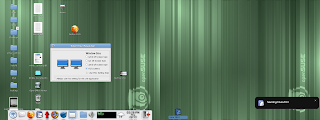
The dual screen user has selected 1/3 and opted to remember this setting each time. Container opens as requested.
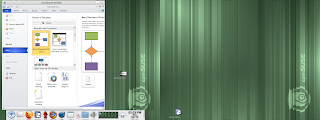
User launches this same application and GNOME finds setting and alerts the user that it's going to be used. Pseudo-notify-send popup is on a timer and allows them to easily change it later without having to hunt for a hidden UI somewhere.

Feedback has been positive and I think it was time well invested. Support calls concerning resolution problems should drop.
Quick Updates: Acrobat Reader 9.5.1 finally released and installed; Flash 11.2 seems to be working well and is now live. Testing Firefox 12.
Other Projects: Significant advances in improving techniques with shutting down software correctly to avoid recovery dialogs. Finally a way for us to grab backtraces on deadlocked software while dropping false positives....I'll blog about this next week. It's really coming together nicely.
Without a doubt one of the hardest parts of deploying technology to users is monitor resolutions. It's hard to explain and it's hard to explain now it relates to font size and screen appearance. Our environment allows users to roam around all of our buildings and use mobile devices to connect to the same GNOME desktop. I was not satisfied with static or hard coded user settings. I wanted them to be able to truly roam around through the City and have the experience as simple as possible and not require them to keep picking settings or have a dissimilar experience on another workstation.
All of the Linux applications work great and require no customizations. However, Microsoft Windows applications that are integrated into GNOME are a challenge. Largo uses mostly RDP/Rdesktop which works well for us. Many applications will run seamlessly and behave just like standard Linux windows and are not a problem. However many other Windows applications are not well suited to run seamlessly and require a "container" around the UI.
The code for a single monitor on the new GNOME server was already settled for how to handle launching a MS Windows application on a single monitor workstation. It subtracts enough room for the lower avant-window-navigator panel (which we do not allow users to resize or move) and then enough room for the metacity window manager. The window consumes about 90% of the screen as seen below. Users can still switch workspaces and they have the largest possible canvas to run their software. Users tend to always want to maximize windows and this gives them the best possible experience without obscuring anything and confusing those that struggle with window management and movement. This code works for all resolutions and monitors.
So of course when you settle on a design, there is always an exception. We have 1-2 applications on Windows that were developed with the expectation that users would run them in maximized mode and need close to 1024x768. (Why would anyone multi-task and use multiple windows, right? ;) ) We have a good number of users still in 1024x768 so what this means is that the lower few pixels of their software was getting chopped off sitting above the panel. After reviewing options, I decided to develop code that allows us to specify WIN_MINIMUM_RESOLUTION in the GNOME launch script and it performs the following logic:
Is their monitor physically smaller than this value? Disallow the software from running and alert the user that their resolution is too low. (Yup, we have just a few 800x600 devices still in play and home users sometimes configure their PCs in 800x600).
Is their monitor big enough to hold this value, but it's obscured by the panel? If so, enable Intellihide in avant-window-navigator and launch the software. The panel then hides only when it's launched and is active only for that session.
Is their monitor big enough to run this software completely above the panel? Just launch it in 90% mode as it did before.
Intellihide is a feature that is hard to explain to users, so only those few people that need to see it, have it enabled. Everyone else has the same experience. This code was deployed and worked well and now the users can see all of the UI.

As long as I was in this code, I have been wanting to clean up the code for those users on dual screens. Some software applications users want to fill both monitors, and some things they want to fill just 1/3 or 1/2. Previously there was an underdeveloped UI that allowed them to pick the size each time MS Windows was launched on a dual screen monitor. This was very simple and worked, but I hate being asked the same question repeatedly and I am sure they did too. So I made the assumption that each unique application is normally run with the same scaling factor. You might always use an engineering application in full screen, and you might always use Visio in 1/3 size. I added a checkbox on the UI that allowed them to store per application settings of 1/3, 1/2, 2/3 and full screen modes. If this checkbox is enabled, it keeps it and uses it automatically the next time. If they log into dual screens @ 1440x900 or @1024x768 it won't matter, everything is dynamic and opens in the same scaling factor.
If this same user logs into a single screen workstation, this code is not used and it just runs in 90% mode. So the infamous question, what if the user wants to change it after it's set. Old school thinking would be of course to make a UI where the settings are stored and allow them to go in and make the change. I have found that such screens are seldom remembered and we get support calls, or they just suffer and are not happy with the experience. So following in the trend of some recent projects, I present this information on a dialog box similar to notify-send. It's on a timer and pops up in the lower left corner. If you leave it alone, the software uses this setting automatically in five seconds. Very clean, and no "hidden screen" to change settings...it's always right there and easy to change.
Screenshots; I love them and maybe they help show how this all looks to the users:
On a single monitor @ 1440x900 Visio is launched and creates a nice workspace with no prompts.

On a dual monitor @1024x768 user is prompted for desired Visio window, checkbox allows them to make this setting "stick"

The dual screen user has selected 1/3 and opted to remember this setting each time. Container opens as requested.

User launches this same application and GNOME finds setting and alerts the user that it's going to be used. Pseudo-notify-send popup is on a timer and allows them to easily change it later without having to hunt for a hidden UI somewhere.

Feedback has been positive and I think it was time well invested. Support calls concerning resolution problems should drop.
Quick Updates: Acrobat Reader 9.5.1 finally released and installed; Flash 11.2 seems to be working well and is now live. Testing Firefox 12.
Other Projects: Significant advances in improving techniques with shutting down software correctly to avoid recovery dialogs. Finally a way for us to grab backtraces on deadlocked software while dropping false positives....I'll blog about this next week. It's really coming together nicely.
Tuesday, March 27, 2012
Offloading To Thin Clients
When we work with outside vendors, it's always interesting to find out their misconceptions about what is a "thin client" and how it's run. When we call in issues, they always want to know the operating system of the thin client even though for the most part it doesn't come into play. Once you log into a GNOME server with XDMCP all you are doing is remote displaying the software. This concept for some reason seems to baffle people. Debian is on the thin client, but we aren't running Debian based GNOME.
In years past we always ran 100% of the software on the server and it's worked great. But in the last year we offloaded the RDP/Rdesktop client with success. The software to which we connect with RDP is obviously still host based, but now we run the client on the local workstation. In the case of RDP the users got a huge performance gain.
I'm reviewing all possible ideas for what should be offloaded to make use of distributed CPUs, while still maintaining our low costs of centralized servers. I have mentioned in the past that for sure we'll be doing the same thing with the ICA/Citrix client. The shot below was taken from our current GNOME server and you can see that wfica (the citrix client) chews CPU as the canvas is repainted. The server is certainly not taxed and we could get by running it in this manner; but I have a mind that tinkers and tunes and this really should be offloaded. Maybe a part of me wants to see 250 users running at 1% busy. :) For sure, it will increase the speed of the responsiveness and crispness of their UI interaction. RDP will communicate with the server instead of using X11 to deliver the presentation.

A few times a month, our users will stumble into a page that just does not play well over remote display. It's usually Flash and for some reason the player has problems and it just cannot keep up. I have always suspected that the video was encoded at a very high frame rate, but never have taken the time to verify that fact. As part of this whole process of reviewing offloading certain functions I have experimentally loaded Firefox 11 and Flash on the physical thin client. I wondered how it would work having access to the local video card.
I modified the master thin client to accept a request for starting a browser from the server side. Those with this new build can click on an icon on the GNOME server as picture below.

Firefox then runs locally. I didn't really know what to expect and the results were interesting. Firefox was slower in starting on the thin client than over the network from the big servers. I know that many people have complained about thin client speeds at other organizations; and I think this shows why. Software should be tested as both host based and local based and the right fit deployed. The local version of Firefox didn't have the crisp response time in the pulldown menus and UI interaction. It was certainly usable however. So the big test was then playing Flash content. My testing indicates that videos are not faster playing locally, and in fact might be a bit slower. In the shot below you can see "top" running on the thin client and Flash is just hammering the thin client. It's clear that Flash will consume as much CPU as it can get. I was testing on the older 5725 HP thin clients and once I pack up another beta build, I'll test it on the 5745s which I believe will provide a slightly better experience. But all in all I don't see any advantage to this design. Flash and Firefox constantly need upgrades and the devices would probably have to be upgraded every few weeks. I can upgrade the server in just minutes and it's deployed for all users; we'd need a strong case for offloading browsers to the local device and right now I'm not seeing it being worthwhile.

Current Projects: Installed and testing LibreOffice 3.5.2 and one by one crossing off items on my list for the next thin client release.
In years past we always ran 100% of the software on the server and it's worked great. But in the last year we offloaded the RDP/Rdesktop client with success. The software to which we connect with RDP is obviously still host based, but now we run the client on the local workstation. In the case of RDP the users got a huge performance gain.
I'm reviewing all possible ideas for what should be offloaded to make use of distributed CPUs, while still maintaining our low costs of centralized servers. I have mentioned in the past that for sure we'll be doing the same thing with the ICA/Citrix client. The shot below was taken from our current GNOME server and you can see that wfica (the citrix client) chews CPU as the canvas is repainted. The server is certainly not taxed and we could get by running it in this manner; but I have a mind that tinkers and tunes and this really should be offloaded. Maybe a part of me wants to see 250 users running at 1% busy. :) For sure, it will increase the speed of the responsiveness and crispness of their UI interaction. RDP will communicate with the server instead of using X11 to deliver the presentation.

A few times a month, our users will stumble into a page that just does not play well over remote display. It's usually Flash and for some reason the player has problems and it just cannot keep up. I have always suspected that the video was encoded at a very high frame rate, but never have taken the time to verify that fact. As part of this whole process of reviewing offloading certain functions I have experimentally loaded Firefox 11 and Flash on the physical thin client. I wondered how it would work having access to the local video card.
I modified the master thin client to accept a request for starting a browser from the server side. Those with this new build can click on an icon on the GNOME server as picture below.

Firefox then runs locally. I didn't really know what to expect and the results were interesting. Firefox was slower in starting on the thin client than over the network from the big servers. I know that many people have complained about thin client speeds at other organizations; and I think this shows why. Software should be tested as both host based and local based and the right fit deployed. The local version of Firefox didn't have the crisp response time in the pulldown menus and UI interaction. It was certainly usable however. So the big test was then playing Flash content. My testing indicates that videos are not faster playing locally, and in fact might be a bit slower. In the shot below you can see "top" running on the thin client and Flash is just hammering the thin client. It's clear that Flash will consume as much CPU as it can get. I was testing on the older 5725 HP thin clients and once I pack up another beta build, I'll test it on the 5745s which I believe will provide a slightly better experience. But all in all I don't see any advantage to this design. Flash and Firefox constantly need upgrades and the devices would probably have to be upgraded every few weeks. I can upgrade the server in just minutes and it's deployed for all users; we'd need a strong case for offloading browsers to the local device and right now I'm not seeing it being worthwhile.

Current Projects: Installed and testing LibreOffice 3.5.2 and one by one crossing off items on my list for the next thin client release.
Friday, March 23, 2012
Software Portal Changes Pushed Live
With increasing workloads, I have been doing everything possible to increase what we can do remotely to eliminate having to send IT staff to users desks. Very often a big part of the problem is not knowing exactly what equipment they have. So I have reworked the "Thin Client Detail" screen in our support portal to give us more information than ever. All of these changes will also allow me to now begin adding new features for the end users.
I've always posted lots of pictures, I think they make it easy to understand how it's working. I'm sure that UI could be better, but it's working and will improve. When you bring up a thin client device it gets the server side configuration files and displays what it *thinks* should be configured on the workstation. This is done because very often the devices are powered off and now we'll be able to see how it's configured even if it's not currently running. The status line indicates that the information is based on configuration files and not the physical device. The REFRESH button is enabled in this case because it has done a ping and detected the device is powered on.

Once REFRESH is pressed, it physically queries the thin client and obtains as much information as possible. It detects version, function and other settings. It also then polls the Xserver and detects the resolution. One great new features is that the EDID is tested and it displays the exact make of the monitor. VG1930wm is an old ViewSonic monitor.

The next tab obtains the rest of the settings and detects their version. If they are running a Beta release of the thin client OS this is clearly indicated; otherwise it just displays a thumbs up symbol indicating they are current.

NX creates an interesting issue, the server thinks they are a thin client but it's really a virtual Xserver. So in this case the UI clearly shows that it's NX and then tries to find their connection IP.

Here is another feature now implemented. Some users have the ability to rotate their monitors as they desire. So when you enter the detail screen it detects that the monitor is configured in this manner (Rotate) but doesn't know how it's currently being used.

However when the REFRESH button is pressed, it does a query and detects the current orientation and displays it accordingly along with color depth and the exact cable (HDMI) being used. Being able to see the cable will allow us to upgrade users from VGA as time allows.

Another new features that is wonderful for us is to know the exact capabilities of the monitor. Are they configured for optimal resolution or running it in the wrong aspect ratio? Does the monitor go into a higher resolution? The portal queries xrandr and gets all of the supported resolutions and displays them as a tooltip when you hover your mouse over the monitor. Previously support would have to check this by physically going to the workstation.

The last major feature that will come is the ability to get a quick thumbnail of their session and a few other cosmetic fixes...but all in all it's working well. Centralized support has been a real time saver for us.
Other projects this week: Prepped Firefox 11 for release, tested Flash 11.2 RC, checked some pages that are having problems with sound, QA'd LibreOffice , reviewed all Evolution crashers and tried to organize them into groups and reviewed log files to look for errant networking cables and bad UPSs
Next week: The next thin client OS feature set will be started now that we have the host infrastructure to support it.
I've always posted lots of pictures, I think they make it easy to understand how it's working. I'm sure that UI could be better, but it's working and will improve. When you bring up a thin client device it gets the server side configuration files and displays what it *thinks* should be configured on the workstation. This is done because very often the devices are powered off and now we'll be able to see how it's configured even if it's not currently running. The status line indicates that the information is based on configuration files and not the physical device. The REFRESH button is enabled in this case because it has done a ping and detected the device is powered on.

Once REFRESH is pressed, it physically queries the thin client and obtains as much information as possible. It detects version, function and other settings. It also then polls the Xserver and detects the resolution. One great new features is that the EDID is tested and it displays the exact make of the monitor. VG1930wm is an old ViewSonic monitor.

The next tab obtains the rest of the settings and detects their version. If they are running a Beta release of the thin client OS this is clearly indicated; otherwise it just displays a thumbs up symbol indicating they are current.

NX creates an interesting issue, the server thinks they are a thin client but it's really a virtual Xserver. So in this case the UI clearly shows that it's NX and then tries to find their connection IP.

Here is another feature now implemented. Some users have the ability to rotate their monitors as they desire. So when you enter the detail screen it detects that the monitor is configured in this manner (Rotate) but doesn't know how it's currently being used.

However when the REFRESH button is pressed, it does a query and detects the current orientation and displays it accordingly along with color depth and the exact cable (HDMI) being used. Being able to see the cable will allow us to upgrade users from VGA as time allows.

Another new features that is wonderful for us is to know the exact capabilities of the monitor. Are they configured for optimal resolution or running it in the wrong aspect ratio? Does the monitor go into a higher resolution? The portal queries xrandr and gets all of the supported resolutions and displays them as a tooltip when you hover your mouse over the monitor. Previously support would have to check this by physically going to the workstation.

The last major feature that will come is the ability to get a quick thumbnail of their session and a few other cosmetic fixes...but all in all it's working well. Centralized support has been a real time saver for us.
Other projects this week: Prepped Firefox 11 for release, tested Flash 11.2 RC, checked some pages that are having problems with sound, QA'd LibreOffice , reviewed all Evolution crashers and tried to organize them into groups and reviewed log files to look for errant networking cables and bad UPSs
Next week: The next thin client OS feature set will be started now that we have the host infrastructure to support it.
Monday, March 19, 2012
Infrastructure Upgrades
As I have mentioned previously, the new GNOME servers are live and are considered "in production". I have been doing a small amount of final tuning, but really they're running beautifully. The big areas of customization beyond base OpenSuse were 1) file cleanups; lots of software leave behind files mostly in /tmp. A single user would not have any problems, but with hundreds of users it becomes unwieldy. 2) Flushing Cache; each morning I force a sync and then force all cache to disk. Certain processes seem to leak and this frees lots of memory for user processes each day. 3) User process cleanups; certain software packages leave behind errant or stray processes. No big deal with one person, but add up quickly with many users.
I'm back on infrastructure upgrades again. In the time since the last specifications were drawn, we've had a lot of new requests. Now that we're pushing all thin client updates from the server; I have started the process of simplifying screens as they appear on the thin clients. They only display for a few seconds on first reboot after update and are not seen by employees nor IT staff. They would only be used for troubleshooting.
The UI work has been done mostly in our "support portal" software. The screens below are my works in progress, please no UI nazi type comments. :) I'm placing widgets and working through the flow; but it's starting to work. One new requirement is the ability to have dual monitors each in their own resolution and possibly in differing orientation. Previously, we would only allow dual screens in the same resolution. This requires a change in the UI for configuring and then the thin clients had to be modified to understand how to accept all of these new settings. The show below shows the thin client screen as seen by our support staff that allows them to configure monitors. It will eventually poll the devices too and obtain information concerning types of cables used and manufacturer of hardware.

The Configuration tab will obtain information about the thin client, and allow you to configure it's function/purpose. It now also will allow you to configure a local RDP application. This feature will allow users to connect right to specialized point of sale type software without first connecting to the GNOME desktop. Some of our sites have users that move around frequently between devices and assist citizens, and this will help them in that process. I'm also exploring ideas to indicate to our support staff that the thin client is on the latest release. Mockup shows a thumbs down.

We're storing lots of data concerning alerts and authentications and now when you review a thin client, it shows you all of this activity regardless of specific user. This will help us find trends where a certain device is having problems. Pinched networking cables? Bad UPS? We should be able to find it easier with this data.

On the thin client side; after reboot with an operating system upgrade the UI will display the settings that were pushed from the server for 10 seconds and then reboot and use them. This is done in the wee hours of the morning and never seen;
This very simple screen shows the current thin client settings for the monitors:

Here the simple thin client UI has received the settings for running a local RDP application

This is the new UI that users see when the thin clients are powered. As before they were able to log into two GNOME desktop servers (A and B). But the circled space shows the local RDP application that displays when configured. If they don't have access to an application from their workstation, this area grays out.

Other things that I have done in the new thin client build: * Disabled XZap (Alt-Control-Backspace), * Fixed an issue with HP 5745s where the CPU was running through the code so fast that some data was not being saved correctly on update, * Continued adding support for this to work on VMWare.
I pushed an early alpha release out for testing by the end users and now am going to continue adding the rest of the features that we wanted to include in the upgrade.
I also have continued to QA LibreOffice with some beta testers and tracked and reviewed Evolution crashers on SLED 11.
I'm back on infrastructure upgrades again. In the time since the last specifications were drawn, we've had a lot of new requests. Now that we're pushing all thin client updates from the server; I have started the process of simplifying screens as they appear on the thin clients. They only display for a few seconds on first reboot after update and are not seen by employees nor IT staff. They would only be used for troubleshooting.
The UI work has been done mostly in our "support portal" software. The screens below are my works in progress, please no UI nazi type comments. :) I'm placing widgets and working through the flow; but it's starting to work. One new requirement is the ability to have dual monitors each in their own resolution and possibly in differing orientation. Previously, we would only allow dual screens in the same resolution. This requires a change in the UI for configuring and then the thin clients had to be modified to understand how to accept all of these new settings. The show below shows the thin client screen as seen by our support staff that allows them to configure monitors. It will eventually poll the devices too and obtain information concerning types of cables used and manufacturer of hardware.

The Configuration tab will obtain information about the thin client, and allow you to configure it's function/purpose. It now also will allow you to configure a local RDP application. This feature will allow users to connect right to specialized point of sale type software without first connecting to the GNOME desktop. Some of our sites have users that move around frequently between devices and assist citizens, and this will help them in that process. I'm also exploring ideas to indicate to our support staff that the thin client is on the latest release. Mockup shows a thumbs down.

We're storing lots of data concerning alerts and authentications and now when you review a thin client, it shows you all of this activity regardless of specific user. This will help us find trends where a certain device is having problems. Pinched networking cables? Bad UPS? We should be able to find it easier with this data.

On the thin client side; after reboot with an operating system upgrade the UI will display the settings that were pushed from the server for 10 seconds and then reboot and use them. This is done in the wee hours of the morning and never seen;
This very simple screen shows the current thin client settings for the monitors:

Here the simple thin client UI has received the settings for running a local RDP application

This is the new UI that users see when the thin clients are powered. As before they were able to log into two GNOME desktop servers (A and B). But the circled space shows the local RDP application that displays when configured. If they don't have access to an application from their workstation, this area grays out.

Other things that I have done in the new thin client build: * Disabled XZap (Alt-Control-Backspace), * Fixed an issue with HP 5745s where the CPU was running through the code so fast that some data was not being saved correctly on update, * Continued adding support for this to work on VMWare.
I pushed an early alpha release out for testing by the end users and now am going to continue adding the rest of the features that we wanted to include in the upgrade.
I also have continued to QA LibreOffice with some beta testers and tracked and reviewed Evolution crashers on SLED 11.
Tuesday, March 13, 2012
Projects And Starting New Thin Client Release
I'm back in the office after an extended weekend and right back into projects. All of the new GNOME servers ran great while I was gone. I have started to add a few more scripts and crons to tune it further based on how it's running and processes that are being left behind by various user techniques. For the most part I consider the migration to the new desktop/GNOME server to be finished and I have already started moving into new areas.
I added a bit of code post authentication that polls the users thin clients and requests it to send a version number string back to the server. This will allow us to see if any devices were missed during the recent upgrades. 525 thin clients in multiple buildings...there are always times when a handful will escape upgrade for whatever reason. Now we'll see them. This data displays in real time in our support portal software.

We continue to beta test LibreOffice with a small group of users and we're making progress on testing and the QA process. There were some settings that were changed in OpenOffice years ago, and you kind of forget about some of them and then have to make changes. We'll build a standard template of settings for users which will be pushed into $HOME on first launch. From there, they'll be responsible for their own settings. We have found a few issues, but so far nothing major. Bug reports are being filed and it's moving along.
I have started to gather more detailed information on Evolution crashes based on the backtraces we're auto-generating. I wrote a little script that tries to group them together based on the crash location and we're finding that many of them are the same issue. A few well placed patches in SLED 11 should fix many of them at once.
I have started the process of creating the next release of our thin client software. This upgrade will improve the end user experience and also benefit IT in lowering support calls. This will be QA'd for several months before being deployed and it's still at an early stage. Here is a list of features that will be implemented:
+ Disable X-Zap; Alt-Control-Backspace resets your Xserver and we think that users are finding this by accident. No reason for it to be enabled, all it does is kick them off the server.
+ Fix configuration issue with HP 5745 thin clients; the latest HP thin clients have an odd timing issue related to receiving a FOG update that is corrected by powering off the device and rebooting. I want to hunt this down because it's causing support to have to touch a small percentage of devices after update.
+ Local Citrix: We still have at least a year left of using Citrix and right now it's running on our GNOME server. Offloading this will drop CPU cycles used on the hosts greatly and give the users a faster experience. This replicates what was done in the last release with RDP which has worked out very well.
+ Fix Xclients bug: Users are finding certain techniques that allow them to drop off the server and have running xclients that messes with their logging back in again. This sometimes is just a failing UPS and power dip -- It's enough to return them to the system chooser, but the host reconnects and their software continues to run. I'll check for clients and xkill them. Right now they have to reboot when this happens.
+ Rdesktop 1.7.1; it's out and includes some bug fixes.
+ USB Device scanning; we're going to try and use lsusb to look for devices they have plugged in that might affect our updates and cause them problems. Some people apparently are bringing in their own pointer and keyboard devices. We want to be aware of them when troubleshooting problems.
+ Local applications; We want to allow a kiosk mode to be available to start up a Windows application via RDP. This will allow them to log into point of sale software without having to log fully into GNOME.
+ VM support; the thin clients will run in VMPlayer and understand that infrastructure. This will allow us to replace NX running on computers on our high speed network. NX will of course continue to be used where we don't have enough bandwidth.
+ Photo management improvements; the simple UI that allows them to move photos into our software will be improved and be more robust.
+ Monitor support; We'll allow for monitors of different resolutions side by side, and also for a portrait monitor to work side by side with a landscape one. Right now this was disabled in order to keep the configurations simple and consistent. But there are some needs for this design.
+ The thin clients will connect to our time server and sync clocks at boot. Previously this was not a big deal because all software was host based, but we want the local apps to know the right time.
+ Local email; the thin clients will email us when they have certain problems. If the Xserver crashes, it will grab a copy of the log files before they're deleted.
+ Detecting power off; if the users power off their thin clients while logged into GNOME we really don't know they have done this. The button will detect server connection and log this activity.
I'm looking forward to these changes and the challenges ahead in implementing them.
I added a bit of code post authentication that polls the users thin clients and requests it to send a version number string back to the server. This will allow us to see if any devices were missed during the recent upgrades. 525 thin clients in multiple buildings...there are always times when a handful will escape upgrade for whatever reason. Now we'll see them. This data displays in real time in our support portal software.

We continue to beta test LibreOffice with a small group of users and we're making progress on testing and the QA process. There were some settings that were changed in OpenOffice years ago, and you kind of forget about some of them and then have to make changes. We'll build a standard template of settings for users which will be pushed into $HOME on first launch. From there, they'll be responsible for their own settings. We have found a few issues, but so far nothing major. Bug reports are being filed and it's moving along.
I have started to gather more detailed information on Evolution crashes based on the backtraces we're auto-generating. I wrote a little script that tries to group them together based on the crash location and we're finding that many of them are the same issue. A few well placed patches in SLED 11 should fix many of them at once.
I have started the process of creating the next release of our thin client software. This upgrade will improve the end user experience and also benefit IT in lowering support calls. This will be QA'd for several months before being deployed and it's still at an early stage. Here is a list of features that will be implemented:
+ Disable X-Zap; Alt-Control-Backspace resets your Xserver and we think that users are finding this by accident. No reason for it to be enabled, all it does is kick them off the server.
+ Fix configuration issue with HP 5745 thin clients; the latest HP thin clients have an odd timing issue related to receiving a FOG update that is corrected by powering off the device and rebooting. I want to hunt this down because it's causing support to have to touch a small percentage of devices after update.
+ Local Citrix: We still have at least a year left of using Citrix and right now it's running on our GNOME server. Offloading this will drop CPU cycles used on the hosts greatly and give the users a faster experience. This replicates what was done in the last release with RDP which has worked out very well.
+ Fix Xclients bug: Users are finding certain techniques that allow them to drop off the server and have running xclients that messes with their logging back in again. This sometimes is just a failing UPS and power dip -- It's enough to return them to the system chooser, but the host reconnects and their software continues to run. I'll check for clients and xkill them. Right now they have to reboot when this happens.
+ Rdesktop 1.7.1; it's out and includes some bug fixes.
+ USB Device scanning; we're going to try and use lsusb to look for devices they have plugged in that might affect our updates and cause them problems. Some people apparently are bringing in their own pointer and keyboard devices. We want to be aware of them when troubleshooting problems.
+ Local applications; We want to allow a kiosk mode to be available to start up a Windows application via RDP. This will allow them to log into point of sale software without having to log fully into GNOME.
+ VM support; the thin clients will run in VMPlayer and understand that infrastructure. This will allow us to replace NX running on computers on our high speed network. NX will of course continue to be used where we don't have enough bandwidth.
+ Photo management improvements; the simple UI that allows them to move photos into our software will be improved and be more robust.
+ Monitor support; We'll allow for monitors of different resolutions side by side, and also for a portrait monitor to work side by side with a landscape one. Right now this was disabled in order to keep the configurations simple and consistent. But there are some needs for this design.
+ The thin clients will connect to our time server and sync clocks at boot. Previously this was not a big deal because all software was host based, but we want the local apps to know the right time.
+ Local email; the thin clients will email us when they have certain problems. If the Xserver crashes, it will grab a copy of the log files before they're deleted.
+ Detecting power off; if the users power off their thin clients while logged into GNOME we really don't know they have done this. The button will detect server connection and log this activity.
I'm looking forward to these changes and the challenges ahead in implementing them.
Friday, March 02, 2012
LibreOffice QA Creates Better User Interaction
I have been testing LibreOffice 3.5.1 on our server with anticipation of a migration from OpenOffice in the next 30 days. The users are going to like the advancements made in the code base since OpenOffice 3.3 and the migration should go pretty painlessly.
This project has given me time to revisit one of the drawbacks of server based computing from the user perspective -- control over recycling power and resetting software. There are many drawbacks to running software at their desk, but one thing it does is allow them to "reboot" the computer. If LibreOffice locks on a file, all children processes thereafter are dead as well and the end user cannot "fix" this issue. On a PC they'd reboot. Doing something with a process killer is beyond the scope of what most people can do. They don't know what to kill, and how to pick and troubleshoot errant processes. When a user requests a document while another document is already open, the server really can't tell if the first process is running correctly. Consideration is also needed to the fact that we are only staffed from 7am until 5pm with people that can assist with these matters. The previous design was to give them a dialog when a second document opened and ask them if they wanted to kill the previous document. Clunky, but required to ensure off hour users the ability to fix their sessions. My mindset since OpenOffice went live was that I needed something like notify-send that had a pushbutton trigger on a timer. With resources allocated to installing LibreOffice, I created my own with Python/Glade. Instead of something intrusive, they get a popup in the lower left corner when they launch a second document. If everything is working fine, they leave the dialog alone and it closes after 5 seconds. If the first process is locked, they can click on [ Terminate All LibreOffice Sessions ] and it does exactly that.
As time allows, I'm going to see if I can file a feature request to make it so that children process of LibreOffice can "poll" the parent and see if he is alive and then reset itself if required. This would solve issues and remove the dialogs completely.

I have been revisiting other dialogs and messages on the servers and have made changes. Many of these changes have been made because we are now tracking a more information regarding how they are reacting to and using our dialogs. I'll blog more about that in the coming days.
This project has given me time to revisit one of the drawbacks of server based computing from the user perspective -- control over recycling power and resetting software. There are many drawbacks to running software at their desk, but one thing it does is allow them to "reboot" the computer. If LibreOffice locks on a file, all children processes thereafter are dead as well and the end user cannot "fix" this issue. On a PC they'd reboot. Doing something with a process killer is beyond the scope of what most people can do. They don't know what to kill, and how to pick and troubleshoot errant processes. When a user requests a document while another document is already open, the server really can't tell if the first process is running correctly. Consideration is also needed to the fact that we are only staffed from 7am until 5pm with people that can assist with these matters. The previous design was to give them a dialog when a second document opened and ask them if they wanted to kill the previous document. Clunky, but required to ensure off hour users the ability to fix their sessions. My mindset since OpenOffice went live was that I needed something like notify-send that had a pushbutton trigger on a timer. With resources allocated to installing LibreOffice, I created my own with Python/Glade. Instead of something intrusive, they get a popup in the lower left corner when they launch a second document. If everything is working fine, they leave the dialog alone and it closes after 5 seconds. If the first process is locked, they can click on [ Terminate All LibreOffice Sessions ] and it does exactly that.
As time allows, I'm going to see if I can file a feature request to make it so that children process of LibreOffice can "poll" the parent and see if he is alive and then reset itself if required. This would solve issues and remove the dialogs completely.

I have been revisiting other dialogs and messages on the servers and have made changes. Many of these changes have been made because we are now tracking a more information regarding how they are reacting to and using our dialogs. I'll blog more about that in the coming days.
Wednesday, February 29, 2012
250 Concurrent Users, Tuning and Citrix
Over the last week the server loads have grown and it's interesting to see how well it's running GNOME and all of those sessions. The shot below is how it looks right around 250 concurrent users, and for the most part everything is working well. I've marked some areas in color.
I'm seeing a high level of communication between polkit and dbus (purple); I'm not sure what's happening here but I'll try and sniff it with dbus-monitor and see exactly what's chewing CPU. This activity is not slowing the machine terribly.
Evince-thumbnailer had a feature added that is not in OpenSuse 11.4 that terminates the thumbnailer after about 5 seconds if it cannot finish. On certain PDFs, it appears that it either hangs or that the PDF is so huge it takes more than a few minutes to complete. This is causing a small spike in CPU. As users navigate, these thumbnails get cached so we'll see fewer and fewer of them as time goes by.
Host based Citrix sessions are chewing CPU as I have mentioned previously, the canvas rewrites are expensive.. As marked in red, you can see that they're collectively using a good amount. More information below on this project.

The server has 64G of memory and right about at 250 users it's starting to begin to have to write some cache files to disk and there are sometimes very short pauses a few times a day while this happens. We're going to throw in a few more memory sticks and that should allow us to run closer to 300. This is not a serious problem, and is only happening for a few seconds a few times a day and only under very heavy conditions.
The users have discovered ways to leave "dead" gdm child processes behind that don't seem to halt on their own. I suspect people are doing things like powering off thin clients with sessions running, starting to log in and then turning off thin clients and also allowing the server to sever their connections because they don't log off at night. Our server kicks users off after 13 hours. I'm writing a little script that will run nightly and remove these processes. They aren't affecting speed, but probably are consuming a bit of memory.
As mentioned, I'm making progress with running Citrix locally on the thin clients. When the user picks a MS Windows application that uses Citrix, a signal is passed to the thin client and Citrix is then initiated and forms a connection to the Windows server. Once this is handed off, no additional resources are consumed by the GNOME server and the users have a compressed stream directly to the thin client; no more X11 traffic running over the network. Early testing already indicates this will run faster. I'll mount a section of memory for the Citrix cache so they aren't hammering the flash drives of the thin clients and this should give them optimal speeds.
Other concurrent projects: Connecting LibreOffice to our infrastructure and testing it fully, reviewing Evolution crashes and working with Novell on fixes.
I'm seeing a high level of communication between polkit and dbus (purple); I'm not sure what's happening here but I'll try and sniff it with dbus-monitor and see exactly what's chewing CPU. This activity is not slowing the machine terribly.
Evince-thumbnailer had a feature added that is not in OpenSuse 11.4 that terminates the thumbnailer after about 5 seconds if it cannot finish. On certain PDFs, it appears that it either hangs or that the PDF is so huge it takes more than a few minutes to complete. This is causing a small spike in CPU. As users navigate, these thumbnails get cached so we'll see fewer and fewer of them as time goes by.
Host based Citrix sessions are chewing CPU as I have mentioned previously, the canvas rewrites are expensive.. As marked in red, you can see that they're collectively using a good amount. More information below on this project.

The server has 64G of memory and right about at 250 users it's starting to begin to have to write some cache files to disk and there are sometimes very short pauses a few times a day while this happens. We're going to throw in a few more memory sticks and that should allow us to run closer to 300. This is not a serious problem, and is only happening for a few seconds a few times a day and only under very heavy conditions.
The users have discovered ways to leave "dead" gdm child processes behind that don't seem to halt on their own. I suspect people are doing things like powering off thin clients with sessions running, starting to log in and then turning off thin clients and also allowing the server to sever their connections because they don't log off at night. Our server kicks users off after 13 hours. I'm writing a little script that will run nightly and remove these processes. They aren't affecting speed, but probably are consuming a bit of memory.
As mentioned, I'm making progress with running Citrix locally on the thin clients. When the user picks a MS Windows application that uses Citrix, a signal is passed to the thin client and Citrix is then initiated and forms a connection to the Windows server. Once this is handed off, no additional resources are consumed by the GNOME server and the users have a compressed stream directly to the thin client; no more X11 traffic running over the network. Early testing already indicates this will run faster. I'll mount a section of memory for the Citrix cache so they aren't hammering the flash drives of the thin clients and this should give them optimal speeds.
Other concurrent projects: Connecting LibreOffice to our infrastructure and testing it fully, reviewing Evolution crashes and working with Novell on fixes.
Subscribe to:
Posts (Atom)


