
Thursday, March 24, 2011
iPad Thin Client Work Almost Done
The project to use an iPad as a thin client is nearly ready to push out to beta testers and the current prototype UI is below. Nice big buttons for fingers, and only showing them the bare minimum they need to quickly access their documents. Handwriting and highlighting is working great in Xournal. These solutions are not going to techies, but to employees of various computer skills. I'm hoping by next week to start getting some of their feedback.


Wednesday, March 23, 2011
And Now Testing A Fullscreen iPad UI
The iPad work flow that I mentioned the other day is working well. The original design was going to put documents into a 7/8ths screen mode and have a panel sitting below. The overwhelming consensus was it was far better to be able to view and markup documents in full screen mode. This gave me a lot more real estate to experiment with some designs. Please, no UI nazi comments. :) The shot below is what is being tested. Widgets and art are not final and the layout is not complete. But this clearly displays all of the documents the users have put into their MobileDocuments folder and allows them to easily copy documents that others have marked as being shared. The buttons and spacing are for fingers and a stylus. The user taps the thumbnail once and a larger preview displays, they can then edit the document or send it out via email. They can also create empty PDFs (Xournal) and OpenDocuments (OpenOffice) with just a single click. The software preselects a file name and saves it once, all they have to do is begin the construction process.
Some new art, a nicer theme and a bit of alignments and we might have something that can be pushed to some beta testers. Documents are 100% always on the server and can never be lost.
Dragon Naturally Speaking testing is going well too, and text is pasting into documents with just a few taps. Fun stuff.

Some new art, a nicer theme and a bit of alignments and we might have something that can be pushed to some beta testers. Documents are 100% always on the server and can never be lost.
Dragon Naturally Speaking testing is going well too, and text is pasting into documents with just a few taps. Fun stuff.

Monday, March 21, 2011
iPad Testing Going Very Well
If you have been reading my blogs through the years, you know that I consider it to be our top priority to reduce waste, run computers as efficiently as possible, and save the taxpayers as much money as possible. The steps that we are taking into the area of tablet computing is not being done because it's a "toy"; it's being done because we have some inefficiencies in regard to using printers. The culture started in the 1980s and just has gotten worse each year. Each software package that we buy that is supposed to be "paperless" seems to create more print jobs than ever.
So the iPad is being reviewed in a manner to allow for more of a paperless office. One idea being kicked around is looking at only deploying them from the cost savings of reduced departmental print jobs. Reduce first, then get the device, and then maintain the reduced printing. The dollars spent on consumables for printing could easily pay for devices in the first year, and then each year thereafter would provide cost savings. The worst part of this process will be mind share, habit and desire. People WANT to hold paper, people LOVE paper. They very often have no concern about how much it costs, and how much support is absorbed by IT.
So the perspective that I am testing is not using it for a "computer", but to use it to replace the binders that are being carried to meetings. I want them to feel like they are using paper. I want the documents to be easy to find and easy to edit. I don't want them to get a full GNOME desktop and then have to click and navigate to find their documents. I also want shared documents to be available for the meeting, and easily absorbed into the users folders as a personal copy and then easily editable.
The other big issue for me is that I don't want any documents stored on the local device. Moving documents back and forth is 10+ year old design. Users tend to make islands of data, and documents are always lost. Users having to go back to their desk and dock and then copy files will not succeed, file management is always the part that they struggle with the most.
We purchased a stylus for testing from Amazon, the iPad thinks it's a finger on the glass. This allows for fewer smudges, and also allows you to write notes and highlight. It works great!
So these ideas that have been in my head are finally being tested, and feedback of the design has been very positive. It's fast, easy and removes any "techie" steps from their work flow.
On the new/beta GNOME server is a folder right on their Desktop that houses what are considered "Mobile Documents". These are documents that they wish to have available on the iPad. It's simply a staging area. It also holds documents that are created on the iPad; easily located and then moved into project folders at a later time. In the shot below, clicking on the icon displays these staged documents. All of the MIME bars that launch when they double-click on files allows them to easily add to this folder as well:

For this initial test, I'm using VNC. This replicates the functionality exactly, and we will do a full review of products when we are closer to deployment. Hopefully the NX upgrade product will be available at that time. In the meantime, for one dollar we purchased the "Remoter" application and found it to be excellent. It's got a nice interface, allows for a paste of the local clipboard (more on that later) and allows Linux applications to run very similarly to how they would if they were on the local iPad. In the shot below, the iPad is turned on and the icons appear.

Once the remoter software is touched, a nice interface comes up and shows you your available connections. I have created a Landscape connection (which gives them a full GNOME desktop), and then a Portrait connection (which gives them this document editing mode).

Selecting this option gives you good old GDM, identical functionality to the users thin clients. Note the translucent buttons that hover over the screen. These give you the ability to define how to react to your finger and touching the glass and work great! For instance, you can select to make your fingers simulate the mouse wheel. This allows you to scroll up and down through the document by sliding your fingers on the glass. You can also simulate left mouse or right mouse clicks. When you go into full screen mode, these buttons are hidden. You can go back and forth between this mode and full screen mode by touching three fingers on the glass. Very clean.

The UI appears after authentication and only shows them what they need for document processing on the tablet. The documents they have placed into $HOME/MobileDocuments appear as thumbnails on the bottom. The most recent document is always on the far left side. Touching the document once gives you the file name and file type. Touching it a second time opens it. Note the floating buttons provided by Remoter that allow you to exit fullscreen mode and bring up a keyboard. (( no UI nazis please, just testing ideas right now! :) ))

In the case of PDF files, the Xournal application is invoked and placed into full screen mode. You can beautifully see the entire page and write notes over the top and highlight. These are saved as another layer in the PDF document. Response time on the pen over VNC is fluid and very usable. Pepp cooked a nice patch for us that allows PDFs opened to default back into PDF format, no more XOJs to contend with.

When the user returns to their full desktop and GNOME session, all of these edits are in the folder and instantly available for filing. In the shot below, the document that I edited on the iPad is the same on the desktop. It never left the server; simple and elegant.

Some users have also requested a way to use Dragon Naturally Speaking. This application is free for the iPad and seems to work fairly well. In the workflow being tested, the user speaks into the software and once they are done place the "note" into the local clipboard. In the shot below I have created a simple document by speaking and am doing a copy:

I can then double-tap the HOME button on the iPad and flip back to my Linux session and use the Paste button of the Remoter application and the text is pasted into any software running on the server (including inability to spell Linux) :) . Once saved, this document is available from their MobileDocuments folder.

The coming weeks will be interesting and exciting. Hopefully some cost savings and better ideas will fall out of these designs.
So the iPad is being reviewed in a manner to allow for more of a paperless office. One idea being kicked around is looking at only deploying them from the cost savings of reduced departmental print jobs. Reduce first, then get the device, and then maintain the reduced printing. The dollars spent on consumables for printing could easily pay for devices in the first year, and then each year thereafter would provide cost savings. The worst part of this process will be mind share, habit and desire. People WANT to hold paper, people LOVE paper. They very often have no concern about how much it costs, and how much support is absorbed by IT.
So the perspective that I am testing is not using it for a "computer", but to use it to replace the binders that are being carried to meetings. I want them to feel like they are using paper. I want the documents to be easy to find and easy to edit. I don't want them to get a full GNOME desktop and then have to click and navigate to find their documents. I also want shared documents to be available for the meeting, and easily absorbed into the users folders as a personal copy and then easily editable.
The other big issue for me is that I don't want any documents stored on the local device. Moving documents back and forth is 10+ year old design. Users tend to make islands of data, and documents are always lost. Users having to go back to their desk and dock and then copy files will not succeed, file management is always the part that they struggle with the most.
We purchased a stylus for testing from Amazon, the iPad thinks it's a finger on the glass. This allows for fewer smudges, and also allows you to write notes and highlight. It works great!
So these ideas that have been in my head are finally being tested, and feedback of the design has been very positive. It's fast, easy and removes any "techie" steps from their work flow.
On the new/beta GNOME server is a folder right on their Desktop that houses what are considered "Mobile Documents". These are documents that they wish to have available on the iPad. It's simply a staging area. It also holds documents that are created on the iPad; easily located and then moved into project folders at a later time. In the shot below, clicking on the icon displays these staged documents. All of the MIME bars that launch when they double-click on files allows them to easily add to this folder as well:

For this initial test, I'm using VNC. This replicates the functionality exactly, and we will do a full review of products when we are closer to deployment. Hopefully the NX upgrade product will be available at that time. In the meantime, for one dollar we purchased the "Remoter" application and found it to be excellent. It's got a nice interface, allows for a paste of the local clipboard (more on that later) and allows Linux applications to run very similarly to how they would if they were on the local iPad. In the shot below, the iPad is turned on and the icons appear.

Once the remoter software is touched, a nice interface comes up and shows you your available connections. I have created a Landscape connection (which gives them a full GNOME desktop), and then a Portrait connection (which gives them this document editing mode).

Selecting this option gives you good old GDM, identical functionality to the users thin clients. Note the translucent buttons that hover over the screen. These give you the ability to define how to react to your finger and touching the glass and work great! For instance, you can select to make your fingers simulate the mouse wheel. This allows you to scroll up and down through the document by sliding your fingers on the glass. You can also simulate left mouse or right mouse clicks. When you go into full screen mode, these buttons are hidden. You can go back and forth between this mode and full screen mode by touching three fingers on the glass. Very clean.

The UI appears after authentication and only shows them what they need for document processing on the tablet. The documents they have placed into $HOME/MobileDocuments appear as thumbnails on the bottom. The most recent document is always on the far left side. Touching the document once gives you the file name and file type. Touching it a second time opens it. Note the floating buttons provided by Remoter that allow you to exit fullscreen mode and bring up a keyboard. (( no UI nazis please, just testing ideas right now! :) ))

In the case of PDF files, the Xournal application is invoked and placed into full screen mode. You can beautifully see the entire page and write notes over the top and highlight. These are saved as another layer in the PDF document. Response time on the pen over VNC is fluid and very usable. Pepp cooked a nice patch for us that allows PDFs opened to default back into PDF format, no more XOJs to contend with.

When the user returns to their full desktop and GNOME session, all of these edits are in the folder and instantly available for filing. In the shot below, the document that I edited on the iPad is the same on the desktop. It never left the server; simple and elegant.

Some users have also requested a way to use Dragon Naturally Speaking. This application is free for the iPad and seems to work fairly well. In the workflow being tested, the user speaks into the software and once they are done place the "note" into the local clipboard. In the shot below I have created a simple document by speaking and am doing a copy:

I can then double-tap the HOME button on the iPad and flip back to my Linux session and use the Paste button of the Remoter application and the text is pasted into any software running on the server (including inability to spell Linux) :) . Once saved, this document is available from their MobileDocuments folder.

The coming weeks will be interesting and exciting. Hopefully some cost savings and better ideas will fall out of these designs.
Thursday, March 17, 2011
Google Mail/Calendar & iPad Testing
Email and Calendaring is still being reviewed to build a list of all available options and ideas. We had our first high level conference call with Google to see their product and get their pricing. There is no silver bullet with running email in the cloud. It solves some problems and gives you new ones. One example is that our users have a large set of available ICS files available to them on our intranet. If the calendar UI is running in California, that means we have to put them on the Internet. And that also means we have to push them over our circuit upstream to appear in the UI. So there are a lot of issues like this being discussed and reviewed. More testing and meetings to come, I'm sure. Other products are being reviewed too.
As I have mentioned previously, we have some cost savings ideas in regards to using iPads to display documents and provide some remote connectivity. These savings would come in the form of reducing printing and replacing some laptops that are used in City vehicles which are higher than the 500 dollar price tag of the iPad.
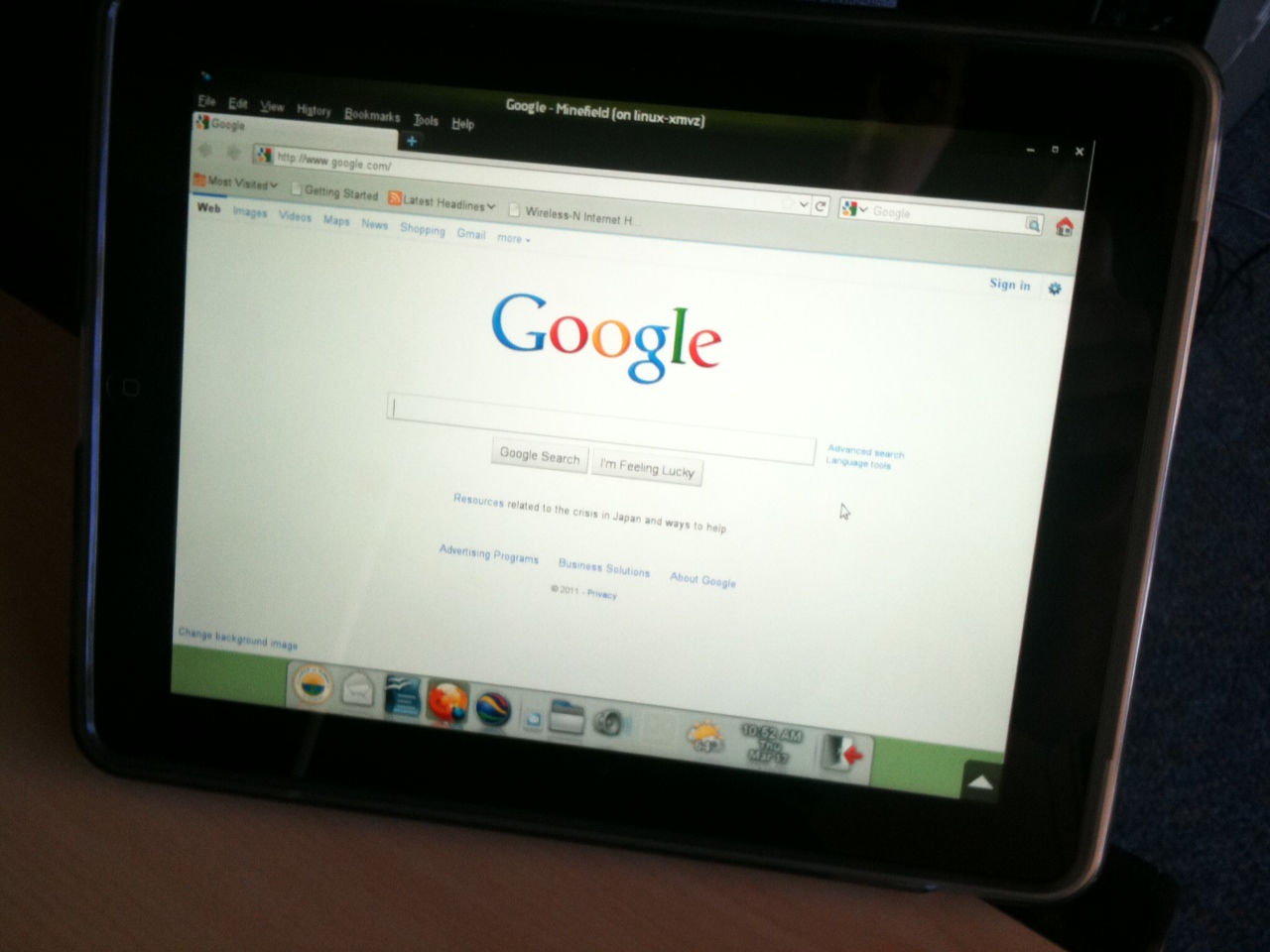
We were kind of waiting for the release of NX 4, but delays in that area have required that we look at other technologies. So I enabled VNC on our new GNOME server and have started using a vnc client on the iPad to at least simulate this work flow. All of our custom screens and UI popups have been designed with 1024x768 in mind and everything is working fine. Now that I have logged into a full GNOME desktop, I'll spend some time testing the custom iPad Glade UI that I built to expedite file management and for use in meetings. I'll post a summary of that analysis in my next blog.
So the shots below are:
- Logging into GNOME, avant-window-navigator and custom MIME UI all fitting in footprint
- Opening Firefox from the GNOME session. What's interesting about running Firefox from a server is that if you are in the field with a EVDO card you will have access to a much faster 50Mb pipe inside our building. EVDO is then only used for screen repaints.
- GNOME Activity Journal running, thanks to Cando for a quick fix in trunk to allow it run correctly on the Xserver that is used by Vnc-server.


As I have mentioned previously, we have some cost savings ideas in regards to using iPads to display documents and provide some remote connectivity. These savings would come in the form of reducing printing and replacing some laptops that are used in City vehicles which are higher than the 500 dollar price tag of the iPad.
We were kind of waiting for the release of NX 4, but delays in that area have required that we look at other technologies. So I enabled VNC on our new GNOME server and have started using a vnc client on the iPad to at least simulate this work flow. All of our custom screens and UI popups have been designed with 1024x768 in mind and everything is working fine. Now that I have logged into a full GNOME desktop, I'll spend some time testing the custom iPad Glade UI that I built to expedite file management and for use in meetings. I'll post a summary of that analysis in my next blog.
So the shots below are:
- Logging into GNOME, avant-window-navigator and custom MIME UI all fitting in footprint
- Opening Firefox from the GNOME session. What's interesting about running Firefox from a server is that if you are in the field with a EVDO card you will have access to a much faster 50Mb pipe inside our building. EVDO is then only used for screen repaints.
- GNOME Activity Journal running, thanks to Cando for a quick fix in trunk to allow it run correctly on the Xserver that is used by Vnc-server.


Monday, March 07, 2011
Evolution (And Groupwise) No More?
Just typing those words reminds me of the classic comic book frame from the late 1960s:

Sadly, this week one of my projects is to create a list of ideas and alternatives for moving off of Evolution and possibly Groupwise. Both of those products are under support contracts, and after many years of tugging they are perpetually staying at a grade of "B-" for enterprise users. Patches are slow in coming and require constant pinging by our staff to get them moving. And we are having problems with regressions. I think that sometimes companies remember the old days when patches and upgrades would come in 1 or 2 year cycles, and just have not adapted well to Internet time and how to turn open source software into a positive. There are people out here that would gladly download and test upgrades that come from a build service; which would eliminate the issue of regressions and running a "one of" type build as it is now. One really expects better service when paying 25K+ a year.
So I'm going to review the current status of the web interface to Groupwise (bad) and then the Java Groupwise client (worse, SLOW, leaks memory). One idea that I'm going to test is running the Java client locally on the thin client as a way to get around the fact that this software is impossible to scale and run on a multi-user server because of how badly it leaks memory.
There is a strong trend now to just farm out email and put into the cloud and be done with it. One would think that this would put email vendors on their toes and increase the quality of their products, right? In many ways I'm running out of arguments to counter this trend.

Sadly, this week one of my projects is to create a list of ideas and alternatives for moving off of Evolution and possibly Groupwise. Both of those products are under support contracts, and after many years of tugging they are perpetually staying at a grade of "B-" for enterprise users. Patches are slow in coming and require constant pinging by our staff to get them moving. And we are having problems with regressions. I think that sometimes companies remember the old days when patches and upgrades would come in 1 or 2 year cycles, and just have not adapted well to Internet time and how to turn open source software into a positive. There are people out here that would gladly download and test upgrades that come from a build service; which would eliminate the issue of regressions and running a "one of" type build as it is now. One really expects better service when paying 25K+ a year.
So I'm going to review the current status of the web interface to Groupwise (bad) and then the Java Groupwise client (worse, SLOW, leaks memory). One idea that I'm going to test is running the Java client locally on the thin client as a way to get around the fact that this software is impossible to scale and run on a multi-user server because of how badly it leaks memory.
There is a strong trend now to just farm out email and put into the cloud and be done with it. One would think that this would put email vendors on their toes and increase the quality of their products, right? In many ways I'm running out of arguments to counter this trend.
Tuesday, March 01, 2011
Finalizing The Beta Desktop
Lots of technology was pushed live in the last two months, a lot of my time was consumed by this process and then debugging and tuning issues. We had some very bad/odd issues with NFS4 on the Firefox server communicating with our NAS disk storage server. Under heavy loads it would lock up and suffer from slow performance. We disabled NFS4 and dropped everything back to NFS3 and it seems to be working better. I don't have the hours to debug this problem, and because NFS3 is fine for us...it's going to just have to wait. If any of you are working on this code, feel free to find me on the IRC and I'll give you more detailed information.
I'm back on the project of deploying the GNOME desktop on OpenSuse 11.3. Everything is coming together nicely. The Avant guys are packing up a new tarball for me so that I can get the most recent panel changes. This really is one of the final parts of this project. The only other major piece of technology is waiting for NX/Nomachine 4 to be released.
We are changing the design of our desktop servers. Previously we had two servers with identical functions, both capable of running a full load of users. This was done in case of failure, the second one would always be available. In order to save money, and reduce staff load we are going to make the backup server virtual. Once a week, the primary GNOME server will replicate itself to a virtual instance: boot, and automatically change its IP addresses. There were a few reasons why this made sense for us; 1) the hardware is rarely failing and we haven't yet had an instance where we needed to run the whole City on one computer. 2) Budget and staff cuts require that we do more with less 3) Having this desktop tested and certified as running virtually will give us better disaster recovery.
So I'm testing the virtual copy of our GNOME server and it's working well. Not as fast as real hardware, but certainly fast enough as a backup.
I'm closing in on the final design of the user interfaces and so far everything is working well. The screenshot below shows the MIME UI screens running. Users can now opt out and use a more traditional approach to file management (as mentioned in a previous blog). What's interesting is that very few people did so, this functionality is pretty popular and helpful.
(screenshot shows the helper UI that comes up for pictures, PDFs and documents)

And the shot below shows all of the functionality that I have bound to hotkeys: Windows+F5 brings up Beagle. Windows + F6 brings up Activity Journal (with fresh trunk UI fixes!). Windows + F9 brings up the weather applet which has undergone some upgrades and changes. The weather applet downloads all of these maps ONCE for the whole city and they are shared. This reduces bandwidth requirements greatly.

I saw some posts that I need to re-read carefully concerning the removal of the minimize and maximize buttons. We have to be very very careful with this decision. My gut reaction is that this would have major negative feedback from our end users. We are getting dangerously close to making decisions about what technique people should use, and very often people have barely figured out *one* way to do things---it might be poor in our eyes but it works for them.
I'm back on the project of deploying the GNOME desktop on OpenSuse 11.3. Everything is coming together nicely. The Avant guys are packing up a new tarball for me so that I can get the most recent panel changes. This really is one of the final parts of this project. The only other major piece of technology is waiting for NX/Nomachine 4 to be released.
We are changing the design of our desktop servers. Previously we had two servers with identical functions, both capable of running a full load of users. This was done in case of failure, the second one would always be available. In order to save money, and reduce staff load we are going to make the backup server virtual. Once a week, the primary GNOME server will replicate itself to a virtual instance: boot, and automatically change its IP addresses. There were a few reasons why this made sense for us; 1) the hardware is rarely failing and we haven't yet had an instance where we needed to run the whole City on one computer. 2) Budget and staff cuts require that we do more with less 3) Having this desktop tested and certified as running virtually will give us better disaster recovery.
So I'm testing the virtual copy of our GNOME server and it's working well. Not as fast as real hardware, but certainly fast enough as a backup.
I'm closing in on the final design of the user interfaces and so far everything is working well. The screenshot below shows the MIME UI screens running. Users can now opt out and use a more traditional approach to file management (as mentioned in a previous blog). What's interesting is that very few people did so, this functionality is pretty popular and helpful.
(screenshot shows the helper UI that comes up for pictures, PDFs and documents)

And the shot below shows all of the functionality that I have bound to hotkeys: Windows+F5 brings up Beagle. Windows + F6 brings up Activity Journal (with fresh trunk UI fixes!). Windows + F9 brings up the weather applet which has undergone some upgrades and changes. The weather applet downloads all of these maps ONCE for the whole city and they are shared. This reduces bandwidth requirements greatly.

I saw some posts that I need to re-read carefully concerning the removal of the minimize and maximize buttons. We have to be very very careful with this decision. My gut reaction is that this would have major negative feedback from our end users. We are getting dangerously close to making decisions about what technique people should use, and very often people have barely figured out *one* way to do things---it might be poor in our eyes but it works for them.
Tuesday, February 08, 2011
GNOME Activity Journal + OpenOffice 3.3
It's been far too long coming, but after some pestering on #zeitgeist(sorry guys :) ), I have gotten the Activity Journal working for our users. Multiple users and documents being on NFS always makes these things more interesting, but I got it working well enough to push to testers.
Right now it's only showing documents created with OpenOffice via .recently-used.xbel; but this is the piece that helps us the most. Because we have a multi-server environment, there is separate instances of this file on different computers. I need to tinker with combining them together either over NFS or with some kind of merging process. That project is on the back burner though.
Here is the journal running from our NAS server. .recently-used.xbel is copied over from the OpenOffice server, loaded into $HOME , daemons started and the GUI launched. I'm sure I'll make improvements to the design as it's tested. So beagle is now bound to Windows+F5, and Journal is bound to Windows+F6. Documents searches have never been easier for our users.

Speaking of OpenOffice, I upgraded us to 3.3 this morning. It was the usual process: Close all running instances, block them from running it in the script, run the upgrade, QA that it worked and then open the one script to our 800 employees. So far no major issues and they are starting to test the new features.

Up next: Two days of debugging and testing Evolution. There are some problems and I want to create proper bug reports.
Right now it's only showing documents created with OpenOffice via .recently-used.xbel; but this is the piece that helps us the most. Because we have a multi-server environment, there is separate instances of this file on different computers. I need to tinker with combining them together either over NFS or with some kind of merging process. That project is on the back burner though.
Here is the journal running from our NAS server. .recently-used.xbel is copied over from the OpenOffice server, loaded into $HOME , daemons started and the GUI launched. I'm sure I'll make improvements to the design as it's tested. So beagle is now bound to Windows+F5, and Journal is bound to Windows+F6. Documents searches have never been easier for our users.

Speaking of OpenOffice, I upgraded us to 3.3 this morning. It was the usual process: Close all running instances, block them from running it in the script, run the upgrade, QA that it worked and then open the one script to our 800 employees. So far no major issues and they are starting to test the new features.

Up next: Two days of debugging and testing Evolution. There are some problems and I want to create proper bug reports.
Friday, February 04, 2011
Beagle Returns
I mentioned that a week ago we installed a new NAS server to hold all of our documents. Now that a few tuning projects are over, I had some time to restore the functionality of having Beagle available for users to search their documents. We continue to use Beagle because it offers the ability to build the databases in a manner suited for multiple users, and multiple departments. You can tell it to create a database of all documents in the IT directory, and then grant permissions for only IT staff to see those files. Each individual user in IT doesn't then have to crawl and find the documents; it's only done once.
Beagle had changed a bit since the old 32bit server was deployed, so I had to check out some new backends and command line arguments. In looking at the old code and clunky UI, I decided to try a new approach to make it easier. This only took a short period of time, it's simply some new bling on top of the old infrastructure.
The old beagle-search UI had their available sources (folders) in a drop down menu along the top that they could toggle on and off. Users rarely found them and didn't know what they were selecting. Since all employees have access to three folders, I made a quick glade/python UI to connect them to the right document databases. The shot below shows the current design for testing. I added this UI to metacity/Windows+F5 so that it can be opened with a simple keystroke. UI pops up and you tell it if you want to search your personal documents, your departmental documents or citywide documents and then beagle-search comes up pointed to that static database. Simple, easy and stable.
Now all I have to do is install our standard MIME document bars on this server and the project is complete.

PS: Looks like Beagle-search really needs some new artwork, pretty fuzzy icon.
Beagle had changed a bit since the old 32bit server was deployed, so I had to check out some new backends and command line arguments. In looking at the old code and clunky UI, I decided to try a new approach to make it easier. This only took a short period of time, it's simply some new bling on top of the old infrastructure.
The old beagle-search UI had their available sources (folders) in a drop down menu along the top that they could toggle on and off. Users rarely found them and didn't know what they were selecting. Since all employees have access to three folders, I made a quick glade/python UI to connect them to the right document databases. The shot below shows the current design for testing. I added this UI to metacity/Windows+F5 so that it can be opened with a simple keystroke. UI pops up and you tell it if you want to search your personal documents, your departmental documents or citywide documents and then beagle-search comes up pointed to that static database. Simple, easy and stable.
Now all I have to do is install our standard MIME document bars on this server and the project is complete.

PS: Looks like Beagle-search really needs some new artwork, pretty fuzzy icon.
Wednesday, February 02, 2011
OpenOffice/Oracle Help, Firefox, OpenFire
Some experimental work has been done to start checking on how well OpenOffice can connect to the Oracle database. The database is outside of my division, so I'm hoping someone just knows how to solve this issue:
We can connect to Oracle cleanly using the jar file driver and everything works. However, for some reason it's displaying what looks like system tables along with the tables we desire. Has anyone experimented with this connectivity and resolved this issue? It seems odd to me that this is being exposed over ODBC.

New Browser Server
After going live on 64bit Firefox we had a few days with some brownouts and issues that required some changes and tuning. Two things seemed to have corrected the problems and it's running very well now. The original deployment used a NFS directory to be the area to hold temporary files instead of /tmp. This worked fine until a certain number of people and combination of plugins and then the disk io started to bottleneck. With 600 users that can access the Internet, there are thousands of sites they visit each day and it's hard to simulate that during beta testing. I moved the temporary storage back to /tmp and then only copied files to NFS when they were needed by external applications. I stumbled on "iotop" which is a beautiful piece of software. Those of us that used SCO Unix back in the day were always spoiled with "iohog" which performed a similar function.
We also had tuned Firefox with some custom tweaks available on the Internet to increase performance. These too worked in beta testing and under smaller loads, but it looks like when we got over a certain number of concurrent users it flooded the Barracuda, firewalls and eventually the Internet circuit with too many requests at once. When these settings were de-tuned things worked better. Even without them, response time is excellent.
So we have settled in around 80-100 concurrent users in Firefox and here is the load:

The City has "cyber cafes" set up in various places to allow employees to get on the Internet. This was done so that non-work related sites could be visited on breaks and eliminate this being done at their desks. I pointed the thin clients to the new server and have created a point release to our internal build with this feature. I'm testing it this very second and it will go live tomorrow. At that point nearly all services are disabled on the old server and we can begin the process of putting it into retirement.
We use OpenFire for Jabber on our internal instant messenger network. I brought over this software from the old server to discover that it was crashing on 64bit Linux. By default it runs its own included Java, which is only 32bit. All I had to do was modify the openfire rc.d file and add a line to point it to JAVA_HOME. It then ran the 64bit version and is working perfectly. Another item off my list.
Projects on the horizon for me: Upgrading to OpenOffice 3.3 (next week), working with Vincent and Hans on some GNOME issues, getting avant-window-navigator recompiled with all of the latest features, watching for updates to NX 4 to allow us to log into the servers with an iPad.
We can connect to Oracle cleanly using the jar file driver and everything works. However, for some reason it's displaying what looks like system tables along with the tables we desire. Has anyone experimented with this connectivity and resolved this issue? It seems odd to me that this is being exposed over ODBC.

New Browser Server
After going live on 64bit Firefox we had a few days with some brownouts and issues that required some changes and tuning. Two things seemed to have corrected the problems and it's running very well now. The original deployment used a NFS directory to be the area to hold temporary files instead of /tmp. This worked fine until a certain number of people and combination of plugins and then the disk io started to bottleneck. With 600 users that can access the Internet, there are thousands of sites they visit each day and it's hard to simulate that during beta testing. I moved the temporary storage back to /tmp and then only copied files to NFS when they were needed by external applications. I stumbled on "iotop" which is a beautiful piece of software. Those of us that used SCO Unix back in the day were always spoiled with "iohog" which performed a similar function.
We also had tuned Firefox with some custom tweaks available on the Internet to increase performance. These too worked in beta testing and under smaller loads, but it looks like when we got over a certain number of concurrent users it flooded the Barracuda, firewalls and eventually the Internet circuit with too many requests at once. When these settings were de-tuned things worked better. Even without them, response time is excellent.
So we have settled in around 80-100 concurrent users in Firefox and here is the load:

The City has "cyber cafes" set up in various places to allow employees to get on the Internet. This was done so that non-work related sites could be visited on breaks and eliminate this being done at their desks. I pointed the thin clients to the new server and have created a point release to our internal build with this feature. I'm testing it this very second and it will go live tomorrow. At that point nearly all services are disabled on the old server and we can begin the process of putting it into retirement.
We use OpenFire for Jabber on our internal instant messenger network. I brought over this software from the old server to discover that it was crashing on 64bit Linux. By default it runs its own included Java, which is only 32bit. All I had to do was modify the openfire rc.d file and add a line to point it to JAVA_HOME. It then ran the 64bit version and is working perfectly. Another item off my list.
Projects on the horizon for me: Upgrading to OpenOffice 3.3 (next week), working with Vincent and Hans on some GNOME issues, getting avant-window-navigator recompiled with all of the latest features, watching for updates to NX 4 to allow us to log into the servers with an iPad.
Wednesday, January 26, 2011
MIME Helper Interfaces & Opt Outs
A few people commented to me when I blogged about our MIME helper interfaces that this intermediate step would drive them crazy. As those of you know that follow our work, when you double-click on a file a dialog comes up and then offers you several options on what exactly you want to do with the file.
What's interesting is that we just deployed a new Firefox server a week ago, and there were a few file types that were not configured to open these helper interfaces and we got calls from some users that had no idea what to do when a download manager opens and asks them where to save a file. I then added those file types to the mimetypes file and they were content. So, I know that a vast majority of our users have benefited from this module being in place. Instead of having to worry about WHERE, they can focus on WHAT.
But, there are a few advanced users that want a traditional interface on the new desktop. When they double-click on a file, they want the default application to just open. They are perfectly content with moving the files around manually and do not like the additional step in the middle. So after some conversation with my Director, I wrote a quick Glade/Python UI that allows people to opt out of the helper interfaces and to just launch an application.
I broke this down into three different settings. One of them is for the Desktop, which is defined as interaction of files with Nautilus. The second is Evolution, which is defined as the interaction with files that are attached in email. The third is with Firefox, and defines how to handle files that are downloaded from the Internet. This offers a great deal of flexibility and those users that wish a more traditional approach to file management is able to work in this manner.
In the shot below is the opt out UI, along with a view of the current helper interface that opens when you double-click a file. Changing the setting to "No" disables this feature.

What's interesting is that we just deployed a new Firefox server a week ago, and there were a few file types that were not configured to open these helper interfaces and we got calls from some users that had no idea what to do when a download manager opens and asks them where to save a file. I then added those file types to the mimetypes file and they were content. So, I know that a vast majority of our users have benefited from this module being in place. Instead of having to worry about WHERE, they can focus on WHAT.
But, there are a few advanced users that want a traditional interface on the new desktop. When they double-click on a file, they want the default application to just open. They are perfectly content with moving the files around manually and do not like the additional step in the middle. So after some conversation with my Director, I wrote a quick Glade/Python UI that allows people to opt out of the helper interfaces and to just launch an application.
I broke this down into three different settings. One of them is for the Desktop, which is defined as interaction of files with Nautilus. The second is Evolution, which is defined as the interaction with files that are attached in email. The third is with Firefox, and defines how to handle files that are downloaded from the Internet. This offers a great deal of flexibility and those users that wish a more traditional approach to file management is able to work in this manner.
In the shot below is the opt out UI, along with a view of the current helper interface that opens when you double-click a file. Changing the setting to "No" disables this feature.

Friday, January 21, 2011
We're Hiring
This job opening is not in my division, and I'm not involved with the hiring process. But I wanted to pass it along to anyone interested. The City is hiring a Programmer to write business software. Currently most in-house applications are written with a toolkit called Panther. It doesn't get much simpler than this tool; connect to the database and drop and drag the fields to a screen and then hook up the SQL queries, buttons and logic.
There are pros and cons to working on Government, but it's a very stable work environment and it's fun to be a part of working outside the box with Linux and save lots of money in the process. The job would require living in the area. Largo is located close to Tampa/St Pete Florida.
Here is the job posting, and good luck to anyone that wishes to apply.

There are pros and cons to working on Government, but it's a very stable work environment and it's fun to be a part of working outside the box with Linux and save lots of money in the process. The job would require living in the area. Largo is located close to Tampa/St Pete Florida.
Here is the job posting, and good luck to anyone that wishes to apply.

Thursday, January 20, 2011
64Bit Firefox Deployment Complete
There is always an unknown when you deploy new software to hundreds of people. All of your testing never simulates their techniques and a full load. But yesterday the cutover to 64bit Firefox 4 on the new server went beautifully. We announced the upgrade and at noon I just killall'd their processes on the old 32bit server and moved the binary out of the way to halt it from running. I then tar'd up all of their .mozilla directories, and extracted them on the new 64bit replacement server. I changed the global launch scripts and was done. The total process took about 15 minutes.
The shots below are the 'top' windows with about 65 users with Firefox sessions running. Watching the load split on the threads is a thing of beauty and scrolling is as crisp as it was with just our beta testers. There are a few spikes in the 5-8% busy area, but the bulk of the time it sits under 1-3%. I believe this server could easily get 300-400 users on it concurrently. Very nice. Another item off my list. :)
Here is the link to the server.


The shots below are the 'top' windows with about 65 users with Firefox sessions running. Watching the load split on the threads is a thing of beauty and scrolling is as crisp as it was with just our beta testers. There are a few spikes in the 5-8% busy area, but the bulk of the time it sits under 1-3%. I believe this server could easily get 300-400 users on it concurrently. Very nice. Another item off my list. :)
Here is the link to the server.


Tuesday, January 18, 2011
Firefox Goes Live + Thanks + Possible Job Opening
As I have mentioned previously, lots of technology has been awaiting the new year when we are fully staffed in order to deploy. Tomorrow we are going live with the new 8 CPU, 6 Core server for deploying Firefox sessions. Everything is all compiled cleanly and natively on 64bit OpenSuse 11.3, stable and fast. Between noon and 1pm when the users are lunch, I'll do a backup of all $HOME/.mozilla directories and push them over to the new server. Then I just change the launch scripts to point to the new server and everybody is live. This technique works out well; if we have an issue that requires a rollback, all we do is change the launch scripts back to the old server. Today I'm giving the new Internet circuit and the plugins a good shakedown. Frame rates are good and sound quality over PULSE is excellent.
I'm expecting an afternoon tomorrow of minor tuning issues and helping people that didn't read the announcement message; but no major problems. In the shot below you can see I'm giving FF a good Flash test with Youtube.

Many thanks for Vincent Untz who has been working with me on getting a few upstream patches merged into OpenSuse 11.3 to fix a few showstoppers on our GNOME desktop upgrade project. A few more patches to GDM, Nautilus/GIO and avant-window-navigator and we will be ready to move the desktop into wider beta testing. Right now I have about 20 people testing and using it fulltime, and feedback is very positive. I've spent a good amount of time squeezing every second of time from our customized Xsession login script. I'm firing some of the code into background processes as appropriate to allow the script to get to the point that gnome-session starts as quickly as possible.
There is a chance that we will be hiring one programming position in the next few weeks. When I have an exact job description and notification, I'll post it here in case anyone is interested.
I'm expecting an afternoon tomorrow of minor tuning issues and helping people that didn't read the announcement message; but no major problems. In the shot below you can see I'm giving FF a good Flash test with Youtube.

Many thanks for Vincent Untz who has been working with me on getting a few upstream patches merged into OpenSuse 11.3 to fix a few showstoppers on our GNOME desktop upgrade project. A few more patches to GDM, Nautilus/GIO and avant-window-navigator and we will be ready to move the desktop into wider beta testing. Right now I have about 20 people testing and using it fulltime, and feedback is very positive. I've spent a good amount of time squeezing every second of time from our customized Xsession login script. I'm firing some of the code into background processes as appropriate to allow the script to get to the point that gnome-session starts as quickly as possible.
There is a chance that we will be hiring one programming position in the next few weeks. When I have an exact job description and notification, I'll post it here in case anyone is interested.
Wednesday, January 12, 2011
Finalizing USB Sticks & Cameras
I have blogged about parts of this topic in the past, but the project has developed and I wanted to update the status.
I have been working with management and end users to come up the best way to handle USB sticks around the City. One wants to allow users to upload their photos. However, using USB sticks as a 'sneakernet' needs to be discouraged. The whole point of having a centralized environment and using thin clients is so that the data remains on the server. Some people still fight the concept of centralized files and want to squirrel their data away. This usually ends up with disaster. Drop the USB stick in the parking lot and it's gone! We also want to avoid the situation where someone lassos entire sections of City documents and puts them on a USB stick and walks out the door.
In regards to word processing documents, we are a proponent in keeping them in OpenDocument format to try and ensure that they can always be opened in the future. There also is the issue that when Microsoft file formats are used, it's a downgrade format when used with OpenOffice. If a certain feature is used that has no comparable feature in MS Office, the information is not retained. So we always tell people to use odt,ods,odg formats when not collaborating with people on the outside. And now that OpenDocument is starting to be included in MS Office, the case for using this format is even stronger.
So with all of these things in mind, we have developed our first release of the new design. I'm sure there is a better UI design, but for right now we continue to focus on the work flow. In the shot below the UI on the right side opens for all City employees when they insert a USB stick or camera. It does a quick scan of the device and generates thumbnails of the most recent 36 photos. To insert these into any City applications, all they do is click on the photo; this places it into the clipboard at 1024x768. On the right side you can see Draw, and the right-mouse Paste command has inserted the photo. No file management skills required, no lassos and all they can do is move the pictures upstream to the server. This eliminates the need of having to give USB access to employees that might want to take a few pictures a month for posters or flyers.
If the software detects any Microsoft Office documents, the button [ Convert To OpenDocument ] lights up. If the user clicks on it, their documents are sent to the Linux server in a non-privileged user account and converted to OpenDocument on the command line (pyuno) and then copied back to the stick in a separate folder and without touching the original documents. The red arrow indicates the button was pressed, and then all MS Office docs are converted. Those users with USB stick access can then use Nautilus to bring them over to the server. The original MS Office are hidden from view so no chance of them grabbing the wrong files.
Our Director is going to take this approach to the other Directors and then we will get this code into the hands of end users for testing and feedback.

One last bit of information: All of this is unrelated to the users ability to send and receive MS Office documents via email as part of collaboration and sharing information with outside people. These steps are being done with USB sticks to protect our data; and try and break their habit of working using 1980s and 1990s file handling skills.
I have been working with management and end users to come up the best way to handle USB sticks around the City. One wants to allow users to upload their photos. However, using USB sticks as a 'sneakernet' needs to be discouraged. The whole point of having a centralized environment and using thin clients is so that the data remains on the server. Some people still fight the concept of centralized files and want to squirrel their data away. This usually ends up with disaster. Drop the USB stick in the parking lot and it's gone! We also want to avoid the situation where someone lassos entire sections of City documents and puts them on a USB stick and walks out the door.
In regards to word processing documents, we are a proponent in keeping them in OpenDocument format to try and ensure that they can always be opened in the future. There also is the issue that when Microsoft file formats are used, it's a downgrade format when used with OpenOffice. If a certain feature is used that has no comparable feature in MS Office, the information is not retained. So we always tell people to use odt,ods,odg formats when not collaborating with people on the outside. And now that OpenDocument is starting to be included in MS Office, the case for using this format is even stronger.
So with all of these things in mind, we have developed our first release of the new design. I'm sure there is a better UI design, but for right now we continue to focus on the work flow. In the shot below the UI on the right side opens for all City employees when they insert a USB stick or camera. It does a quick scan of the device and generates thumbnails of the most recent 36 photos. To insert these into any City applications, all they do is click on the photo; this places it into the clipboard at 1024x768. On the right side you can see Draw, and the right-mouse Paste command has inserted the photo. No file management skills required, no lassos and all they can do is move the pictures upstream to the server. This eliminates the need of having to give USB access to employees that might want to take a few pictures a month for posters or flyers.
If the software detects any Microsoft Office documents, the button [ Convert To OpenDocument ] lights up. If the user clicks on it, their documents are sent to the Linux server in a non-privileged user account and converted to OpenDocument on the command line (pyuno) and then copied back to the stick in a separate folder and without touching the original documents. The red arrow indicates the button was pressed, and then all MS Office docs are converted. Those users with USB stick access can then use Nautilus to bring them over to the server. The original MS Office are hidden from view so no chance of them grabbing the wrong files.
Our Director is going to take this approach to the other Directors and then we will get this code into the hands of end users for testing and feedback.

One last bit of information: All of this is unrelated to the users ability to send and receive MS Office documents via email as part of collaboration and sharing information with outside people. These steps are being done with USB sticks to protect our data; and try and break their habit of working using 1980s and 1990s file handling skills.
Thursday, January 06, 2011
Project Updates
The New Year is here and lots of technology was waiting in the wings for our staff levels to be back to normal levels now that the Holidays are complete.
I finished the software module that allows our support group to support remote users. We also can obtain information about their Xserver (depth, dimensions) from this UI too. It's been live for a few days now and they are reporting that's been very helpful and saving us valuable time. The software it replaced took far more steps.
Support staff types in part of the users name into the Filter area and then a search is performed. Once they find the right user, they click on the user and it displays technical information about their session.

If Support clicks on the [ Request Remote Control ] button, the other users receives the dialog below. This allows them to grant permission before the session is viewed. Instead of running VNC on the end device, I'm using x11vnc which is just an excellent approach. We have users logging in with thin clients, NX/Windows and NX/Mac and x11vnc works no matter what end device is used. It's also 100% host based and can be upgraded and altered once instead of having to touch individual devices. If we attempted to put VNC on Linux, Windows and Mac there would be operating system nuances to deal with as well. The other positive thing that I discovered is that x11vnc is much faster on the new 64bit server. Support gets quicker UI responses and repaints; very nice indeed.
Here is what the remote user sees when we send them a remote control request:

The new MIME bars that we have been testing for many months are stable and working well, so I have backported them to some of our production servers and will be integrating them into our technology. In the shot below, opening a PDF from Evolution opens the new UI. Our Firefox upgrade is nearly ready to go live too, and this UI is used there as well. They also will see them when the new GNOME desktop server goes live later this year.

LibreOffice installed cleanly on our production server without disrupting OpenOffice, so I added an icon to the desktop for some beta tester users to "kick the tires". No decision has been made to transition at this time, but it's prudent to monitor this issue with an eye to the future.
I finished the software module that allows our support group to support remote users. We also can obtain information about their Xserver (depth, dimensions) from this UI too. It's been live for a few days now and they are reporting that's been very helpful and saving us valuable time. The software it replaced took far more steps.
Support staff types in part of the users name into the Filter area and then a search is performed. Once they find the right user, they click on the user and it displays technical information about their session.

If Support clicks on the [ Request Remote Control ] button, the other users receives the dialog below. This allows them to grant permission before the session is viewed. Instead of running VNC on the end device, I'm using x11vnc which is just an excellent approach. We have users logging in with thin clients, NX/Windows and NX/Mac and x11vnc works no matter what end device is used. It's also 100% host based and can be upgraded and altered once instead of having to touch individual devices. If we attempted to put VNC on Linux, Windows and Mac there would be operating system nuances to deal with as well. The other positive thing that I discovered is that x11vnc is much faster on the new 64bit server. Support gets quicker UI responses and repaints; very nice indeed.
Here is what the remote user sees when we send them a remote control request:

The new MIME bars that we have been testing for many months are stable and working well, so I have backported them to some of our production servers and will be integrating them into our technology. In the shot below, opening a PDF from Evolution opens the new UI. Our Firefox upgrade is nearly ready to go live too, and this UI is used there as well. They also will see them when the new GNOME desktop server goes live later this year.

LibreOffice installed cleanly on our production server without disrupting OpenOffice, so I added an icon to the desktop for some beta tester users to "kick the tires". No decision has been made to transition at this time, but it's prudent to monitor this issue with an eye to the future.
Wednesday, December 22, 2010
Some Project Updates
I wanted to blog one more update before the Holidays. I'll be off the next week enjoying time with friends and family.
We received a patch from Barracuda that allows our web filter to work in a manner better suited for our network design (all users coming from the same IP address). This was the last hurdle before deploying our new 64bit Firefox server. It will be nice to see the 48 hyper-threading CPUs in production. It should be a nice upgrade for our users and make their sessions more responsive. We also got a circuit upgrade and more bandwidth. This should go live the second week in January.
Now that my iPad prototype login is finished, I spent time bringing over more shortcut icons from the production GNOME server and testing them on the new one. Mostly all that remains is Windows apps now, and they are being QA'd as we move from using Citrix to RDP. My coworker has also been experimenting with running them in seamless windows, which would be a nicer user experience.
We had a utility on the old GNOME server to allow people to share their desktops with one another using VNC (x11vnc). What I saw when lingering in the support area is that they spent as much time showing people how to initiate this request as they did actually solving their issue. Users have a hard time finding new icons. So in my new design, the originator sends a vnc request and once accepted their desktop remotely displays. All the users have to do now is wait for a popup window, accept it and then get their support from our staff. I have also experimentally added a few more options to the UI, and having a fun time learning to use Glade and Python. The shot below shows the screen. You perform a search for the user, it matches their name and alerts you that they are online (green button) and then gives you options to take over their screen. It also gives you information about their resolution, color depth and thin client OS release number.

Nomachine released a preview of NX 4 last night, and being that this will be used for several of our projects I took the time today to get it installed and test it. The install process was quick and easy, and I simply typed in the URL and authenticated and the GNOME desktop appears right inside Firefox. I am waiting for some networking to be altered to allow my iPad to connect to the City network so that I can test this from that device using Safari. This technology seems to be working pretty well and promise. I really need to give this all a good shakedown (and maybe read a few manuals ;) ), and will report further as it's deployed. In the shot below, I'm logged into GNOME and then using Firefox opened another session with a different account name.

We received a patch from Barracuda that allows our web filter to work in a manner better suited for our network design (all users coming from the same IP address). This was the last hurdle before deploying our new 64bit Firefox server. It will be nice to see the 48 hyper-threading CPUs in production. It should be a nice upgrade for our users and make their sessions more responsive. We also got a circuit upgrade and more bandwidth. This should go live the second week in January.
Now that my iPad prototype login is finished, I spent time bringing over more shortcut icons from the production GNOME server and testing them on the new one. Mostly all that remains is Windows apps now, and they are being QA'd as we move from using Citrix to RDP. My coworker has also been experimenting with running them in seamless windows, which would be a nicer user experience.
We had a utility on the old GNOME server to allow people to share their desktops with one another using VNC (x11vnc). What I saw when lingering in the support area is that they spent as much time showing people how to initiate this request as they did actually solving their issue. Users have a hard time finding new icons. So in my new design, the originator sends a vnc request and once accepted their desktop remotely displays. All the users have to do now is wait for a popup window, accept it and then get their support from our staff. I have also experimentally added a few more options to the UI, and having a fun time learning to use Glade and Python. The shot below shows the screen. You perform a search for the user, it matches their name and alerts you that they are online (green button) and then gives you options to take over their screen. It also gives you information about their resolution, color depth and thin client OS release number.

Nomachine released a preview of NX 4 last night, and being that this will be used for several of our projects I took the time today to get it installed and test it. The install process was quick and easy, and I simply typed in the URL and authenticated and the GNOME desktop appears right inside Firefox. I am waiting for some networking to be altered to allow my iPad to connect to the City network so that I can test this from that device using Safari. This technology seems to be working pretty well and promise. I really need to give this all a good shakedown (and maybe read a few manuals ;) ), and will report further as it's deployed. In the shot below, I'm logged into GNOME and then using Firefox opened another session with a different account name.

Friday, December 10, 2010
First Tablet UI And Work Flow Nearly Finished
This week went quickly, along with my various projects I have been improving my python skills so that the language wasn't a hindrance to creating the ideas that were in my head.
When logged into the new GNOME desktop, the MIME bars were updated to offer another selection to Save 'To MobileDocuments'. While this is a simple concept to computer people, moving files around the network is very difficult to regular users. With a single click, the document that is being displayed will now appear on the iPad/Tablet device.

The first iteration of the user interface that displays when you log into the network in portrait mode from an iPad is finished (below). All of the documents in your MobileDocuments folder display on the lower panel as thumbnails. When you click on them once, the drop shadow changes color and the status line displays information about the file. Touching the thumbnail button again or hitting the [ Open ] button opens the document in the appropriate software application. I'm designing with the consideration that users will be holding a stylus pen. I'm not sure how easy a right mouse click will be with a pen, so I'm coding with this limitation in mind. The UI supported PDFs and OpenOffice documents, and I just added photos. There might be circumstances where employees need to take photos with them into the field, and it only took a few minutes to add this feature. Being that everything is running on the server, if the iPad is lost, stolen or fails, no City documents are ever lost.
When I am sure that we are feature complete for the first release, I'll spend some time on the UI. Focus was on work flow, eye candy can come later. Here is a shot of a 768x1024 window, displaying documents and pictures and then opening a photo with eog.

With the coding nearly complete, I'll be at a stand-still now until NX 4 is released. Right now it's impossible to log in from the iPad. With this sub-project nearly finished, I'll focus on delivering the rest of the software packages on the new GNOME desktop and await patches to fix the last of our show stoppers.
Up next: Expanding use on the new desktop/GNOME server, putting the new Firefox server live, testing the new thin client changes and creating a large NFS drive for our documents. December is looking to be very busy.
When logged into the new GNOME desktop, the MIME bars were updated to offer another selection to Save 'To MobileDocuments'. While this is a simple concept to computer people, moving files around the network is very difficult to regular users. With a single click, the document that is being displayed will now appear on the iPad/Tablet device.

The first iteration of the user interface that displays when you log into the network in portrait mode from an iPad is finished (below). All of the documents in your MobileDocuments folder display on the lower panel as thumbnails. When you click on them once, the drop shadow changes color and the status line displays information about the file. Touching the thumbnail button again or hitting the [ Open ] button opens the document in the appropriate software application. I'm designing with the consideration that users will be holding a stylus pen. I'm not sure how easy a right mouse click will be with a pen, so I'm coding with this limitation in mind. The UI supported PDFs and OpenOffice documents, and I just added photos. There might be circumstances where employees need to take photos with them into the field, and it only took a few minutes to add this feature. Being that everything is running on the server, if the iPad is lost, stolen or fails, no City documents are ever lost.
When I am sure that we are feature complete for the first release, I'll spend some time on the UI. Focus was on work flow, eye candy can come later. Here is a shot of a 768x1024 window, displaying documents and pictures and then opening a photo with eog.

With the coding nearly complete, I'll be at a stand-still now until NX 4 is released. Right now it's impossible to log in from the iPad. With this sub-project nearly finished, I'll focus on delivering the rest of the software packages on the new GNOME desktop and await patches to fix the last of our show stoppers.
Up next: Expanding use on the new desktop/GNOME server, putting the new Firefox server live, testing the new thin client changes and creating a large NFS drive for our documents. December is looking to be very busy.
Wednesday, December 08, 2010
Already A Good Morning
Yesterday I blogged about some ideas we are experimenting with to reduce printing costs. It was one of those days where you walk out the door knowing that pieces are just about ready to work.
I wrote a few python lines of code for the Glade UI to copy a pdf template from a skel directory into the MobileDocuments folder of the individual user and then fire Xournal against that document. The results are below. I then simulated the stylus pen being used for note taking.

The documents created are 100% on the server and never on the local iPad/tablet (simulated) and immediately show up in the users full GNOME desktop. Double-clicking on the file brings up the PDF MIME bar which shows the document already available on the network.

I just have to learn a little about using the paste clipboard signal in python and that feature should be working here pretty quickly. That will allow Dragon Naturally Speaking documents to be pasted and immediately placed on the City servers.
Then I just need to write some code to create a listing of files in MobileDocuments and generate thumbnails. Not a bad start to my Wednesday.
I wrote a few python lines of code for the Glade UI to copy a pdf template from a skel directory into the MobileDocuments folder of the individual user and then fire Xournal against that document. The results are below. I then simulated the stylus pen being used for note taking.

The documents created are 100% on the server and never on the local iPad/tablet (simulated) and immediately show up in the users full GNOME desktop. Double-clicking on the file brings up the PDF MIME bar which shows the document already available on the network.

I just have to learn a little about using the paste clipboard signal in python and that feature should be working here pretty quickly. That will allow Dragon Naturally Speaking documents to be pasted and immediately placed on the City servers.
Then I just need to write some code to create a listing of files in MobileDocuments and generate thumbnails. Not a bad start to my Wednesday.
Tuesday, December 07, 2010
Tablet Footprint & Cost Savings
Sometimes it's very hard to pack many months of conversations and needs analysis into blogs. My current project is just such an issue; I could type paragraphs describing the specifications but will try and be concise. We have tried to close up a number of open requests with one design.
There is a growing demand for mobile solutions that allow users to move around the building and gain access to their files. Our centralized design makes this easier, and many different concepts were discussed. The first inclination is to move in the direction of getting a laptop footprint device. Those of you that have seen my previous posts know that we already have a mobile laptop thin client that is being tested. The laptop footprint is not the best for meetings. Sitting in a room with 10 screens flipped up is not really ideal, and then you have to consider power needs, cords and batteries. They also are not suited for what people want to do most: annotate over the top of previously created documents. It would be wonderful if regular users worked as we do in the computer field with Wikis and sharing information, but that's not how they work at this time. They still want to annotate over the top of document with their own notes. Currently this is being done pen to paper. Technology changes are sometimes done in baby steps.
So if your IT department is like ours, you are not as staffed as you would like and the hours of the day are filled. So how do you add a new type of technology and still maintain a quality design? Replacing the thin clients at the users desktops with something they can pick up doesn't make sense. Our desktop cost is 600 dollars (400 thin client + 200 monitor) with a projected 10 year duty cycle. Annual costs are minimal. Laptop footprint devices (even thin client laptops) would then have lots of docking and undocking, snapping of wires, cords being moved, monitors plugged in, USB devices plugging and unplugging...all very expensive to support and problematic. Why change one of the most stable parts of your network? It was clear that our efficiency and cost savings should then be obtained from our printing infrastructure. We don't have desktop printers which are very expensive to maintain, but instead run departmental laser printers. Our printing costs and printed page counts are still too high in my view. There are people that print pages during document construction and then hand write notes on the pages; and some people print email messages in order to read them. Nearly every meeting involves pages being printed and handed out to employees. There has got to be better ways of working, and this for sure is the area that needs attention.
So what I am developing now with the IT Director is a way to integrate an iPad footprint device into our design as a way to reduce printing costs. The goal is to give them the power of the devices, but not allow them to store documents locally.
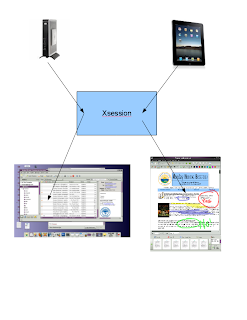
In prototype form I have accomplished the design below. I'm simulating this work flow on a thin client until NX 4.0 is relased. NX/Nomachine 4 will allow you to log into our servers with Safari directly from an iPad. The server will then detect your Xserver is 768x1024 and know that you are on a tablet and then bypass starting GNOME in favor of a UI designed just for this footprint. This will allow you to be logged into the server with a full GNOME desktop and also a tablet device at the same time. The UI opens in a split second, and will offer much faster response time than waiting for a desktop to start. The image below shows Xsession passing you to the two environments based on Xserver size criteria.
The workflow that we have worked out so far is: When users log into GNOME they always have the following icon on their desktop. This opens a Nautilus folder into which they can drop and drag PDF and OpenDocument files. Anything in this folder is staged then for the iPad devices.
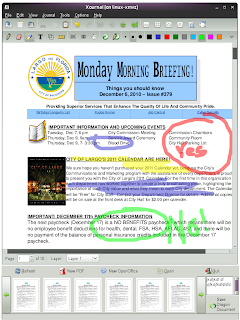
The shot below shows the current UI that is displayed in the 768x1024 footprint, exactly what will be seen on iPads. The panel at the bottom appears and thumbnails are generated of everything in $HOME/MobileDocuments sorted in reverse order newest to oldest. Clicking once on the document will display information about the document on the status line. Pressing Open will open it in either Xournal or OpenOffice. Xournal will allow them to use a stylus pen and mark up the meeting notes in their own handwriting. These documents are always on the server, and when they return to their desks they are available for immediate reference and further editing.
The iPad also has Dragon Naturally Speaking, and I have created a small multi-line text widget that will accept a paste from the local device. Once pasted, the button "Save Dragon Document" will become active. When they click this button, the text will be converted into OpenDocument (with perl modules) and a unique date stamped file name auto generated. The document will then display on the left of the panel as a thumbnail and be available for editing.
To answer the questions that I think will be coming :) -- ** Yes other tablets will be reviewed and the market is always monitored. This design is elegant in that it does not lock you into a certain vendor. ** Yes the UI is very basic and will evolve and probably sux. I'm more focused right now on this work flow. ** Yes iPads are $500 a piece, but even buying 10-20 of these would be but a small dent in our printing budget. A 10-20% reduction in printing might pay for the hardware in the first year.
I'm looking forward to testing this workflow and it's proceeding as a back burner project along with my primary projects.
There is a growing demand for mobile solutions that allow users to move around the building and gain access to their files. Our centralized design makes this easier, and many different concepts were discussed. The first inclination is to move in the direction of getting a laptop footprint device. Those of you that have seen my previous posts know that we already have a mobile laptop thin client that is being tested. The laptop footprint is not the best for meetings. Sitting in a room with 10 screens flipped up is not really ideal, and then you have to consider power needs, cords and batteries. They also are not suited for what people want to do most: annotate over the top of previously created documents. It would be wonderful if regular users worked as we do in the computer field with Wikis and sharing information, but that's not how they work at this time. They still want to annotate over the top of document with their own notes. Currently this is being done pen to paper. Technology changes are sometimes done in baby steps.
So if your IT department is like ours, you are not as staffed as you would like and the hours of the day are filled. So how do you add a new type of technology and still maintain a quality design? Replacing the thin clients at the users desktops with something they can pick up doesn't make sense. Our desktop cost is 600 dollars (400 thin client + 200 monitor) with a projected 10 year duty cycle. Annual costs are minimal. Laptop footprint devices (even thin client laptops) would then have lots of docking and undocking, snapping of wires, cords being moved, monitors plugged in, USB devices plugging and unplugging...all very expensive to support and problematic. Why change one of the most stable parts of your network? It was clear that our efficiency and cost savings should then be obtained from our printing infrastructure. We don't have desktop printers which are very expensive to maintain, but instead run departmental laser printers. Our printing costs and printed page counts are still too high in my view. There are people that print pages during document construction and then hand write notes on the pages; and some people print email messages in order to read them. Nearly every meeting involves pages being printed and handed out to employees. There has got to be better ways of working, and this for sure is the area that needs attention.
So what I am developing now with the IT Director is a way to integrate an iPad footprint device into our design as a way to reduce printing costs. The goal is to give them the power of the devices, but not allow them to store documents locally.
In prototype form I have accomplished the design below. I'm simulating this work flow on a thin client until NX 4.0 is relased. NX/Nomachine 4 will allow you to log into our servers with Safari directly from an iPad. The server will then detect your Xserver is 768x1024 and know that you are on a tablet and then bypass starting GNOME in favor of a UI designed just for this footprint. This will allow you to be logged into the server with a full GNOME desktop and also a tablet device at the same time. The UI opens in a split second, and will offer much faster response time than waiting for a desktop to start. The image below shows Xsession passing you to the two environments based on Xserver size criteria.

The workflow that we have worked out so far is: When users log into GNOME they always have the following icon on their desktop. This opens a Nautilus folder into which they can drop and drag PDF and OpenDocument files. Anything in this folder is staged then for the iPad devices.

The shot below shows the current UI that is displayed in the 768x1024 footprint, exactly what will be seen on iPads. The panel at the bottom appears and thumbnails are generated of everything in $HOME/MobileDocuments sorted in reverse order newest to oldest. Clicking once on the document will display information about the document on the status line. Pressing Open will open it in either Xournal or OpenOffice. Xournal will allow them to use a stylus pen and mark up the meeting notes in their own handwriting. These documents are always on the server, and when they return to their desks they are available for immediate reference and further editing.
The iPad also has Dragon Naturally Speaking, and I have created a small multi-line text widget that will accept a paste from the local device. Once pasted, the button "Save Dragon Document" will become active. When they click this button, the text will be converted into OpenDocument (with perl modules) and a unique date stamped file name auto generated. The document will then display on the left of the panel as a thumbnail and be available for editing.

To answer the questions that I think will be coming :) -- ** Yes other tablets will be reviewed and the market is always monitored. This design is elegant in that it does not lock you into a certain vendor. ** Yes the UI is very basic and will evolve and probably sux. I'm more focused right now on this work flow. ** Yes iPads are $500 a piece, but even buying 10-20 of these would be but a small dent in our printing budget. A 10-20% reduction in printing might pay for the hardware in the first year.
I'm looking forward to testing this workflow and it's proceeding as a back burner project along with my primary projects.
Wednesday, November 24, 2010
Portrait Feature Merged Into Thin Clients
A conversation that has taken place over the last few months is the idea of adding portrait mode as a supported thin client workstation feature. This is being done for two reasons: 1) to promote electronic document construction and review for those users that do this often as part of their jobs. We still have a good number of employees that use paper as part of the construction process. They print the document, hand write their notes on the paper and then submit it back and someone re-types their changes. (sigh!). One bad thing we have done in the technology arena is widen our screens for beautiful landscape views....and yet continued to design documents in portrait mode for printing on paper. From this perspective we kind of have promoted not working electronically. Hopefully this change will reduce these older techniques. 2) With tablet devices getting more popular this footprint needs to be tested and accounted for in design. Note: I'll be blogging about an offshoot of issue number 2 in the next week or two.
Since I was updating the thin client operating system anyway to make picture management easier (see earlier blogs), I decided to use the short week to just get this feature deployed. After a few mods to our standard xorg.conf file, our ATI cards are working great with xrandr -o and rotating cleanly with no artifacts. Nice.
gdm on GNOME 2.30 plays nicely with rotated screens and I'm happy with the results. Authentication cleanly worked, GNOME started and avant is working well in this mode. In the shot below you can see 1050x1680 in all of its beauty. OpenOffice looks great and for the most part everything is working as anticipated.

One issue that is being discussed is whether or not we will allow users to flip their monitors day to day or if this will be a setting that is locked down. As anyone knows that supports lots of users: anything that moves or can change will have failures and increases support. Something as simple as a power cord popping out produces calls to our help desk.
I made a quick change to our login chooser (below), and will get get this out to a few beta testers in the coming weeks. Initially we will allow the users to flip the screen on their own, and see how it works.

In my next blog (probably week of December 6th), I'll write about some tablet/mobile ideas that are a part of this portrait project. We have some ideas on how to save money in this regard.
Since I was updating the thin client operating system anyway to make picture management easier (see earlier blogs), I decided to use the short week to just get this feature deployed. After a few mods to our standard xorg.conf file, our ATI cards are working great with xrandr -o and rotating cleanly with no artifacts. Nice.
gdm on GNOME 2.30 plays nicely with rotated screens and I'm happy with the results. Authentication cleanly worked, GNOME started and avant is working well in this mode. In the shot below you can see 1050x1680 in all of its beauty. OpenOffice looks great and for the most part everything is working as anticipated.

One issue that is being discussed is whether or not we will allow users to flip their monitors day to day or if this will be a setting that is locked down. As anyone knows that supports lots of users: anything that moves or can change will have failures and increases support. Something as simple as a power cord popping out produces calls to our help desk.
I made a quick change to our login chooser (below), and will get get this out to a few beta testers in the coming weeks. Initially we will allow the users to flip the screen on their own, and see how it works.

In my next blog (probably week of December 6th), I'll write about some tablet/mobile ideas that are a part of this portrait project. We have some ideas on how to save money in this regard.
Subscribe to:
Comments (Atom)