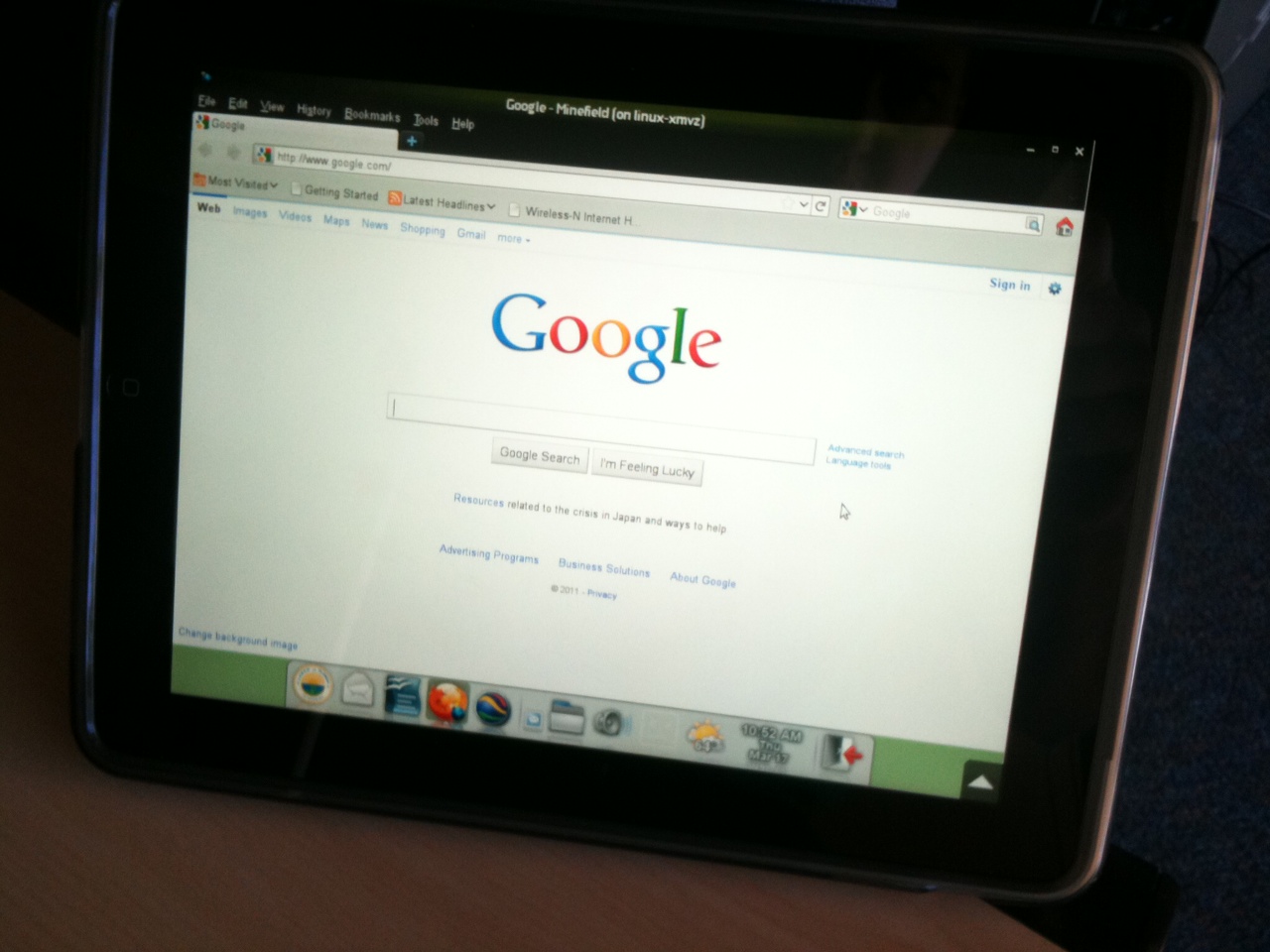
Lots of issues remain, but it's wonderful that we have progressed this far. Back to testing.
Wednesday, June 29, 2011
Lunch With A Side Of GNOME
Sometimes your plans for the day are altered greatly because of external circumstances. Nomachine released the latest NX 4 preview last night. We have been very anxious for this technology in order to deploy iPad/tablets, so this was my primary project for today. Prior releases inched closer to our goals, but were *far* too slow to do any beta testing. VNC testing over EVDO was painful as well. At this time no native client is offered for the iPad, instead it works by just using the Safari browser and then connecting to a web server. X is started inside the browser and your desktop appears. Performance on Firefox/Linux/Wired is very snappy and fast. Safari/iPad/WiFi works fairly well as does Safari/iPad/EVDO. So for the first time ever, I was able to take an iPad to lunch with me and log into our new GNOME server. I present, lunch with a side of GNOME:

Lots of issues remain, but it's wonderful that we have progressed this far. Back to testing.
Tuesday, June 28, 2011
Gotta Love Glade + Python
It's wonderful to have ideas in your head and be able to quickly get them prototyped and running. Using Glade and Python, I was able to connect the features that we need to make it easier to support our thin clients remotely. The software is detecting the number of monitors, resolution of the monitors, whether DVI or VGA is in use, color depth, Xserver size, uptime and ping response. It also allows us reboot the device, reset back to factory defaults, request remote control access and get a command line prompt from the Linux OS on the thin client for troubleshooting. (There are local processes that run and might have to be checked: Rdesktop and PulseAudio are two examples). I also have it snapping a screenshot and placing it over the top of the monitor image. I'm just using -gravity north from "convert" right now, and it's going to take some tinkering to get the various aspect ratios to fit correctly...but I'll leave that for a Friday afternoon project. :)

My coworker Brian had great luck with FOG today, wake on LAN is working and we configured all of the thin clients in our training room for PXE boot. Using FOG and the new server side storage of settings we were able to easily push an update to the thin clients, they rebooted and configured all of their settings and then booted right up to our XDMCP chooser. Very cool stuff, and we are looking forward to continued testing.

My coworker Brian had great luck with FOG today, wake on LAN is working and we configured all of the thin clients in our training room for PXE boot. Using FOG and the new server side storage of settings we were able to easily push an update to the thin clients, they rebooted and configured all of their settings and then booted right up to our XDMCP chooser. Very cool stuff, and we are looking forward to continued testing.
Monday, June 27, 2011
Doing More With Less, Improving User Experience
Usually when there are improvement areas in IT, we already know about them and have them in our heads. The roadblock is almost always the number of hours in the day, or money. The use of computer technology is exploding here at the City, and unfortunately we are not really hiring enough people to cover these increases. So we are trying to find every possible way to reclaim staff time. Sometimes in doing so you actually improve the user experience as well, and that is the case with my current project.
When you have 600+ thin clients (or PCs) it's very difficult to know exactly how each is configured. There are also sometimes cases where not all updates have been applied. We also sometimes have circumstances where users request additional features that require a small change to their thin client. Steps are being take to allow all of these tasks to be performed remotely.
These ideas have moved out of my head and into the form of screens. Please, no UI nazi comments. :) I'm sure HIG is being broken, and that a few pixels here and there are wrong. Right now this is just a work in progress to move designs on paper to the real world. Some of this is coded and now working and being tested for functionality. The thin client detail screen offers as many remote features as possible. From this screen we can remote control the user, force all settings back to defaults, reboot their device, see the number/orientation/resolution of their monitors, see which cables (DVI/VGA) are in use and also for the first time store all of their settings on the server. Here is the current (rough) screen. I also plan on splitting a thumbnail of their current screens on the monitors images as well so that support has an instant preview of what the user is seeing. Looks like xrandr can return back a string that indicates the exact monitor model, and I'm checking to see how that works.

We currently configure many settings locally to ensure the best possible user experience. If their monitor won't rotate, that feature is disabled. The monitor is configured for optimal resolution only and does not perform any plug-and-pray type polling for these settings. If you have ever supported users with changing resolutions, you know how important this stability is to your mental health. :) The UI above stores these entries in a flat file sitting in a jailed area of our internal FTP server. When the thin clients are reset to factory defaults or updated with a new operating system they now try and download this file automatically. If the file is found, the configuration UI toggles the right buttons and reboots itself in 10 seconds. So no more human intervention is required. Once it works, it will now always work after upgrades. It's working well, and we are going to try and test this in our training room which contains 16 devices to evaluate a network load.
My coworker Brian is concurrently working on testing FOG to allow for PXE updates. In our initial deployment of these thin clients, PXE updates were tested with the HP provided Altiris and we were not happy with the results so it was never enabled. It's our hope that FOG will allow for easier updates and scale better. Once that is up and running, the technology described above will allow the thin clients to automatically go right back to the tried and true settings that the user was previously using. Getting everyone on the latest code will solve problems for sure and these centralized techniques will make this easier than ever.
There are a few other ideas in my head to increase efficiencies. Another that is being developed is software to make it easier to allow us to see how the servers are performing. One negative aspect of using tools like "top" is that if several of us are monitoring the same server we are all consuming resources obtaining the same data. So what I did was write a very quick background script that checks user counts, CPU usage and number of print jobs and then create charts just *once* and store it in a JPG image. When you go into this monitoring tool, all you are doing is simply loading in the JPG image every 5 minutes. 10 of us looking at this at once will be no problem and we are all sharing the same resources. I put in a bit of code so that if it detects a condition where there might be a problem the chart turns orange and then red to catch your eye. The first iteration of this test UI is below. Once the features are working as expected, the UI will be improved.

So things are busy for sure, but it's fun to be hacking again and the City will for sure easily recoup these hours in staff resources.
When you have 600+ thin clients (or PCs) it's very difficult to know exactly how each is configured. There are also sometimes cases where not all updates have been applied. We also sometimes have circumstances where users request additional features that require a small change to their thin client. Steps are being take to allow all of these tasks to be performed remotely.
These ideas have moved out of my head and into the form of screens. Please, no UI nazi comments. :) I'm sure HIG is being broken, and that a few pixels here and there are wrong. Right now this is just a work in progress to move designs on paper to the real world. Some of this is coded and now working and being tested for functionality. The thin client detail screen offers as many remote features as possible. From this screen we can remote control the user, force all settings back to defaults, reboot their device, see the number/orientation/resolution of their monitors, see which cables (DVI/VGA) are in use and also for the first time store all of their settings on the server. Here is the current (rough) screen. I also plan on splitting a thumbnail of their current screens on the monitors images as well so that support has an instant preview of what the user is seeing. Looks like xrandr can return back a string that indicates the exact monitor model, and I'm checking to see how that works.

We currently configure many settings locally to ensure the best possible user experience. If their monitor won't rotate, that feature is disabled. The monitor is configured for optimal resolution only and does not perform any plug-and-pray type polling for these settings. If you have ever supported users with changing resolutions, you know how important this stability is to your mental health. :) The UI above stores these entries in a flat file sitting in a jailed area of our internal FTP server. When the thin clients are reset to factory defaults or updated with a new operating system they now try and download this file automatically. If the file is found, the configuration UI toggles the right buttons and reboots itself in 10 seconds. So no more human intervention is required. Once it works, it will now always work after upgrades. It's working well, and we are going to try and test this in our training room which contains 16 devices to evaluate a network load.
My coworker Brian is concurrently working on testing FOG to allow for PXE updates. In our initial deployment of these thin clients, PXE updates were tested with the HP provided Altiris and we were not happy with the results so it was never enabled. It's our hope that FOG will allow for easier updates and scale better. Once that is up and running, the technology described above will allow the thin clients to automatically go right back to the tried and true settings that the user was previously using. Getting everyone on the latest code will solve problems for sure and these centralized techniques will make this easier than ever.
There are a few other ideas in my head to increase efficiencies. Another that is being developed is software to make it easier to allow us to see how the servers are performing. One negative aspect of using tools like "top" is that if several of us are monitoring the same server we are all consuming resources obtaining the same data. So what I did was write a very quick background script that checks user counts, CPU usage and number of print jobs and then create charts just *once* and store it in a JPG image. When you go into this monitoring tool, all you are doing is simply loading in the JPG image every 5 minutes. 10 of us looking at this at once will be no problem and we are all sharing the same resources. I put in a bit of code so that if it detects a condition where there might be a problem the chart turns orange and then red to catch your eye. The first iteration of this test UI is below. Once the features are working as expected, the UI will be improved.

So things are busy for sure, but it's fun to be hacking again and the City will for sure easily recoup these hours in staff resources.
Monday, June 20, 2011
SQL To The Rescue
As I continue to close up the last of the minor issues with the new GNOME desktop, I decided to quickly implement a dialog that appears after you log into the server. The print cost database is now loading information completely via cron and the numbers are astonishing. We have departmental printers and costs are high. I can't imagine the costs in Governmental agencies that have desktop printers. Be assured that we are doing everything possible to save tax payer dollars here at Largo. This kind of stuff drives me crazy!
For the first time, when users log in they are made aware of their print consumptions. As you can see, I don't print very often. :)

And the SQL to perform this query took just a few minutes:

We are still settling in on a value for the cost of a theoretical 100% coverage. The cost per page that they quote you is always for 5% coverage. So 2 cents a page @ 5% coverage is around 40 cents per fully printed page. That value is multiplied times the coverage rate and number of pages.
For the first time, when users log in they are made aware of their print consumptions. As you can see, I don't print very often. :)

And the SQL to perform this query took just a few minutes:

We are still settling in on a value for the cost of a theoretical 100% coverage. The cost per page that they quote you is always for 5% coverage. So 2 cents a page @ 5% coverage is around 40 cents per fully printed page. That value is multiplied times the coverage rate and number of pages.
Thursday, June 16, 2011
Fun With Aspect Ratios & Resolution
I'm not sure what it says about a person if this seems fun, but today I worked on improving some of our internal scripts that allow our support staff to remote control end users. :) This was a project brought about because of a desire for increased tablet usage. One caveat of that process is dissimilar resolutions when using VNC. Some of the users have higher resolution and some work in portrait mode and vncviewer would open 1:1 in the resolution on the remote site. This created scroll bars that had to be navigated, and the user would move things around and not realize you couldn't see their whole screen.
So as part of the iPad remote control project, I came up with some additions to the ksh code that checks resolutions on both sides and then always ensures that their screen fully fits on yours. This code is used in both areas: support to remote control end users and also to remote control your desktop session from any device. These shots show the results:
Desktop user (1440x900) is remote controlling an end user who is in portrait mode (1024x1280):

iPad (1024x768) is remote controlling a portrait thin client (1024x1280):

iPad (1024x768) is remote controlling a landscape thin client (1440x900):

The code is really very simple, get the height and width of both devices and figure out the aspect ratios. Then use that to figure out if it's best to use the width or height as your baseline, subtract a few pixels for window manager and lower panel, and calculate the other value based on the aspect ratio.
Fun stuff, and useful for the rest of our staff. It's already live and I should get feedback tomorrow.
So as part of the iPad remote control project, I came up with some additions to the ksh code that checks resolutions on both sides and then always ensures that their screen fully fits on yours. This code is used in both areas: support to remote control end users and also to remote control your desktop session from any device. These shots show the results:
Desktop user (1440x900) is remote controlling an end user who is in portrait mode (1024x1280):

iPad (1024x768) is remote controlling a portrait thin client (1024x1280):
iPad (1024x768) is remote controlling a landscape thin client (1440x900):
The code is really very simple, get the height and width of both devices and figure out the aspect ratios. Then use that to figure out if it's best to use the width or height as your baseline, subtract a few pixels for window manager and lower panel, and calculate the other value based on the aspect ratio.
Fun stuff, and useful for the rest of our staff. It's already live and I should get feedback tomorrow.
Wednesday, June 15, 2011
Testing Remote Control Ideas
As the GNOME desktop project is getting closer to completion, I spent some time testing an idea that I have had for a while: Offer another option to remote control an existing login. On the current server, if you log in and already have a session running (from another thin client) it allows you to 1) exit without killing the other sesson or 2) Kill the other session and log in cleanly from the current device. We of course have talked about running NX or similar technology for all City thin clients which makes it easy to just steal a session. But old school X is still our preferred technology in all of our buildings with fiber optics. It has a different feel, is more crisp and your software looks like "software" and not a "picture". If you have used NX or VNC, you know exactly what I mean. When possible, we go for the best presentation.
So with this design, I wanted to offer a another option: 3) Remote control your existing session. This solves many use cases for us. You might want to gracefully shut down your software or you may want to quickly access your already running software.
I'm using our good friend x11vnc and it's working well. When you log in for a second time, it alerts you of that fact and then offers you the option to remote control your existing session. Once selected it initiates x11vnc on your original thin client and then starts the viewer on the second device. The second device can be another thin client....or an iPad. In the shot below, I logged into the thin client initially, and then attempted to log into the iPad; got the dialog and am doing a remote control.

What I'm looking at now is the best way to use the -scale option. The second login will very probably be in another monitor resolution. In the case of the shot above, original thin client was 1280x1024 and then I -scale'd it down to 1024x768 for the iPad. Lots of aspect ratio issues to consider.
A fun little useful project, and a good sign that the new server is almost finished.
So with this design, I wanted to offer a another option: 3) Remote control your existing session. This solves many use cases for us. You might want to gracefully shut down your software or you may want to quickly access your already running software.
I'm using our good friend x11vnc and it's working well. When you log in for a second time, it alerts you of that fact and then offers you the option to remote control your existing session. Once selected it initiates x11vnc on your original thin client and then starts the viewer on the second device. The second device can be another thin client....or an iPad. In the shot below, I logged into the thin client initially, and then attempted to log into the iPad; got the dialog and am doing a remote control.
What I'm looking at now is the best way to use the -scale option. The second login will very probably be in another monitor resolution. In the case of the shot above, original thin client was 1280x1024 and then I -scale'd it down to 1024x768 for the iPad. Lots of aspect ratio issues to consider.
A fun little useful project, and a good sign that the new server is almost finished.
Monday, June 13, 2011
GDM & Login Cleanups
We are inching closer and closer to going live with the new GNOME desktop upgrade for our thin clients. With all of the complexities of hundreds of icons and the nuances of having hundreds of users, it really does take 6-12 months to prep a server for this type of deployment. Not only do you have to consider the GNOME server, but also all of the remote servers and software applications. We are also weighing upgrades and connection techniques (RDP vs Citrix vs UIS).
We are up to about 45 concurrent users that are testing the new server, and uncovered a nasty issue in GDM related to two users trying to authenticate at the same time. Halfline/Ray was awesome as usual to create a patch and it's already posted. I just now need to get it built on OpenSuse 11.4 and will test.
My focus last week was on optimizing the user experience in authenticating and then the time it takes before avant-window-navigator launches.
GDM Tuning
These are the changes I made to GDM to make it run faster, and produce a dialog as soon as possible after XDMCP request
I have hand selected some gconf settings that are loaded when users log in and found that they were taking a few seconds to load. On a home/personal computer forcing in settings would never be done, but in a production environment where people are working 24 hours of the day...I have to ensure a working session each and every time. These gconf settings remove any customizations that might cause failure. So what I did was break them into smaller groups and then fire them off into the background concurrently. This was able to shave off several seconds from the point that you enter your password and hit ENTER to the point the panel appears. I also reviewed every line of the script and removed any items that were unneeded or obsolete.
This morning I put all of these changes live, they had been tested on a VM clone of the server and worked fine. So far the results are promising. The GDM dialog appears almost immediately upon request and the panel appears in about 4 seconds after the password is accepted.
This week I'll continue to ensure that all icons are brought over from the older GNOME desktop, QA work, and also working on testing the VM copy that is being generated once a week. We are experimenting with techniques to have the VM server detect first boot after copy and transition to new IPs automatically.
We are up to about 45 concurrent users that are testing the new server, and uncovered a nasty issue in GDM related to two users trying to authenticate at the same time. Halfline/Ray was awesome as usual to create a patch and it's already posted. I just now need to get it built on OpenSuse 11.4 and will test.
My focus last week was on optimizing the user experience in authenticating and then the time it takes before avant-window-navigator launches.
GDM Tuning
These are the changes I made to GDM to make it run faster, and produce a dialog as soon as possible after XDMCP request
- I opened the .ui file of the password dialog box with glade-3 and made it a fixed size. Previously the "animation" process was kind of slow over remote display. It would display with no entry widget and then wiggle a bit and resize larger and then complete. My strings and logos won't be changing, so it was ok to test with my art/strings and size accordingly. This improves the user presentation and seems to make it a bit faster.
- I turned off server side GDM wallpapers, hesitantly. I like the idea of keeping as much as possible on the server in case one wants to make changes in the future, but by turning this off I was able to speed up the process of getting the password dialog. I made a change to the thin client build that gives the Xserver a black wallpaper (-br), so the old school gray/white grids are gone. Users only see this for a few seconds at most each day, so comfort has increased in this change.
- The /tmp/orbit-gdm directory basically never deletes any linc* files, and at one point we had a million temporary files (after many, many months of me not knowing about it). I now have a cron running that cleans these out each night with linc-cleanup-sockets. I'm sure that temp file placement is diminished when packed full of old files.
- I removed several .desktop files in the gdm startup group that we didn't need. It was attempting to start another pulseaudio process, even though pulse is already running on the thin client. This was probably creating some nastiness and delays.
I have hand selected some gconf settings that are loaded when users log in and found that they were taking a few seconds to load. On a home/personal computer forcing in settings would never be done, but in a production environment where people are working 24 hours of the day...I have to ensure a working session each and every time. These gconf settings remove any customizations that might cause failure. So what I did was break them into smaller groups and then fire them off into the background concurrently. This was able to shave off several seconds from the point that you enter your password and hit ENTER to the point the panel appears. I also reviewed every line of the script and removed any items that were unneeded or obsolete.
This morning I put all of these changes live, they had been tested on a VM clone of the server and worked fine. So far the results are promising. The GDM dialog appears almost immediately upon request and the panel appears in about 4 seconds after the password is accepted.
This week I'll continue to ensure that all icons are brought over from the older GNOME desktop, QA work, and also working on testing the VM copy that is being generated once a week. We are experimenting with techniques to have the VM server detect first boot after copy and transition to new IPs automatically.
Friday, June 03, 2011
Happy Friday & Updates
I haven't blogged for a while but have certainly been busy. Things I worked on this week:
Print Job Data
The project to generate print job costs is finished and running nearly unattended. I have been QAing the files before the load into the sqlite3 database each morning, but should be able to cron that process in the next day or so. It'll just email me the exceptions if there are any. Printing costs are way too high, now comes the hard part of trying to break 20 year old habits and changing the culture.
GNOME Desktop
I'm adding more and more users and testing features and making tuning changes. There is some lingering NFS oddness still and I have some ideas of changes to make on the NFS remote server. I also found that /tmp/orbit-gdm was holding 1 million temp files, and now implementing a cron job with linc-cleanup-sockets running as gdm to remove the dead files. We are getting some odd delays at the point of XDMCP connect and the screen fully appearing, checking into that too. I have been updating artwork and icons and testing to make sure that the software packages are launching as expected. We are running about 40 concurrent users now and things are working well.
Password Protected OpenOffice Files
We have a City policy that if you password protect files, that you have to fill out a form and give it to your Director. It seems like that wasn't always happening so I was asked to write a script to find the files that were password protected. I found that unzip -l lists the .odt archive regardless of password protection...however the Thumbnails folder was missing in the case of a password. Makes sense, generate no thumbnail for a document that is locked..otherwise people would see the first page. So a scan found about 20 documents that were locked, not terrible.
iPad VNC Testing
NX still hasn't released version 4, so I started testing VNC over EVDO on the iPad. It's really really slow and not something that could be deployed. It only works in 8 bit color and that gives them a pretty messy experience...but even at 8bit color it's too slow. 16bit color took a full minute for the GDM wallpaper to even appear, and then GDM timed out and the connections drop. Completely not usable. I'm going to poke around with other ideas, and hope that a NX client is released at some point.
Happy Weekend!
Print Job Data
The project to generate print job costs is finished and running nearly unattended. I have been QAing the files before the load into the sqlite3 database each morning, but should be able to cron that process in the next day or so. It'll just email me the exceptions if there are any. Printing costs are way too high, now comes the hard part of trying to break 20 year old habits and changing the culture.
GNOME Desktop
I'm adding more and more users and testing features and making tuning changes. There is some lingering NFS oddness still and I have some ideas of changes to make on the NFS remote server. I also found that /tmp/orbit-gdm was holding 1 million temp files, and now implementing a cron job with linc-cleanup-sockets running as gdm to remove the dead files. We are getting some odd delays at the point of XDMCP connect and the screen fully appearing, checking into that too. I have been updating artwork and icons and testing to make sure that the software packages are launching as expected. We are running about 40 concurrent users now and things are working well.
Password Protected OpenOffice Files
We have a City policy that if you password protect files, that you have to fill out a form and give it to your Director. It seems like that wasn't always happening so I was asked to write a script to find the files that were password protected. I found that unzip -l lists the .odt archive regardless of password protection...however the Thumbnails folder was missing in the case of a password. Makes sense, generate no thumbnail for a document that is locked..otherwise people would see the first page. So a scan found about 20 documents that were locked, not terrible.
iPad VNC Testing
NX still hasn't released version 4, so I started testing VNC over EVDO on the iPad. It's really really slow and not something that could be deployed. It only works in 8 bit color and that gives them a pretty messy experience...but even at 8bit color it's too slow. 16bit color took a full minute for the GDM wallpaper to even appear, and then GDM timed out and the connections drop. Completely not usable. I'm going to poke around with other ideas, and hope that a NX client is released at some point.
Happy Weekend!
Thursday, May 19, 2011
And One More Thing, Resolutions
Just wanted to pass along a little trick that I use when writing software. About half of our 600 monitors are still 1024x768. We don't replace monitors until they are dead as good custodians of taxpayer dollars, and LCD panels are lasting many years. Usually IT developers have wide screens and some of them have dual monitors. It's easy to forget about the rest of our users, and suddenly software is developed that doesn't fit on their screens. Nothing worse than having to re-engineer a beautiful UI after finding this out during beta testing.
So what I always do is use my handy wallpaper that has a black box drawn at 1024x768 for testing screens.
We Have Print Data
After some short meetings with our Director and other staff, there seemed to be some excitement about analyzing our printing data. They gave me a list of some additional functionality and I had fun learning how to use some new widgets with Python/Glade and how to retrieve data from sqlite. I don't get the chance to write software very much anymore, and I still find it enjoyable after all of these years.
Here is the shot of the UI, simple and easy to use. The users select the data range, the departments and then the various functions they wish to query. The information is returned in three tabs on the right side which appear as "Department", "Printers" and "Users". One of the requested features was the ability to get the data as it appears in the Tree into OpenOffice Calc. The sqlite query is looping to fill the tree, and it was very simple to just dump the data concurrently out to a perl library which allows you to generate an identical .ods file. When the Tree displays, the file is finished and ready for use. I added an area labeled 'Files' which contains the spreadsheets. When clicked, the buttons use the normal MIME popups that we use on the rest of the desktop. The perl library does not generate the thumbnail file that normally appears in an .ods file, so the preview window comes up blank.

In the shot below, I selected OpenOffice - Calc opens the .ods file and will allow them to tinker with the numbers or copy and paste into other applications as needed. It took a bit of Googling to find the right technique to get the numbers over as integers and not as strings. But it's all working.

The primary UI gives them SQL SUMs of the various data, and I knew that people would be shocked at the number. So if you double-click on any of the Tree rows, it opens a child window which performs the same SQL statement except showing the detail records. It's very interesting to be able to see all print jobs by department, printer and user in chronological order. You can really get a better understand of how people are using/abusing the software.

I have a bit of work to do yet to merge in the log files coming over from the MS Windows spoolers which are in a different format. At that point management can review the data and consider ways to reduce costs with the use of other technologies such as portrait monitors, policies, training and tablets.
Here is the shot of the UI, simple and easy to use. The users select the data range, the departments and then the various functions they wish to query. The information is returned in three tabs on the right side which appear as "Department", "Printers" and "Users". One of the requested features was the ability to get the data as it appears in the Tree into OpenOffice Calc. The sqlite query is looping to fill the tree, and it was very simple to just dump the data concurrently out to a perl library which allows you to generate an identical .ods file. When the Tree displays, the file is finished and ready for use. I added an area labeled 'Files' which contains the spreadsheets. When clicked, the buttons use the normal MIME popups that we use on the rest of the desktop. The perl library does not generate the thumbnail file that normally appears in an .ods file, so the preview window comes up blank.

In the shot below, I selected OpenOffice - Calc opens the .ods file and will allow them to tinker with the numbers or copy and paste into other applications as needed. It took a bit of Googling to find the right technique to get the numbers over as integers and not as strings. But it's all working.

The primary UI gives them SQL SUMs of the various data, and I knew that people would be shocked at the number. So if you double-click on any of the Tree rows, it opens a child window which performs the same SQL statement except showing the detail records. It's very interesting to be able to see all print jobs by department, printer and user in chronological order. You can really get a better understand of how people are using/abusing the software.

I have a bit of work to do yet to merge in the log files coming over from the MS Windows spoolers which are in a different format. At that point management can review the data and consider ways to reduce costs with the use of other technologies such as portrait monitors, policies, training and tablets.
Wednesday, May 11, 2011
Paper & Printer Usage Under Review
As part of the GNOME desktop upgrade, a project has been initiated that is near and dear to my heart -- printing. There is a strong culture in many people to fight computerization and continue to work with 10 or 20 year old techniques. The amount of paper and ink used is tremendous and our printing costs are finally coming to light.
CUPs dumps flat files into /var/log/cups/page_log which contains lots of useful information, but is in no way in a format that can be researched. This is especially true when you have multiple servers and operating systems. We have always known that printers are heavily used, because they are a big draw on IT support. However, we have never been able to prove an exact dollar amount nor provide any specifics about poor techniques being used around the City. So I wrote some quick ksh scripts that scan through the page_log each night at midnight and dump the information into a sqlite database. This is yielding very interesting information.
I have done some SQL statements by hand to begin to look at the data, but obviously this isn't going to be the way that the IT Director or analysts will work. So I am writing a quick Glade/Python screen for running the various searches and the current shot is below. This won't be used by end users and won't get much more bling & art. It will serve the purpose of allowing our staff to select a date range, select departments and then include/exclude various desktop functions. The ink coverage is estimated per print job and we will be able punch in the per page cost for HP printers and it will give an estimated cost of the range selected. Initial estimates are that this cost might be north of 150K a year. :\
If we can use the new desktop, portrait LCD monitors and iPads to change peoples work habits, I believe we can increase efficiencies and reduce costs.
CUPs dumps flat files into /var/log/cups/page_log which contains lots of useful information, but is in no way in a format that can be researched. This is especially true when you have multiple servers and operating systems. We have always known that printers are heavily used, because they are a big draw on IT support. However, we have never been able to prove an exact dollar amount nor provide any specifics about poor techniques being used around the City. So I wrote some quick ksh scripts that scan through the page_log each night at midnight and dump the information into a sqlite database. This is yielding very interesting information.
I have done some SQL statements by hand to begin to look at the data, but obviously this isn't going to be the way that the IT Director or analysts will work. So I am writing a quick Glade/Python screen for running the various searches and the current shot is below. This won't be used by end users and won't get much more bling & art. It will serve the purpose of allowing our staff to select a date range, select departments and then include/exclude various desktop functions. The ink coverage is estimated per print job and we will be able punch in the per page cost for HP printers and it will give an estimated cost of the range selected. Initial estimates are that this cost might be north of 150K a year. :\
If we can use the new desktop, portrait LCD monitors and iPads to change peoples work habits, I believe we can increase efficiencies and reduce costs.
Wednesday, May 04, 2011
A Good Detour Through Lake Worth Florida
The week has been productive. One smaller project that I completed was resyncing avant-window-navigator to the latest versions and deploying this on our Beta desktop. This has a fix in that allows the shinyswitcher to work with VNC and NX connections. I'll be testing that fully this afternoon. This was the last patch required to allow iPads to log into the City and get a fully functional desktop. Cool stuff.
The other project was initiated with a conference call to our IT friends at Lake Worth, Florida. They are exploring ways to implement thin clients, Linux and open source software packages. We offered to send them a copy of our customized thin client build to assist in this process. A customized build has a serious flaw: It's a customized build. :) It was designed for us, and our networking designs were hooked into the scripts which have matured and changed through the years. We have a long term goal of redoing our IP scheme, so making the thin client build a bit more modularized was on our radar anyway. I grabbed some post it notes and went through the code and made a list of all server connections and features that other organizations might want to disable and then built some new UI screens that appear on first boot. The new design makes IP changes a snap, and allows for additional government agencies to piggyback off the project if they so desire. A few hours of design, coding and testing and it's working. There are still some additional areas that need work, but enough is done that we can now ship them a copy of the build and it will work on their network. The UI could probably be better, but it only displays for 30 seconds the first time a thin client is configured and never is seen again. I got feedback from our support division and these screens allow them to touch and update a thin client faster than ever.
On first boot (factory settings), splash page is generic. This provides a visual cue that no settings are configured and the build is currently generic.

The build detects no settings and comes up to a configuration screen (glade/python) that requests that you pick the desired City. (( If you are a Government agency and thinking about HP 5745 thin clients, email me and let's chat about adding you to the build ))

The Site Settings tab has all of the options and IP addresses of servers.

Select the monitor resolution. We hard code the values into xorg.conf to ensure a consistent user experience.

How many monitors does the thin client have?

Does the monitor physically rotate to landscape and portrait? If the monitor doesn't turn, why even allow them to do so?

What is the function of the thin client? Some are are used for desktops, and others are used for Kiosks (human resources, cyber cafe).

After saving the settings, the thin client is now configured for City of Largo.

And users in Lake Worth will get all of their customized artwork.

It's always exciting to hear about other agencies that are exploring ways to save money and as mentioned, these changes improved the quality of code and functionality at our site as well.
The other project was initiated with a conference call to our IT friends at Lake Worth, Florida. They are exploring ways to implement thin clients, Linux and open source software packages. We offered to send them a copy of our customized thin client build to assist in this process. A customized build has a serious flaw: It's a customized build. :) It was designed for us, and our networking designs were hooked into the scripts which have matured and changed through the years. We have a long term goal of redoing our IP scheme, so making the thin client build a bit more modularized was on our radar anyway. I grabbed some post it notes and went through the code and made a list of all server connections and features that other organizations might want to disable and then built some new UI screens that appear on first boot. The new design makes IP changes a snap, and allows for additional government agencies to piggyback off the project if they so desire. A few hours of design, coding and testing and it's working. There are still some additional areas that need work, but enough is done that we can now ship them a copy of the build and it will work on their network. The UI could probably be better, but it only displays for 30 seconds the first time a thin client is configured and never is seen again. I got feedback from our support division and these screens allow them to touch and update a thin client faster than ever.
On first boot (factory settings), splash page is generic. This provides a visual cue that no settings are configured and the build is currently generic.
The build detects no settings and comes up to a configuration screen (glade/python) that requests that you pick the desired City. (( If you are a Government agency and thinking about HP 5745 thin clients, email me and let's chat about adding you to the build ))

The Site Settings tab has all of the options and IP addresses of servers.

Select the monitor resolution. We hard code the values into xorg.conf to ensure a consistent user experience.

How many monitors does the thin client have?

Does the monitor physically rotate to landscape and portrait? If the monitor doesn't turn, why even allow them to do so?

What is the function of the thin client? Some are are used for desktops, and others are used for Kiosks (human resources, cyber cafe).

After saving the settings, the thin client is now configured for City of Largo.

And users in Lake Worth will get all of their customized artwork.

It's always exciting to hear about other agencies that are exploring ways to save money and as mentioned, these changes improved the quality of code and functionality at our site as well.
Wednesday, April 27, 2011
The Road To Seamless Windows
While we do run a lot of open source and Linux software, of course there are still some applications that run in Microsoft Windows. I personally don't work on the Windows side of things, and it's handled by the other System Administrator.
The launch scripts to run these applications are mature and work well. In the last year we made some changes mentioned in previous blogs in regards to using Rdesktop running on the thin client itself, along with allocating some thin client RAM for video cache. All of which have made the applications run virtually the same speed as they would on the server.
The last technological feature that was always on the radar was running them in a seamless window. This is the opposite of how it worked previously; a container would open and the software was sitting inside of this space. This design wasn't terrible, but disallowed users from having all of the resizing capabilities that they wished. A new version of Rdesktop (1.7.0) was just released in the last week or so and the Windows administrator spent some time testing it once again. Previously there were some stability problems when running seamlessly, and it would sometimes crash. It never felt ready for daily and enterprise use.
He tested Rdesktop 1.7.0 and felt it was very stable and would work well within our deployment. The next obstacle was that the HP thin clients are running Debian Lenny and no backports of Rdesktop had been done and possibly never will take place. So we built a VM to run Debian Lenny with full development tools and libraries. This VM image will be kept for future projects that might arise. Rdesktop was compiled cleanly and then we moved it over to the thin client manually and installed the binary and libraries and everything worked. I spent some time this morning rewriting the rdesktop launch scripts on the thin clients to understand the desire for a seamless window and use the appropriate flags. Rdesktop is a bit twitchy about the order of the arguments and this had to be tested and QA'd.
So after less than a few hours of work, it's now ready for release to our beta desktop users. Once stress tested, this technology will be pushed to the rest of the City. In the shot below, you can see Internet Explorer running in a seamless window, tightly integrated into the Linux desktop. A single click of an icon in avant and you can be listening to Steve Perry in just a few seconds. ;)
The launch scripts to run these applications are mature and work well. In the last year we made some changes mentioned in previous blogs in regards to using Rdesktop running on the thin client itself, along with allocating some thin client RAM for video cache. All of which have made the applications run virtually the same speed as they would on the server.
The last technological feature that was always on the radar was running them in a seamless window. This is the opposite of how it worked previously; a container would open and the software was sitting inside of this space. This design wasn't terrible, but disallowed users from having all of the resizing capabilities that they wished. A new version of Rdesktop (1.7.0) was just released in the last week or so and the Windows administrator spent some time testing it once again. Previously there were some stability problems when running seamlessly, and it would sometimes crash. It never felt ready for daily and enterprise use.
He tested Rdesktop 1.7.0 and felt it was very stable and would work well within our deployment. The next obstacle was that the HP thin clients are running Debian Lenny and no backports of Rdesktop had been done and possibly never will take place. So we built a VM to run Debian Lenny with full development tools and libraries. This VM image will be kept for future projects that might arise. Rdesktop was compiled cleanly and then we moved it over to the thin client manually and installed the binary and libraries and everything worked. I spent some time this morning rewriting the rdesktop launch scripts on the thin clients to understand the desire for a seamless window and use the appropriate flags. Rdesktop is a bit twitchy about the order of the arguments and this had to be tested and QA'd.
So after less than a few hours of work, it's now ready for release to our beta desktop users. Once stress tested, this technology will be pushed to the rest of the City. In the shot below, you can see Internet Explorer running in a seamless window, tightly integrated into the Linux desktop. A single click of an icon in avant and you can be listening to Steve Perry in just a few seconds. ;)
Tuesday, April 26, 2011
FireFox 4 Scaling Well
There is always a period of time after you requisition hardware that you are a little nervous about performance. Very happy to report that Firefox is scaling very well and we have jumped over the magic number of 100 concurrent users in FF.
The only open issue right now in regards to Firefox is that it still is having an occasional oddity in regards to NFS. From watching patterns, it seems like if you are downloading a big (1GB+) file and writing it over NFS, the server get's sluggish. It never comes to a crawl, but has a noticeable slowdown. I was able to make this work better by downgrading from NFS4 to NFS3. I'll see if I can figure it out and submit a proper bug report.
The shots below are 100 concurrent FF sessions. Not everyone is surfing at the same time, but it still shows the memory usage along with CPU for maybe 30ish active sessions. Very happy to see Flash not multi-threading. :) I believe this server could easily handle another 100 users, and can easily be upgraded in terms of RAM.

The only open issue right now in regards to Firefox is that it still is having an occasional oddity in regards to NFS. From watching patterns, it seems like if you are downloading a big (1GB+) file and writing it over NFS, the server get's sluggish. It never comes to a crawl, but has a noticeable slowdown. I was able to make this work better by downgrading from NFS4 to NFS3. I'll see if I can figure it out and submit a proper bug report.
The shots below are 100 concurrent FF sessions. Not everyone is surfing at the same time, but it still shows the memory usage along with CPU for maybe 30ish active sessions. Very happy to see Flash not multi-threading. :) I believe this server could easily handle another 100 users, and can easily be upgraded in terms of RAM.

Friday, April 22, 2011
Ipad, Server & Desktop Updates
A Word About UI Design And Artwork
I have always been a person that shows screenshots and mockups when blogging. I find that when I read other blogs and can't see a picture, I find myself wondering exactly what they are describing. From time to time I get comments about how the UI "sux" or that the artwork is "terrible". I wanted to make a few comments; I never take it personally, but what really helps me is to make your own mockups and post them for me to see. I'm not an expert, and sometimes people have made some excellent suggestions. The other bigger comment is that being a Government agency, if we had an artist doing all of our icons and if we spent hundreds of hours working on UI design - as a taxpayer that would be disturbing. If we had that many hours to work on software and art, I would consider us over staffed. I always try and reach a balance point where the UI works and is functional, and always try and use existing artwork that others have created.
Ipad Portrait Portal Screen Finished
After meeting with some test users, they approved the initial screen and I have finished all of their changes (and it didn't take me 100s of hours :) ). The biggest change was that in the prototype the UI was blocked until all of the thumbnails were finished. Once they approved the design, I rewrote that code to not block the UI while the documents are being thumbnailed. In the shot below you can see that it finds all of the documents (in about 2 seconds) and displays the clock/busy symbol on the thumbnail and then fetches them while leaving the UI active. Previously 30 document so would take around 25 seconds to complete. Now the user can start working immediately.

Remote Logins with VNC and NX
I am still testing various remote connection software on the iPad and as I mentioned the VNC Software called Remoter is working very well for us. The developer has been very open to ideas and the response time over VNC is crisp and instant. When I touch the stylus pen to tablet running Xournal, the pens and markers are as fast as a local computer and very fluid. The next step is to work with our networking and security guys and get this working from the outside so that performance can be tested over EVDO and Internet connections.
Concurrently, the Nomachine guys have released their next alpha release of NX which finally supports iPads. The software continues to have an excellent design and installs easily, but the iPad and browser performance still suffer in comparison to using a native client. My testing indicated about half the speed of VNC. While promising and interesting, right now it's not something that could be deployed. Hopefully performance will improve during the beta and release candidate stage. We certainly have no objections to a native client for iPad if it's faster; even though it would require installing additional software.
Ipad Landscape Login
The Xsession file is configured so that if you log in in portrait mode the above UI is used, but if you log in in landscape mode the server thinks you are just a regular 1024x768 device and gives you a full desktop. There is a bug in shinyswitcher in avant-window-navigator that causes it to crash when using VNC/NX and they guys on #awn are cooking a patch. Response time is excellent over VNC and it's a very usable roaming desktop with plenty of real estate. Around 50% of our LCD monitors are still 1024x768 so this resolution is still fully tested and QA'd and it's working great on the tablet. I'm pondering some ideas right now in allowing users to grab control of their already running desktop from the tablet. That should prove interesting.
Servers Are Offline
In this case, that's good news. The old NFS server and browser/Firefox3 server have been powered off after running as an emergency backup server for 1-2 months. No problems with all of the new 64bit servers and things are running very well.
New GNOME Desktop Deployment
It's always a challenge to consider how much information to give users when you deploy new software. Most don't read what you send them, no matter how carefully crafted. I have noticed that when sending email they will read a bulleted message with very short explanations versus long paragraphs. I also have found that boxed, quick concise snippets of information will catch their eye. So with that said, the document below is the current handout that is being readied for the upgrade.


I have always been a person that shows screenshots and mockups when blogging. I find that when I read other blogs and can't see a picture, I find myself wondering exactly what they are describing. From time to time I get comments about how the UI "sux" or that the artwork is "terrible". I wanted to make a few comments; I never take it personally, but what really helps me is to make your own mockups and post them for me to see. I'm not an expert, and sometimes people have made some excellent suggestions. The other bigger comment is that being a Government agency, if we had an artist doing all of our icons and if we spent hundreds of hours working on UI design - as a taxpayer that would be disturbing. If we had that many hours to work on software and art, I would consider us over staffed. I always try and reach a balance point where the UI works and is functional, and always try and use existing artwork that others have created.
Ipad Portrait Portal Screen Finished
After meeting with some test users, they approved the initial screen and I have finished all of their changes (and it didn't take me 100s of hours :) ). The biggest change was that in the prototype the UI was blocked until all of the thumbnails were finished. Once they approved the design, I rewrote that code to not block the UI while the documents are being thumbnailed. In the shot below you can see that it finds all of the documents (in about 2 seconds) and displays the clock/busy symbol on the thumbnail and then fetches them while leaving the UI active. Previously 30 document so would take around 25 seconds to complete. Now the user can start working immediately.
Remote Logins with VNC and NX
I am still testing various remote connection software on the iPad and as I mentioned the VNC Software called Remoter is working very well for us. The developer has been very open to ideas and the response time over VNC is crisp and instant. When I touch the stylus pen to tablet running Xournal, the pens and markers are as fast as a local computer and very fluid. The next step is to work with our networking and security guys and get this working from the outside so that performance can be tested over EVDO and Internet connections.
Concurrently, the Nomachine guys have released their next alpha release of NX which finally supports iPads. The software continues to have an excellent design and installs easily, but the iPad and browser performance still suffer in comparison to using a native client. My testing indicated about half the speed of VNC. While promising and interesting, right now it's not something that could be deployed. Hopefully performance will improve during the beta and release candidate stage. We certainly have no objections to a native client for iPad if it's faster; even though it would require installing additional software.
Ipad Landscape Login
The Xsession file is configured so that if you log in in portrait mode the above UI is used, but if you log in in landscape mode the server thinks you are just a regular 1024x768 device and gives you a full desktop. There is a bug in shinyswitcher in avant-window-navigator that causes it to crash when using VNC/NX and they guys on #awn are cooking a patch. Response time is excellent over VNC and it's a very usable roaming desktop with plenty of real estate. Around 50% of our LCD monitors are still 1024x768 so this resolution is still fully tested and QA'd and it's working great on the tablet. I'm pondering some ideas right now in allowing users to grab control of their already running desktop from the tablet. That should prove interesting.
Servers Are Offline
In this case, that's good news. The old NFS server and browser/Firefox3 server have been powered off after running as an emergency backup server for 1-2 months. No problems with all of the new 64bit servers and things are running very well.
New GNOME Desktop Deployment
It's always a challenge to consider how much information to give users when you deploy new software. Most don't read what you send them, no matter how carefully crafted. I have noticed that when sending email they will read a bulleted message with very short explanations versus long paragraphs. I also have found that boxed, quick concise snippets of information will catch their eye. So with that said, the document below is the current handout that is being readied for the upgrade.


Thursday, April 14, 2011
I'm Back & Project Updates
I was off for almost two weeks, the first time that I have taken an extended vacation and it sure helps recharge the batteries. Some things took place in my absence and this week has been super busy.
Groupwise/Evolution Replacement
While I was on vacation the IT Director and Infrastructure Manager continued to review options for moving email into the cloud and met again with Google. There are a lot of considerations concerning security and bandwidth and based on all of your comments many you agree that deploying email and calendaring to hundreds of users is never pleasant. :) The IT Director has not been satisfied with milestones in regards to Evolution improvements. Evolution is a work horse for us, thousands of messages a day go through and for most people it runs 8 hours a day. But those with more messages and huge calendars seem to have more crashers; and these people tend to be in management positions.
GNOME Desktop Upgrade To OpenSuse 11.4
Everything was working very well on our beta desktop server running OpenSuse 11.3 that it was tempting not to upgrade. But we decided that we didn't want to be a version behind when pushed to all of our users and performed the upgrade. For the most part all of our customizations came forward and after installing the new desktop-agnostic I was able to sync avant-window-navigator with newer code. A few addon programs needed some changes and patches and we now everything is running as it did before.
The one oddity that I have seen is that gsf-office-thumbnailer now creates thumbs with transparent backgrounds. :\ Does anyone know why this was changed? Possibly to make it blend in better with themes? It's really not working well for us. Users use the thumbnails all the time to locate documents based on the first page.

iPad Testing Continues
We are still finalizing ideas and a scope of work for exactly how to use iPads as thin clients on out network. After meeting with a few end users, a few minor changes were requested to the UI and that's almost done. We should be able to allow some limited testing of these ideas in the next 1-2 weeks. There are opportunities for very real dollar savings by decreasing printing costs.
GNOME Shell
Now that it's out, I'll spend a bit of time testing it again over remote display. We also have some Intel based thin clients (HP t5745) which might produce different results than the ATI models. Initial testing a year ago did not demonstrate this to be a viable option for us.
Groupwise/Evolution Replacement
While I was on vacation the IT Director and Infrastructure Manager continued to review options for moving email into the cloud and met again with Google. There are a lot of considerations concerning security and bandwidth and based on all of your comments many you agree that deploying email and calendaring to hundreds of users is never pleasant. :) The IT Director has not been satisfied with milestones in regards to Evolution improvements. Evolution is a work horse for us, thousands of messages a day go through and for most people it runs 8 hours a day. But those with more messages and huge calendars seem to have more crashers; and these people tend to be in management positions.
GNOME Desktop Upgrade To OpenSuse 11.4
Everything was working very well on our beta desktop server running OpenSuse 11.3 that it was tempting not to upgrade. But we decided that we didn't want to be a version behind when pushed to all of our users and performed the upgrade. For the most part all of our customizations came forward and after installing the new desktop-agnostic I was able to sync avant-window-navigator with newer code. A few addon programs needed some changes and patches and we now everything is running as it did before.
The one oddity that I have seen is that gsf-office-thumbnailer now creates thumbs with transparent backgrounds. :\ Does anyone know why this was changed? Possibly to make it blend in better with themes? It's really not working well for us. Users use the thumbnails all the time to locate documents based on the first page.

iPad Testing Continues
We are still finalizing ideas and a scope of work for exactly how to use iPads as thin clients on out network. After meeting with a few end users, a few minor changes were requested to the UI and that's almost done. We should be able to allow some limited testing of these ideas in the next 1-2 weeks. There are opportunities for very real dollar savings by decreasing printing costs.
GNOME Shell
Now that it's out, I'll spend a bit of time testing it again over remote display. We also have some Intel based thin clients (HP t5745) which might produce different results than the ATI models. Initial testing a year ago did not demonstrate this to be a viable option for us.
Thursday, March 24, 2011
iPad Thin Client Work Almost Done
The project to use an iPad as a thin client is nearly ready to push out to beta testers and the current prototype UI is below. Nice big buttons for fingers, and only showing them the bare minimum they need to quickly access their documents. Handwriting and highlighting is working great in Xournal. These solutions are not going to techies, but to employees of various computer skills. I'm hoping by next week to start getting some of their feedback.
Wednesday, March 23, 2011
And Now Testing A Fullscreen iPad UI
The iPad work flow that I mentioned the other day is working well. The original design was going to put documents into a 7/8ths screen mode and have a panel sitting below. The overwhelming consensus was it was far better to be able to view and markup documents in full screen mode. This gave me a lot more real estate to experiment with some designs. Please, no UI nazi comments. :) The shot below is what is being tested. Widgets and art are not final and the layout is not complete. But this clearly displays all of the documents the users have put into their MobileDocuments folder and allows them to easily copy documents that others have marked as being shared. The buttons and spacing are for fingers and a stylus. The user taps the thumbnail once and a larger preview displays, they can then edit the document or send it out via email. They can also create empty PDFs (Xournal) and OpenDocuments (OpenOffice) with just a single click. The software preselects a file name and saves it once, all they have to do is begin the construction process.
Some new art, a nicer theme and a bit of alignments and we might have something that can be pushed to some beta testers. Documents are 100% always on the server and can never be lost.
Dragon Naturally Speaking testing is going well too, and text is pasting into documents with just a few taps. Fun stuff.
Some new art, a nicer theme and a bit of alignments and we might have something that can be pushed to some beta testers. Documents are 100% always on the server and can never be lost.
Dragon Naturally Speaking testing is going well too, and text is pasting into documents with just a few taps. Fun stuff.
Monday, March 21, 2011
iPad Testing Going Very Well
If you have been reading my blogs through the years, you know that I consider it to be our top priority to reduce waste, run computers as efficiently as possible, and save the taxpayers as much money as possible. The steps that we are taking into the area of tablet computing is not being done because it's a "toy"; it's being done because we have some inefficiencies in regard to using printers. The culture started in the 1980s and just has gotten worse each year. Each software package that we buy that is supposed to be "paperless" seems to create more print jobs than ever.
So the iPad is being reviewed in a manner to allow for more of a paperless office. One idea being kicked around is looking at only deploying them from the cost savings of reduced departmental print jobs. Reduce first, then get the device, and then maintain the reduced printing. The dollars spent on consumables for printing could easily pay for devices in the first year, and then each year thereafter would provide cost savings. The worst part of this process will be mind share, habit and desire. People WANT to hold paper, people LOVE paper. They very often have no concern about how much it costs, and how much support is absorbed by IT.
So the perspective that I am testing is not using it for a "computer", but to use it to replace the binders that are being carried to meetings. I want them to feel like they are using paper. I want the documents to be easy to find and easy to edit. I don't want them to get a full GNOME desktop and then have to click and navigate to find their documents. I also want shared documents to be available for the meeting, and easily absorbed into the users folders as a personal copy and then easily editable.
The other big issue for me is that I don't want any documents stored on the local device. Moving documents back and forth is 10+ year old design. Users tend to make islands of data, and documents are always lost. Users having to go back to their desk and dock and then copy files will not succeed, file management is always the part that they struggle with the most.
We purchased a stylus for testing from Amazon, the iPad thinks it's a finger on the glass. This allows for fewer smudges, and also allows you to write notes and highlight. It works great!
So these ideas that have been in my head are finally being tested, and feedback of the design has been very positive. It's fast, easy and removes any "techie" steps from their work flow.
On the new/beta GNOME server is a folder right on their Desktop that houses what are considered "Mobile Documents". These are documents that they wish to have available on the iPad. It's simply a staging area. It also holds documents that are created on the iPad; easily located and then moved into project folders at a later time. In the shot below, clicking on the icon displays these staged documents. All of the MIME bars that launch when they double-click on files allows them to easily add to this folder as well:

For this initial test, I'm using VNC. This replicates the functionality exactly, and we will do a full review of products when we are closer to deployment. Hopefully the NX upgrade product will be available at that time. In the meantime, for one dollar we purchased the "Remoter" application and found it to be excellent. It's got a nice interface, allows for a paste of the local clipboard (more on that later) and allows Linux applications to run very similarly to how they would if they were on the local iPad. In the shot below, the iPad is turned on and the icons appear.

Once the remoter software is touched, a nice interface comes up and shows you your available connections. I have created a Landscape connection (which gives them a full GNOME desktop), and then a Portrait connection (which gives them this document editing mode).

Selecting this option gives you good old GDM, identical functionality to the users thin clients. Note the translucent buttons that hover over the screen. These give you the ability to define how to react to your finger and touching the glass and work great! For instance, you can select to make your fingers simulate the mouse wheel. This allows you to scroll up and down through the document by sliding your fingers on the glass. You can also simulate left mouse or right mouse clicks. When you go into full screen mode, these buttons are hidden. You can go back and forth between this mode and full screen mode by touching three fingers on the glass. Very clean.

The UI appears after authentication and only shows them what they need for document processing on the tablet. The documents they have placed into $HOME/MobileDocuments appear as thumbnails on the bottom. The most recent document is always on the far left side. Touching the document once gives you the file name and file type. Touching it a second time opens it. Note the floating buttons provided by Remoter that allow you to exit fullscreen mode and bring up a keyboard. (( no UI nazis please, just testing ideas right now! :) ))

In the case of PDF files, the Xournal application is invoked and placed into full screen mode. You can beautifully see the entire page and write notes over the top and highlight. These are saved as another layer in the PDF document. Response time on the pen over VNC is fluid and very usable. Pepp cooked a nice patch for us that allows PDFs opened to default back into PDF format, no more XOJs to contend with.

When the user returns to their full desktop and GNOME session, all of these edits are in the folder and instantly available for filing. In the shot below, the document that I edited on the iPad is the same on the desktop. It never left the server; simple and elegant.

Some users have also requested a way to use Dragon Naturally Speaking. This application is free for the iPad and seems to work fairly well. In the workflow being tested, the user speaks into the software and once they are done place the "note" into the local clipboard. In the shot below I have created a simple document by speaking and am doing a copy:

I can then double-tap the HOME button on the iPad and flip back to my Linux session and use the Paste button of the Remoter application and the text is pasted into any software running on the server (including inability to spell Linux) :) . Once saved, this document is available from their MobileDocuments folder.

The coming weeks will be interesting and exciting. Hopefully some cost savings and better ideas will fall out of these designs.
So the iPad is being reviewed in a manner to allow for more of a paperless office. One idea being kicked around is looking at only deploying them from the cost savings of reduced departmental print jobs. Reduce first, then get the device, and then maintain the reduced printing. The dollars spent on consumables for printing could easily pay for devices in the first year, and then each year thereafter would provide cost savings. The worst part of this process will be mind share, habit and desire. People WANT to hold paper, people LOVE paper. They very often have no concern about how much it costs, and how much support is absorbed by IT.
So the perspective that I am testing is not using it for a "computer", but to use it to replace the binders that are being carried to meetings. I want them to feel like they are using paper. I want the documents to be easy to find and easy to edit. I don't want them to get a full GNOME desktop and then have to click and navigate to find their documents. I also want shared documents to be available for the meeting, and easily absorbed into the users folders as a personal copy and then easily editable.
The other big issue for me is that I don't want any documents stored on the local device. Moving documents back and forth is 10+ year old design. Users tend to make islands of data, and documents are always lost. Users having to go back to their desk and dock and then copy files will not succeed, file management is always the part that they struggle with the most.
We purchased a stylus for testing from Amazon, the iPad thinks it's a finger on the glass. This allows for fewer smudges, and also allows you to write notes and highlight. It works great!
So these ideas that have been in my head are finally being tested, and feedback of the design has been very positive. It's fast, easy and removes any "techie" steps from their work flow.
On the new/beta GNOME server is a folder right on their Desktop that houses what are considered "Mobile Documents". These are documents that they wish to have available on the iPad. It's simply a staging area. It also holds documents that are created on the iPad; easily located and then moved into project folders at a later time. In the shot below, clicking on the icon displays these staged documents. All of the MIME bars that launch when they double-click on files allows them to easily add to this folder as well:

For this initial test, I'm using VNC. This replicates the functionality exactly, and we will do a full review of products when we are closer to deployment. Hopefully the NX upgrade product will be available at that time. In the meantime, for one dollar we purchased the "Remoter" application and found it to be excellent. It's got a nice interface, allows for a paste of the local clipboard (more on that later) and allows Linux applications to run very similarly to how they would if they were on the local iPad. In the shot below, the iPad is turned on and the icons appear.
Once the remoter software is touched, a nice interface comes up and shows you your available connections. I have created a Landscape connection (which gives them a full GNOME desktop), and then a Portrait connection (which gives them this document editing mode).
Selecting this option gives you good old GDM, identical functionality to the users thin clients. Note the translucent buttons that hover over the screen. These give you the ability to define how to react to your finger and touching the glass and work great! For instance, you can select to make your fingers simulate the mouse wheel. This allows you to scroll up and down through the document by sliding your fingers on the glass. You can also simulate left mouse or right mouse clicks. When you go into full screen mode, these buttons are hidden. You can go back and forth between this mode and full screen mode by touching three fingers on the glass. Very clean.
The UI appears after authentication and only shows them what they need for document processing on the tablet. The documents they have placed into $HOME/MobileDocuments appear as thumbnails on the bottom. The most recent document is always on the far left side. Touching the document once gives you the file name and file type. Touching it a second time opens it. Note the floating buttons provided by Remoter that allow you to exit fullscreen mode and bring up a keyboard. (( no UI nazis please, just testing ideas right now! :) ))
In the case of PDF files, the Xournal application is invoked and placed into full screen mode. You can beautifully see the entire page and write notes over the top and highlight. These are saved as another layer in the PDF document. Response time on the pen over VNC is fluid and very usable. Pepp cooked a nice patch for us that allows PDFs opened to default back into PDF format, no more XOJs to contend with.
When the user returns to their full desktop and GNOME session, all of these edits are in the folder and instantly available for filing. In the shot below, the document that I edited on the iPad is the same on the desktop. It never left the server; simple and elegant.

Some users have also requested a way to use Dragon Naturally Speaking. This application is free for the iPad and seems to work fairly well. In the workflow being tested, the user speaks into the software and once they are done place the "note" into the local clipboard. In the shot below I have created a simple document by speaking and am doing a copy:
I can then double-tap the HOME button on the iPad and flip back to my Linux session and use the Paste button of the Remoter application and the text is pasted into any software running on the server (including inability to spell Linux) :) . Once saved, this document is available from their MobileDocuments folder.
The coming weeks will be interesting and exciting. Hopefully some cost savings and better ideas will fall out of these designs.
Thursday, March 17, 2011
Google Mail/Calendar & iPad Testing
Email and Calendaring is still being reviewed to build a list of all available options and ideas. We had our first high level conference call with Google to see their product and get their pricing. There is no silver bullet with running email in the cloud. It solves some problems and gives you new ones. One example is that our users have a large set of available ICS files available to them on our intranet. If the calendar UI is running in California, that means we have to put them on the Internet. And that also means we have to push them over our circuit upstream to appear in the UI. So there are a lot of issues like this being discussed and reviewed. More testing and meetings to come, I'm sure. Other products are being reviewed too.
As I have mentioned previously, we have some cost savings ideas in regards to using iPads to display documents and provide some remote connectivity. These savings would come in the form of reducing printing and replacing some laptops that are used in City vehicles which are higher than the 500 dollar price tag of the iPad.
We were kind of waiting for the release of NX 4, but delays in that area have required that we look at other technologies. So I enabled VNC on our new GNOME server and have started using a vnc client on the iPad to at least simulate this work flow. All of our custom screens and UI popups have been designed with 1024x768 in mind and everything is working fine. Now that I have logged into a full GNOME desktop, I'll spend some time testing the custom iPad Glade UI that I built to expedite file management and for use in meetings. I'll post a summary of that analysis in my next blog.
So the shots below are:
- Logging into GNOME, avant-window-navigator and custom MIME UI all fitting in footprint
- Opening Firefox from the GNOME session. What's interesting about running Firefox from a server is that if you are in the field with a EVDO card you will have access to a much faster 50Mb pipe inside our building. EVDO is then only used for screen repaints.
- GNOME Activity Journal running, thanks to Cando for a quick fix in trunk to allow it run correctly on the Xserver that is used by Vnc-server.


As I have mentioned previously, we have some cost savings ideas in regards to using iPads to display documents and provide some remote connectivity. These savings would come in the form of reducing printing and replacing some laptops that are used in City vehicles which are higher than the 500 dollar price tag of the iPad.
We were kind of waiting for the release of NX 4, but delays in that area have required that we look at other technologies. So I enabled VNC on our new GNOME server and have started using a vnc client on the iPad to at least simulate this work flow. All of our custom screens and UI popups have been designed with 1024x768 in mind and everything is working fine. Now that I have logged into a full GNOME desktop, I'll spend some time testing the custom iPad Glade UI that I built to expedite file management and for use in meetings. I'll post a summary of that analysis in my next blog.
So the shots below are:
- Logging into GNOME, avant-window-navigator and custom MIME UI all fitting in footprint
- Opening Firefox from the GNOME session. What's interesting about running Firefox from a server is that if you are in the field with a EVDO card you will have access to a much faster 50Mb pipe inside our building. EVDO is then only used for screen repaints.
- GNOME Activity Journal running, thanks to Cando for a quick fix in trunk to allow it run correctly on the Xserver that is used by Vnc-server.
Subscribe to:
Posts (Atom)